Customizing the DeskAlerts 11 Logo
This article explains how to replace the default DeskAlerts 11 logo on the Dashboard with your company's branding.
Uploading a Custom Logo
To apply your custom logo in the DeskAlerts 11 dashboard:
- Log in to the DeskAlerts 11 dashboard as an administrator.
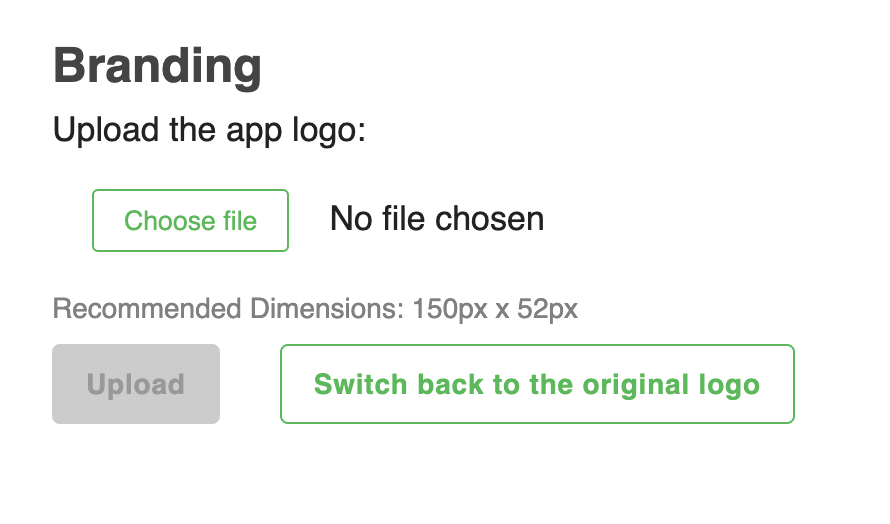
- Go to Settings → Branding.
- Click Choose file and select your company logo image from your computer.
- Click Upload to apply the new logo.
info
The new logo will appear in the DeskAlerts 11 dashboard interface immediately after upload.
Logo Requirements
Please make sure your logo image meets the following requirements:
- Recommended dimensions: 150px × 52px
- File format: PNG or JPG
- File size: Keep the file size optimized for faster loading
info
Logos that do not match the recommended size may appear distorted or improperly scaled.
Restoring the Default Logo
To revert to the original DeskAlerts 11 logo:
- Go to Settings → Branding.
- Click the Switch back to the original logo button.
The default DeskAlerts 11 branding will be restored immediately.