DeskAlerts 11 Troubleshooting
This article outlines common issues encountered with the DeskAlerts 11 Server and provides solutions to help diagnose and resolve them effectively.
Collecting Logs for Troubleshooting
To assist with diagnosing issues, it's important to gather the relevant log files from the DeskAlerts 11 components. Below is a guide to locating and collecting logs from the DeskAlerts 11 Server, Desktop Agent, and Mobile App.
Server Logs
DeskAlerts 11 Server stores logs in the following directories:
C:\inetpub\wwwroot\DeskAlerts\server\logsC:\inetpub\wwwroot\DeskAlerts\www\logsC:\inetpub\wwwroot\DeskAlerts\connection\logs
💡 The application may be installed on a different drive (e.g.,
D:\orE:\). Make sure to verify the correct installation path in IIS or with your IT administrator.
Each of these directories contains log files related to different components of the system:
- server/logs — API and backend logs
- www/logs — Web interface logs
- connection/logs — Service communication logs
Windows Agent Logs
Log files for the DeskAlerts 11 Windows Agent are stored in the user's local application data folder:
%LOCALAPPDATA%\DeskAlerts\*.log
macOS Agent Logs
For the macOS Agent, the log file is located inside the application bundle:
/Applications/DeskAlertsClient.app/Contents/MacOS/*.log
Use Finder or the Terminal app to navigate to this location.
Mobile App Logs
To collect logs from the DeskAlerts 11 mobile application (iOS or Android):
- Launch the DeskAlerts 11 mobile app.
- Navigate to More -> Troubleshooting.
- Click Double-tap on Application Version to collect the mobile app logs.
- Use the Export option to save and share the log file.
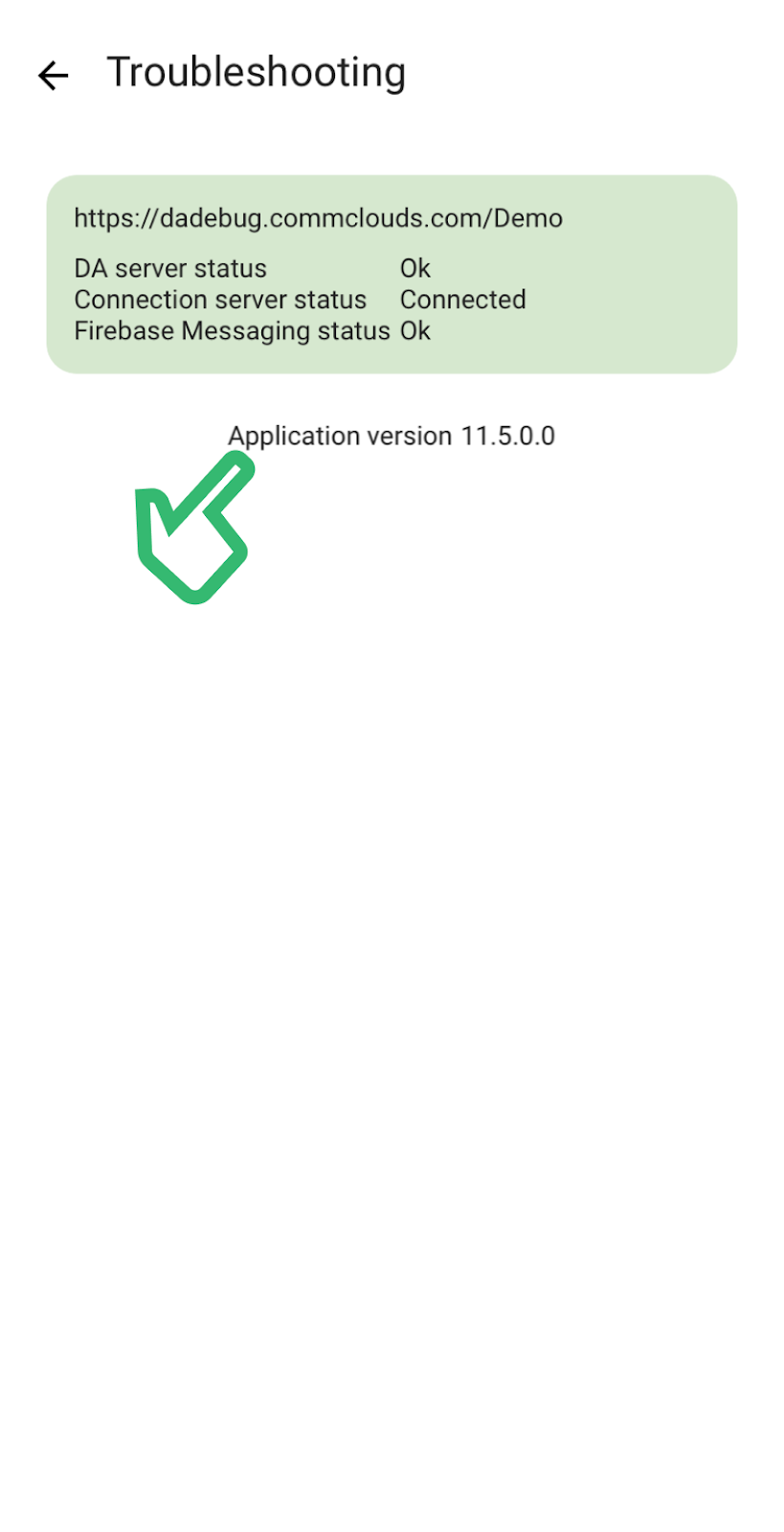
Make sure to collect all relevant logs when reporting issues to the support team to assist with faster diagnosis and resolution.
Cannot log in — No version number on the login page
Symptoms: Login page appears, but no version number is shown — this indicates the server is unhealthy and inoperable.
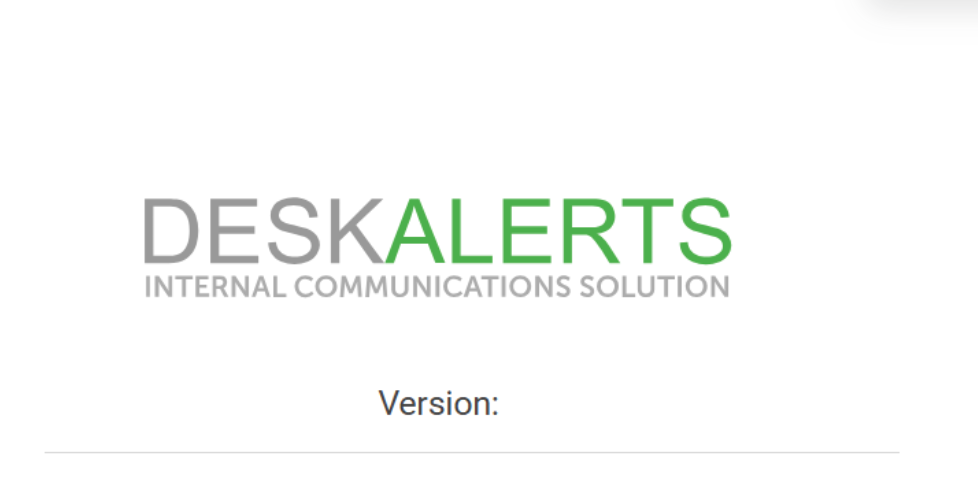
Troubleshooting Steps:
- Open Chrome DevTools (F12), select the Network → Fetch/XHR tab.
- Refresh the login page.
- Click on the
Authmethod and check the response status.
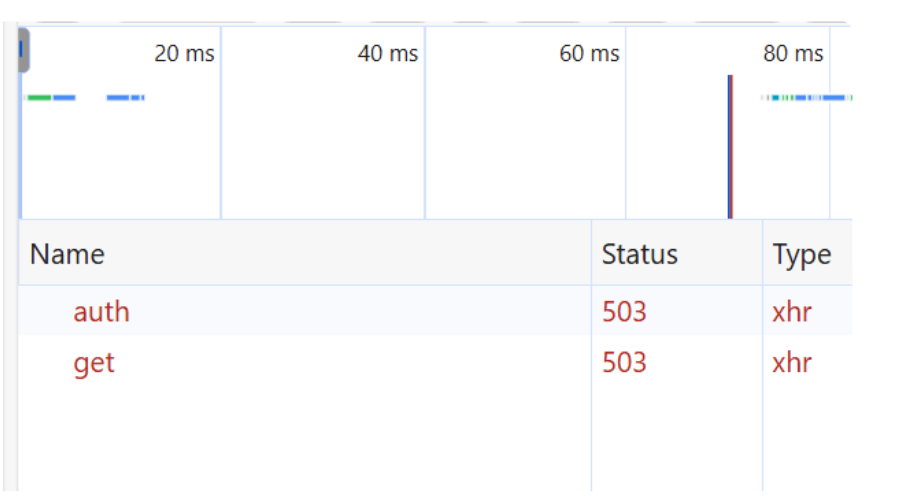
HTTP Error 503
Symptoms:
- The website returns an "HTTP Error 503. The service is unavailable" message.
- The application pool stops immediately after being started.
Cause:
- The application pool hosting the MS service is stopped.
- The Windows service account is disabled, expired, or restricted by group policies.
- SQL Server is configured to use Windows credentials, but the app pool identity lacks database access.
Solution:
- Go to IIS → Application Pools, find the pool with
_MSin its name, and start it. - Verify that the service account is active and not restricted.
- Configure the application pool identity to use a service account that has explicit access to the DeskAlerts database.
HTTP Error 500 + Long Loading Animation
Symptoms:
- The login page eventually appears but is missing the version number.
- Browser DevTools (F12) shows a 500 error on the Auth method.
- A persistent loading animation occurs before the error.
Cause:
- There is a database connection issue preventing the server from retrieving configuration data.
Solution:
- Check SQL Server connectivity using SQL Server Management Studio (SSMS).
- Verify that remote access is enabled on the SQL instance and that it is reachable from the web server.
HTTP Error 404
Symptoms:
- Users receive a 404 Not Found error when trying to access the DeskAlerts URL.
Cause:
- The IIS "Default Web Site" has a specific hostname defined in its bindings, which conflicts with the DeskAlerts configuration.
Solution:
- Navigate to IIS → Default Web Site → Bindings.
- Select the binding and click Edit.
- Clear the Hostname field to allow the site to respond to all incoming requests for that port.
HTTP Code 200 but Login Fails
Symptoms:
- The login request returns an HTTP 200 status, but the entry appears red in DevTools with an empty response.
Cause:
- The server is being accessed via a URL different from the one specified during installation.
- Potential issues with the alertsDir parameter or browser caching.
Solution:
- Access the server using the original URL provided during the installation process.
- Verify the
alertsDirparameter inC:\inetpub\wwwroot\DeskAlerts\server\appsettings.Production.json. - Clear the browser cache and try again.
HHTTP Error 500.19 — Internal Server Error
Symptoms:
- The server returns an HTTP 500.19 error page, often citing an invalid configuration or locked section.
Cause:
- Required server prerequisites or IIS modules are missing.
Solution:
- Install the following prerequisites in the exact order: IIS, URL Rewrite, ARR, and then .NET Runtimes.
HTTP Error 500.31 — Failed to Load ASP.NET Core Runtime
Symptoms:
- The application fails to start, showing an HTTP 500.31 error message.
Cause:
- There is a stale or incorrect
.NETversion referenced in theweb.configfile.
Solution:
- Reinstall the .NET prerequisites.
- Re-run the DeskAlerts 11 Server installer using the same parameters to overwrite and update the configuration files.
HTTP Error 500.37 — App Failed to Start in Time
Symptoms:
- The server returns an HTTP 500.37 error, indicating a timeout during startup.
Cause:
- A site conflict exists in IIS (duplicate names or IDs).
- The database is not accessible during the application's initialization phase.
Solution:
- Remove any old or duplicate websites from IIS and reinstall the server.
- Check the MS service logs for a healthy startup sequence; if not found, verify DB connectivity via SSMS.
HTTP Error 429 — Too Many Requests
Symptoms:
- Users or agents cannot connect, and IIS/MS service logs show HTTP 429 errors.
Cause:
- The server is receiving more than 30 authentication requests per second, exceeding the default hashing queue limit.
Solution:
- Open
C:\inetpub\wwwroot\DeskAlerts\server\appsettings.json. - Update the
HashingMaxQueueCountto300. - Recycle the MS application pool in IIS.
Application Pools (CS/MS) Fail to Start After Changing Identity
Symptoms: Even after configuring the Application Pool Identity to use a service account with administrative privileges, the _CS and _MS pools fail to start or stop immediately after manual activation.
Cause: The specified service account or the Administrators group lacks the necessary permissions to run as a background service on the server. Specifically, the Log on as a batch job right is missing in the security policies.
Solution:
- Open the Local Security Policy editor (
secpol.msc) or the relevant Group Policy Management console for your domain. - Navigate to: Security Settings → Local Policies → User Rights Assignment.
- Find the policy named Log on as a batch job.
- Check if the Administrators group (or the specific service account you are using) is listed.
- If missing, click Add User or Group... and add the required account or group.
- Apply the changes and run the following command in an elevated Command Prompt to refresh the policies:
gpupdate /force
- Restart the affected Application Pools in IIS.
"Only one usage of each socket address..." Error
Symptoms:
- Intermittent errors appear on the dashboard during actions.
- This typically occurs on high-traffic servers.
Cause:
- The server has exhausted the available ephemeral TCP ports.
Solution:
- Run the following commands in an Admin Command Prompt to increase concurrent request limits and expand the dynamic port range:
cd %windir%\system32\inetsrv
appcmd.exe set config /section:system.webserver/serverRuntime /appConcurrentRequestLimit:20000
appcmd.exe set apppool "DeskAlertsMS_" /queueLength:20000
netsh int ipv4 set dynamicport tcp start=10000 num=55535
- Verify the changes with
netsh int ipv4 show dynamicport tcp.
Disk C: is Full
Problem:
- IIS logs may consume system drive.
Solution:
- Check folder:
C:\inetpub\logs\LogFiles - Delete old log files.
- Move logs to a non-system drive:
- IIS → Server root → Logging → Directory
Alert Editor Form Not Displayed
Symptoms:
- The form for creating or editing alerts does not appear in the web interface.
Cause:
- The ARR (Application Request Routing) proxy is not enabled.
- A browser extension is blocking essential JavaScript files (e.g.,
tinymce.min.js).
Solution:
- In IIS, go to Application Request Routing → Server Proxy Settings and ensure Enable Proxy is checked.
- Try accessing the site in Incognito mode or another browser, and whitelist DeskAlerts in any script-blocking extensions.
Registration Type Is Disabled
Symptoms:
- Agents show the message: "The ability to perform this type of registration is disabled on your server".
Cause:
- The
AdConfigsetting is missing or incorrectly set in the DeskAlerts database (On-Premise deployments only).
Solution:
- Connect to the SQL database and verify the setting:
SELECT * FROM settings WHERE [name] = 'AdConfig'.
- If missing, insert the value
2using the provided SQL script to enable registration. - Restart IIS application pools and the DeskAlerts Agent.
Cloud Clients: If your DeskAlerts 11 environment is hosted in the cloud, please contact support@deskalerts.com for assistance.