DeskAlerts Microsoft Teams Bot installation and configuration
Pre-requisites
- Active Azure Subscription
- A Resource group within the subscription
- Teams module license for DeskAlerts server
1. Create Azure Bot resource
1.1. Register the Application
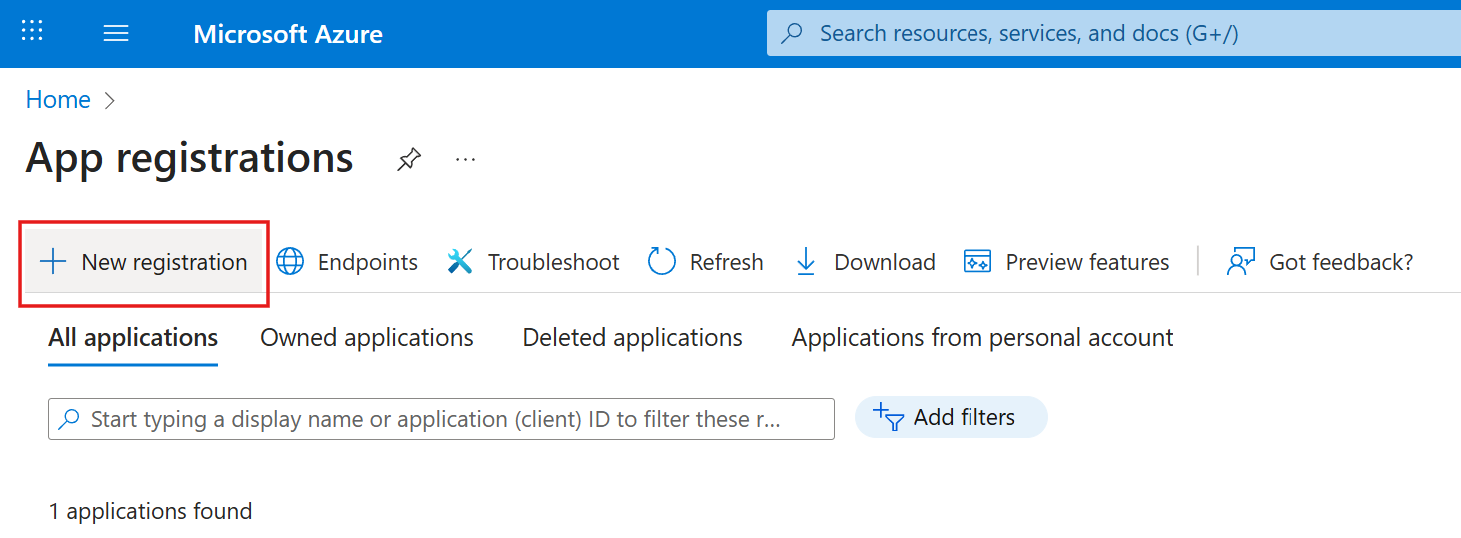
Go to Azure portal → "App registrations" → "New registration"
1.2. Choose Account Type
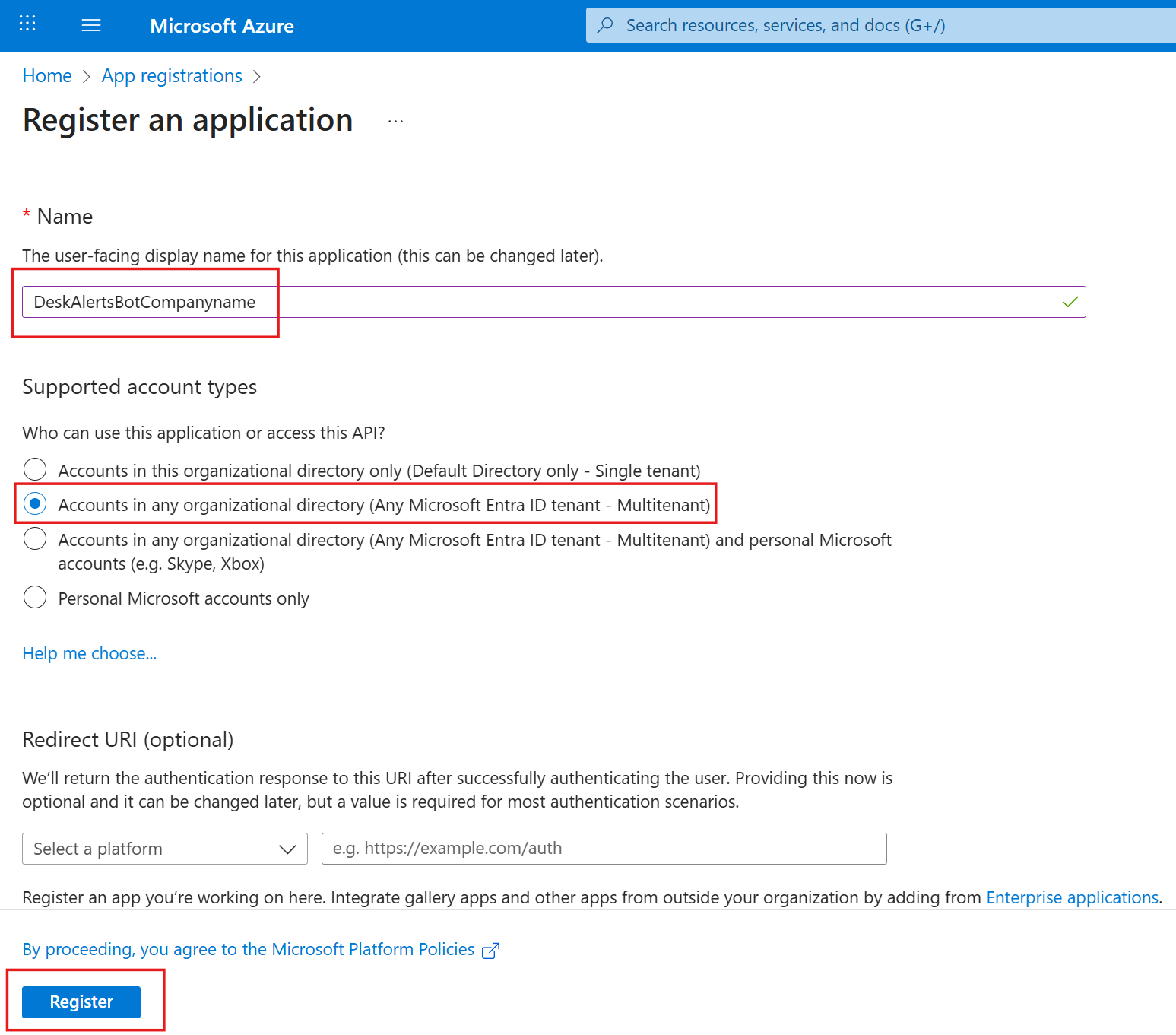
- Name: Any unique name
- Supported account types: Accounts in any organizational directory (Any Microsoft Entra ID tenant - Multitenant)
- Click "Register"
1.3. Save App ID and Tenant ID
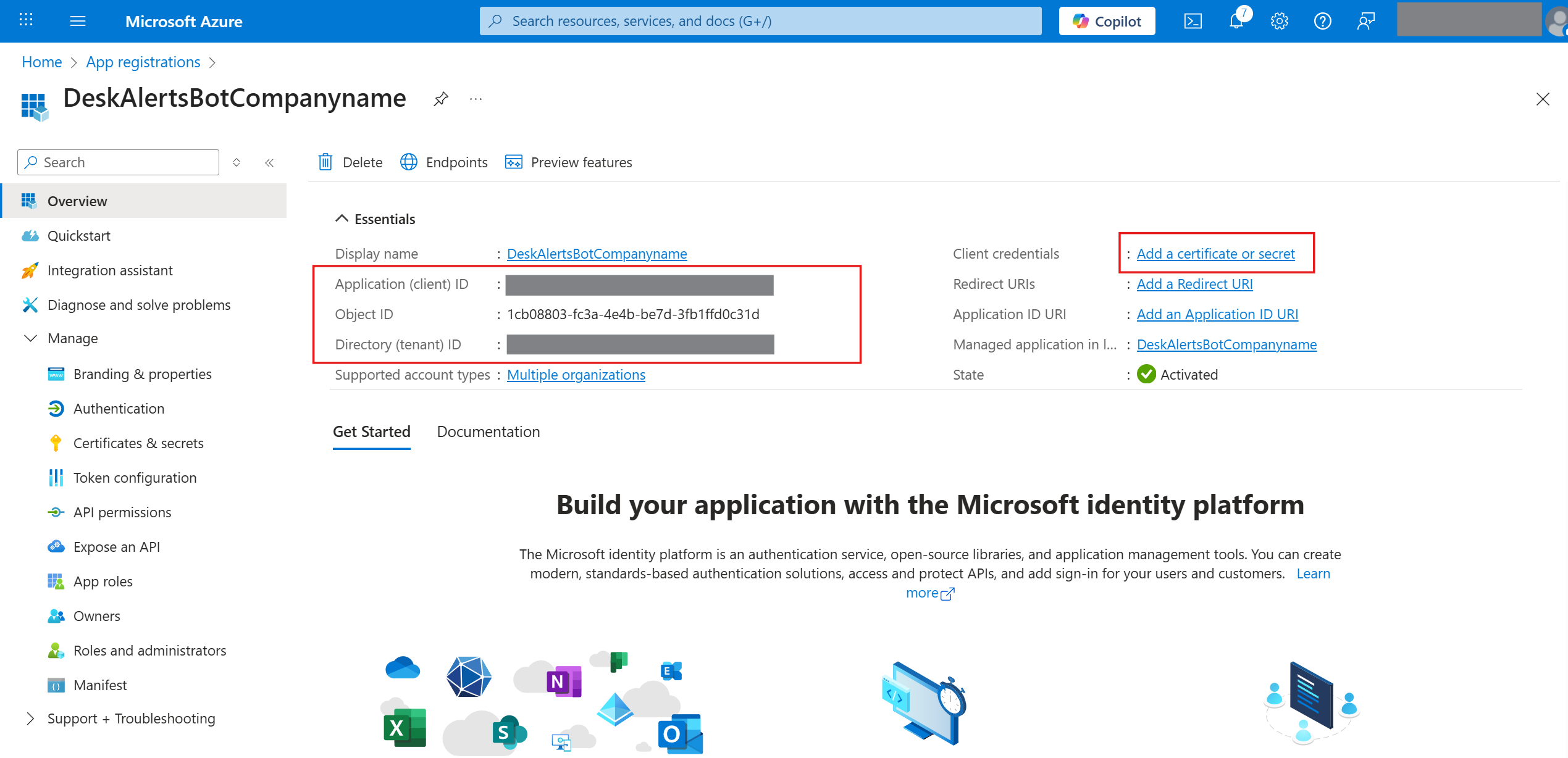
- After the app is created, copy the Application (client) ID and Directory (tenant) ID to a secure location
- Click “Add a Certificate or Secret”.
1.4. Create a Client Secret
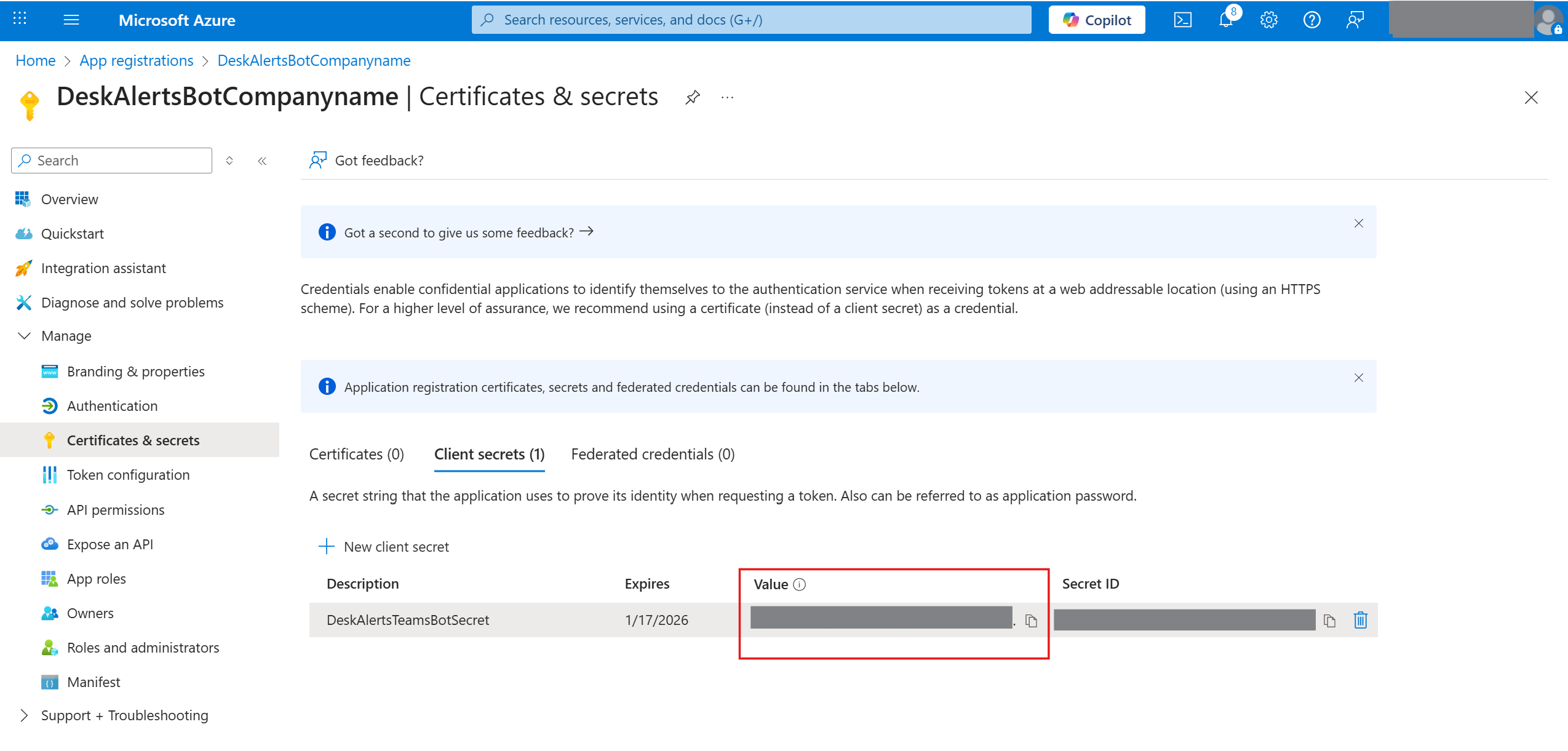
- Click “New Client Secret”.
- Set a Description and Expires date.
- Click “Add”.

- Copy the Secret Key Value and save it.
1.5. Create Azure bot
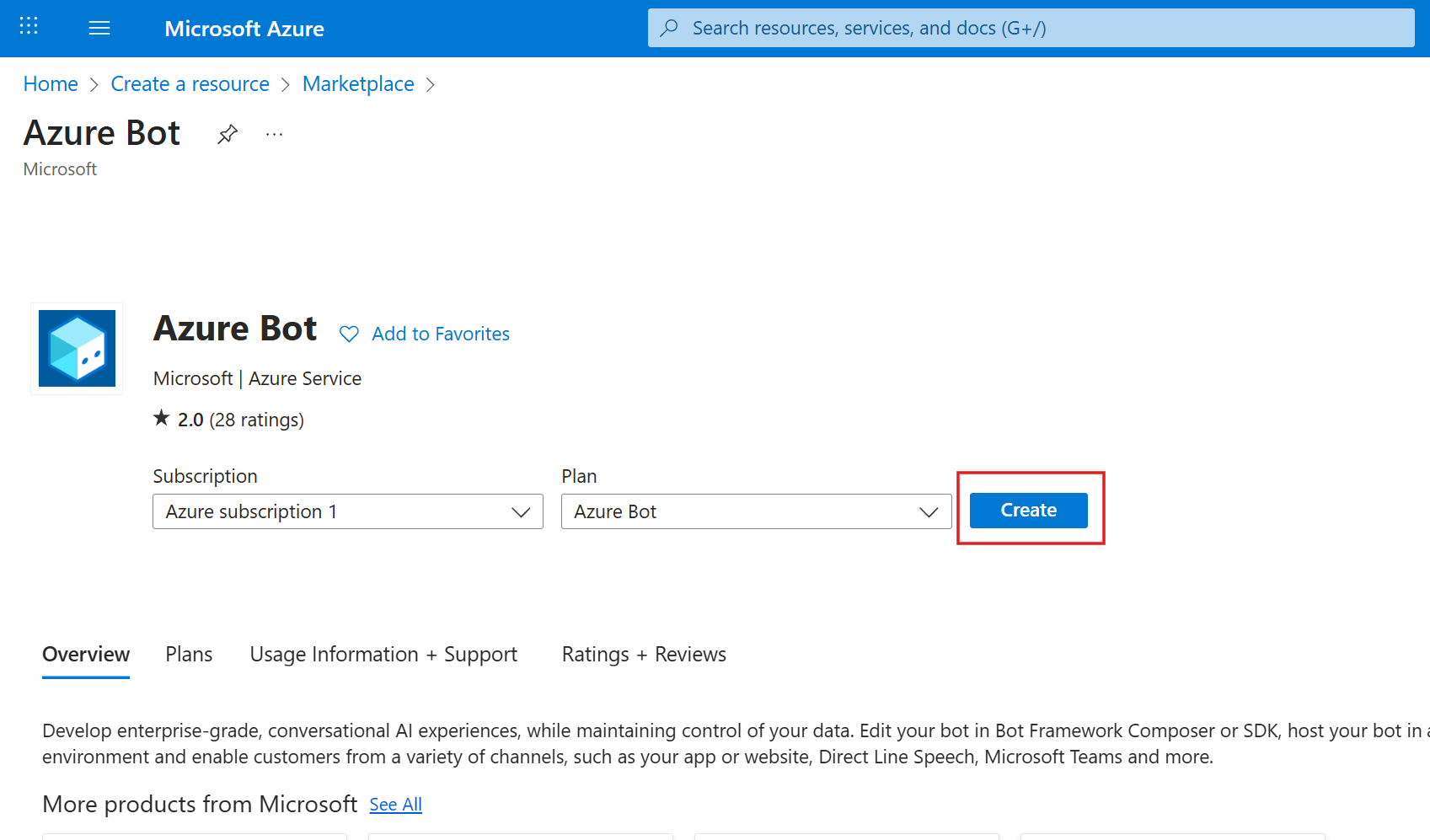
Go to Azure portal, click "Create a resource" → find a resource called "Azure bot" and click Create
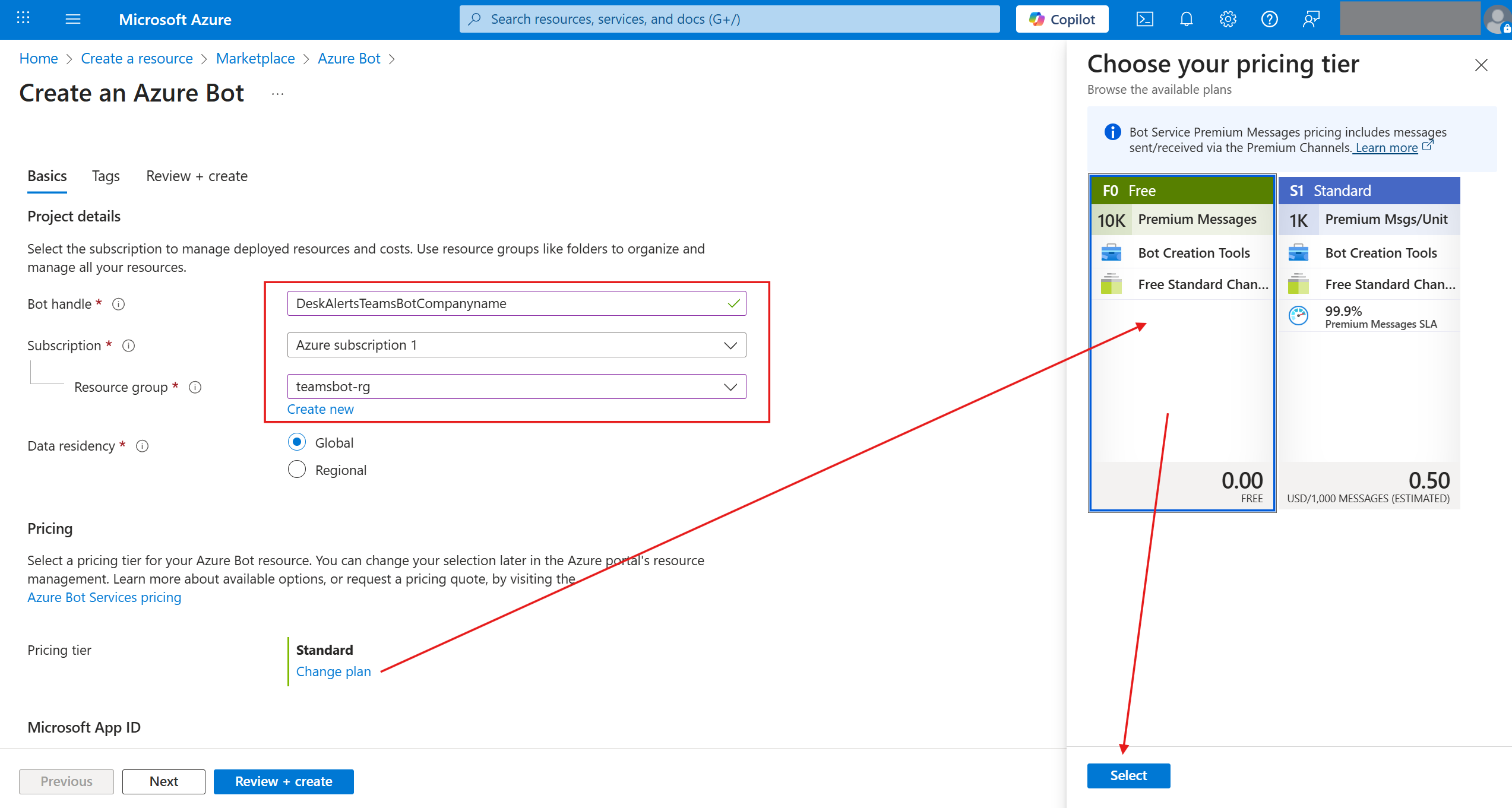
Configure parameters:
- Bot handle (Globally unique)
- Select Subscription and Resource group
- "Pricing tier" → "Change plan" → "Free" → "Select"
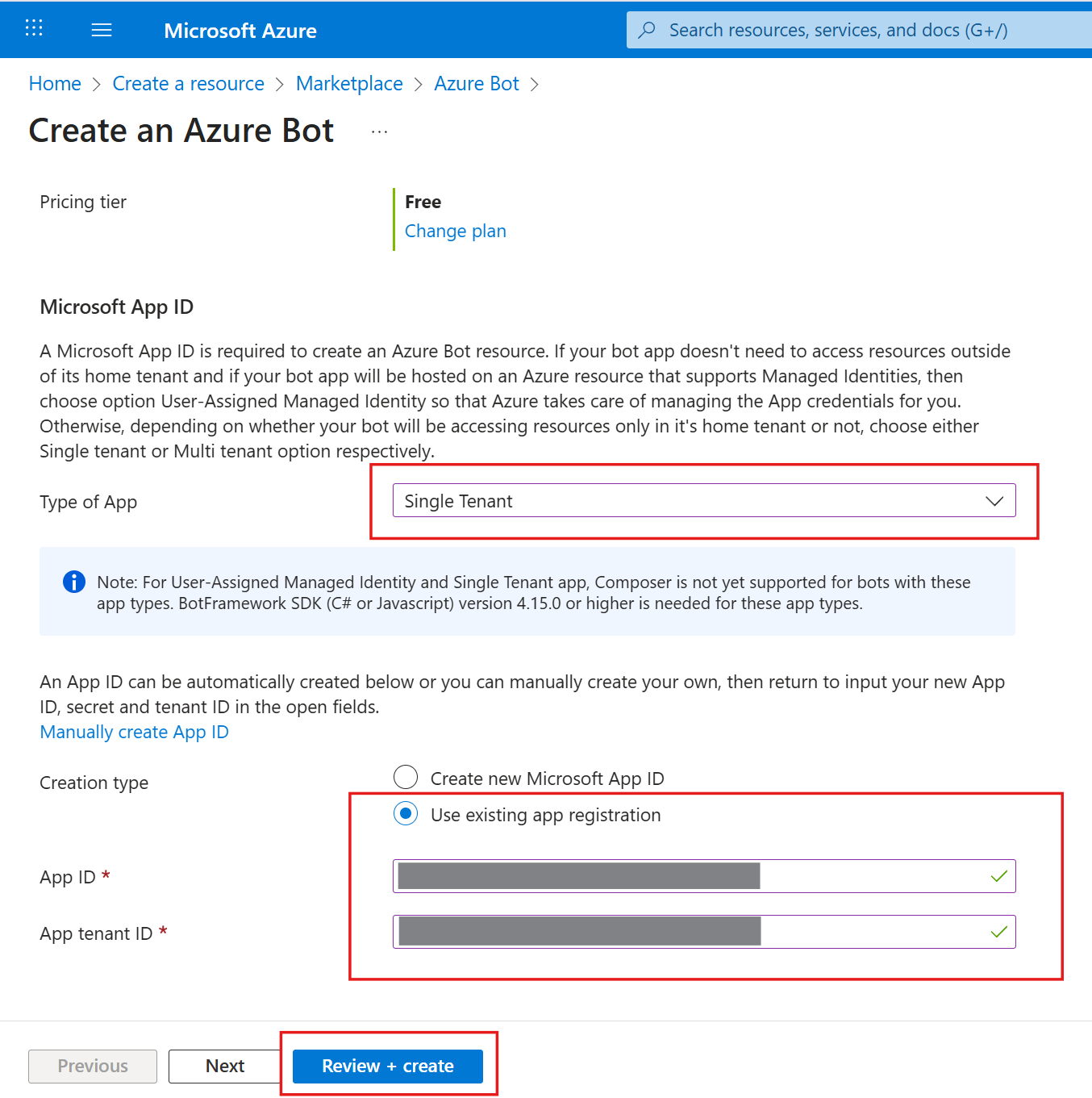
- Type of App → "Single tenant"
- Creation type → "Use existing app registration"
- App ID: paste "Application (client) ID" you copied earlier
- App tenant ID: paste "Directory (tenant) ID" you copied earlier
Click "Review + create" → "Create"
Wait for resource deployment to finish and click "Go to resource"

1.6. Set Up the Bot Profile
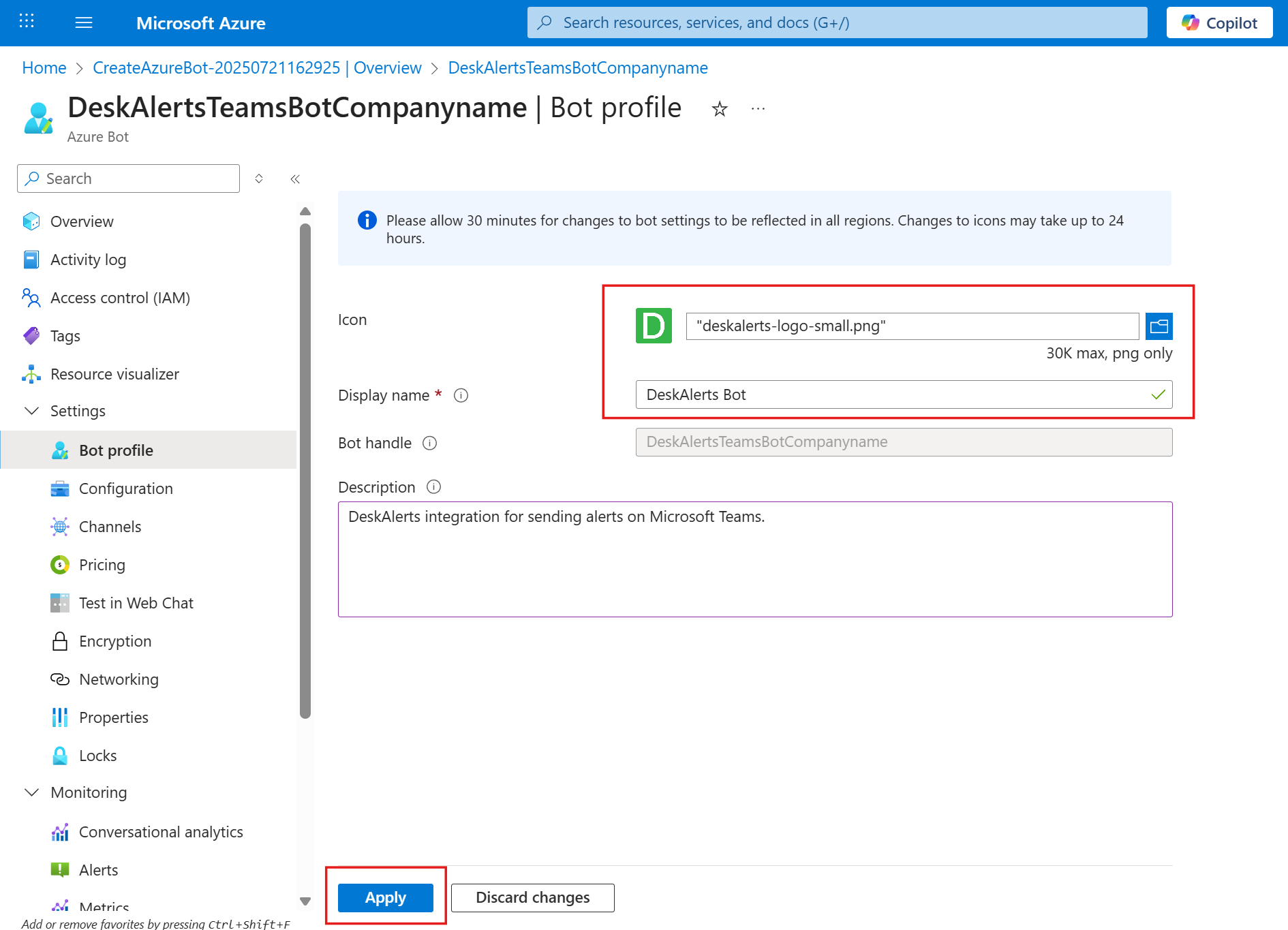
Adjust optional settings:
- Icon: a PNG image of your choice
- Display Name.
- Description
- Click “Apply”.
1.7. Configure DeskAlerts Endpoint
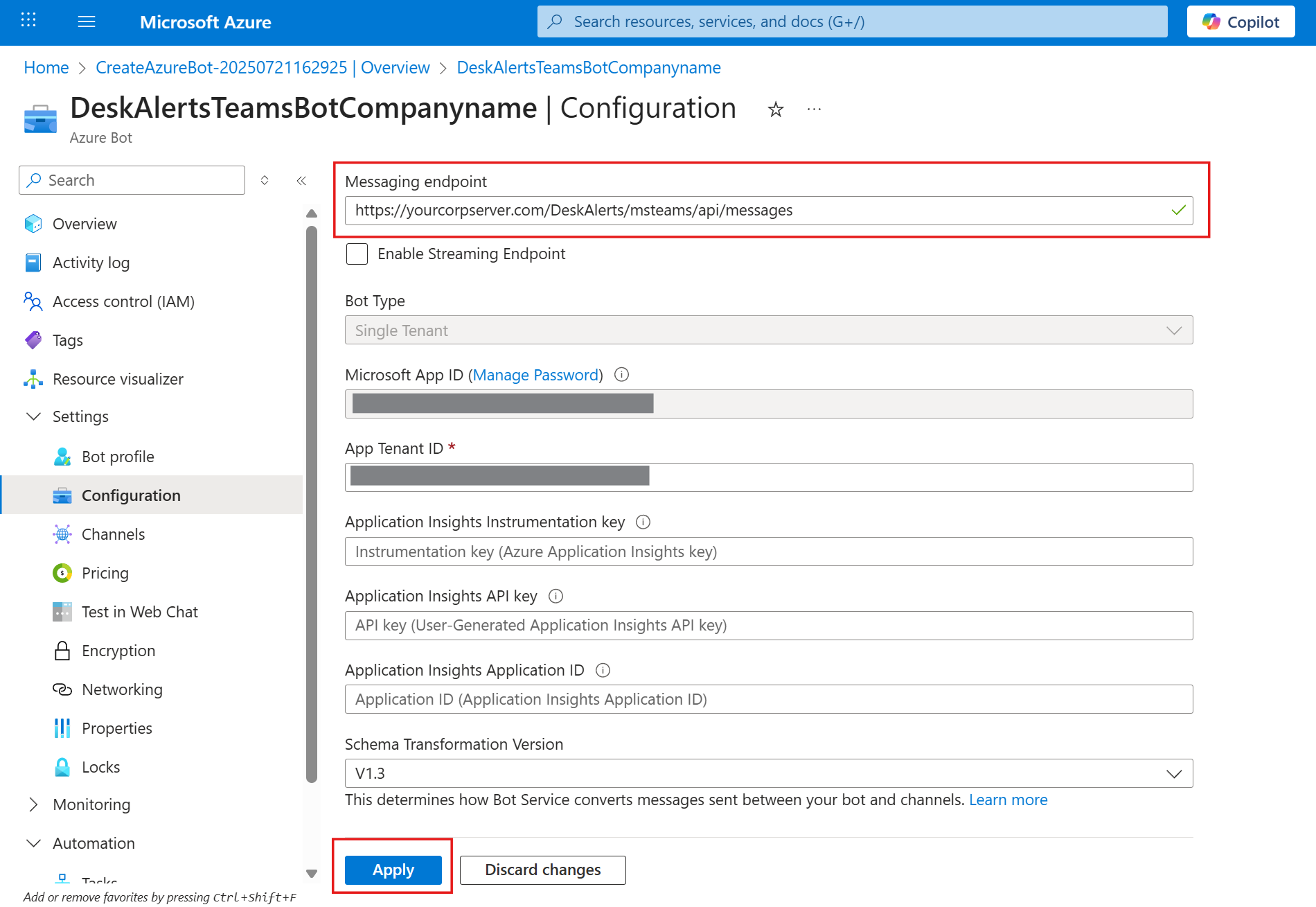
- Navigate to "Settings" → "Configuration".
- Add the DeskAlerts Messaging endpoint:
https://yourcorpserver.com/DeskAlerts/msteams/api/messages(wherehttps://yourcorpserver.com/DeskAlertsis your DeskAlerts URL, andmsteams/api/messagesis the endpoint the bot will use to send the alerts) - Ensure this URL is reachable over the internet.
- Click “Apply”.
1.8. Connect bot to Microsoft Teams channel
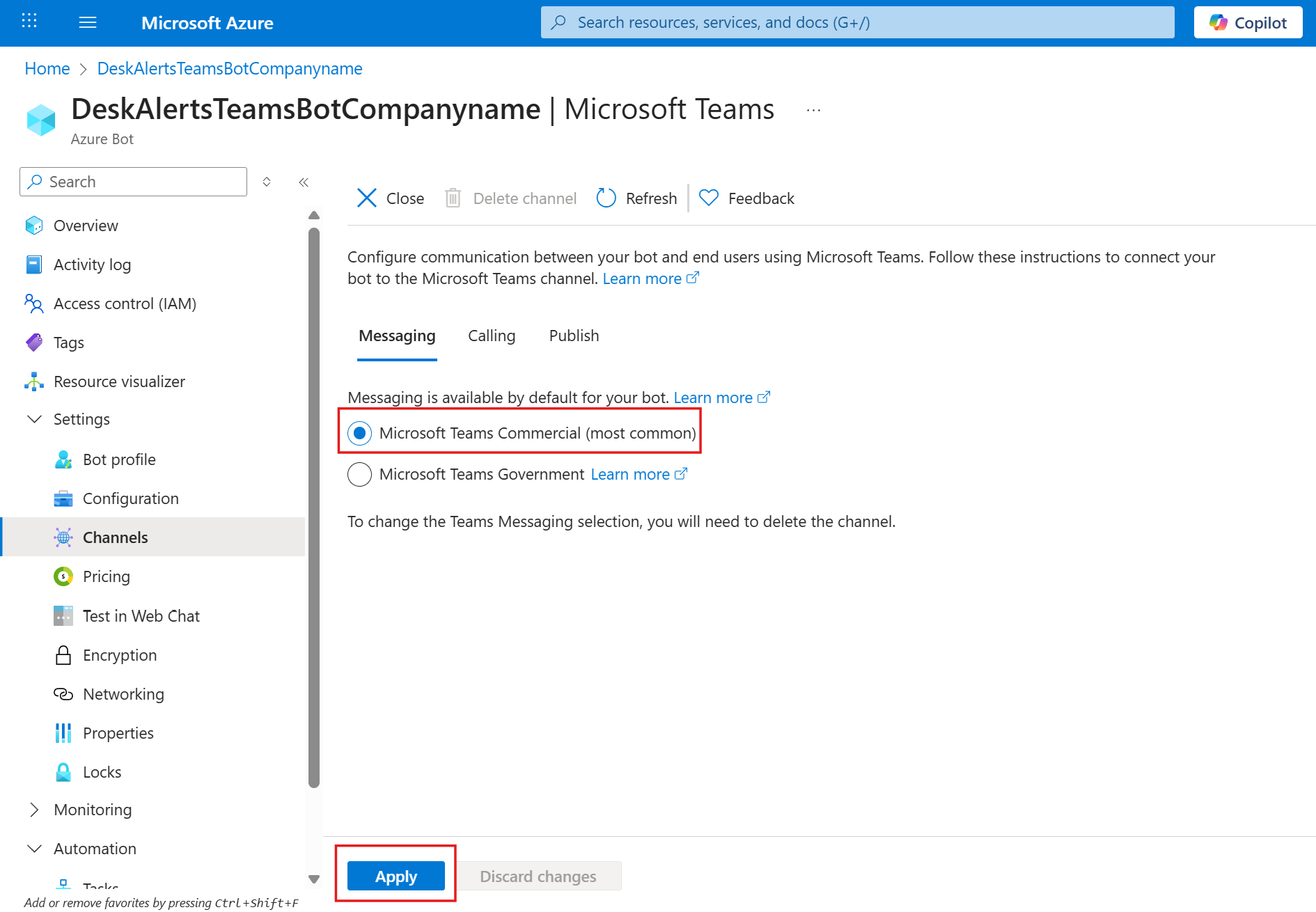
- Navigate to "Settings" → "Channels".
- Find Microsoft Teams.
- Click Add.

- Agree with Terms and Conditions.

- Messaging: Microsoft Teams Commercial (most common).
- Click Apply.
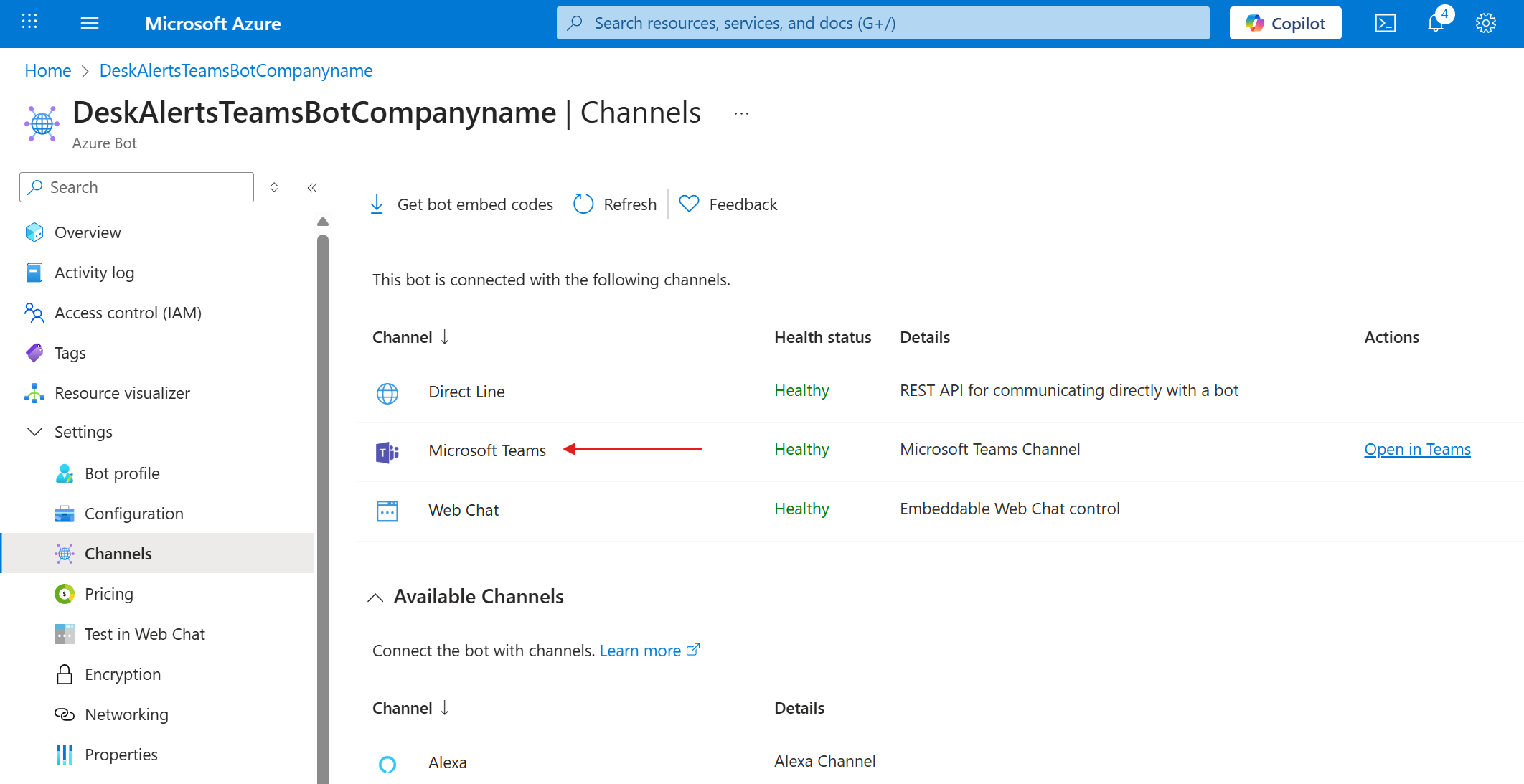
- Close the channel configuration page and verify that the Microsoft Teams channel is available
2. Install DeskAlerts Server and Configure Integration
2.1. Install DeskAlerts Server
You need to provide Teams Bot credentials in the DeskAlerts server installer. If fields are left blank, the Teams Bot service will not be created by the installer, which makes Teams integration impossible.
- Perform DeskAlerts Server install.
- Insert App ID, Tenant ID, and Secret Value in the MS Teams configuration window of the installer and finish the install.

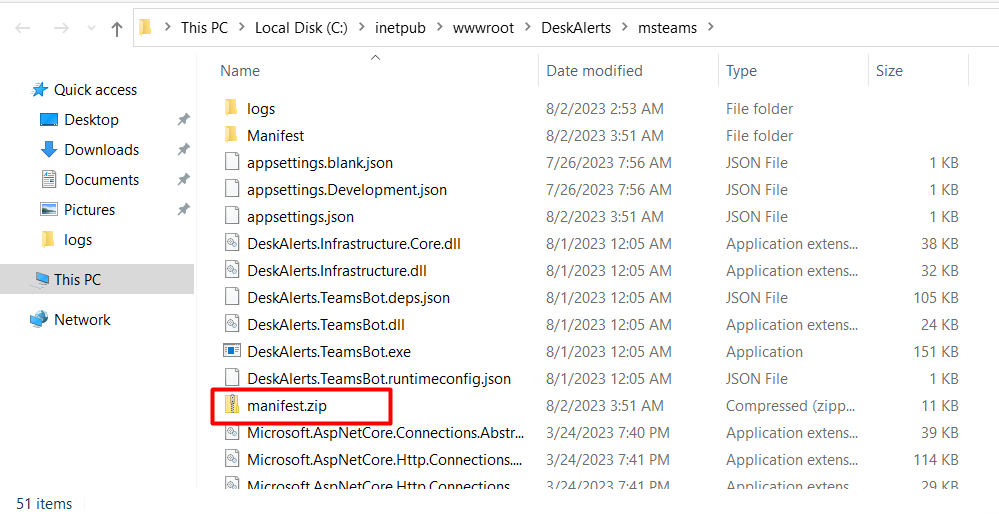
2.2. Locate the Manifest File
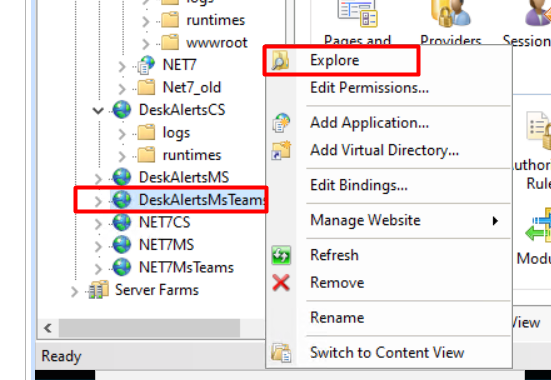
- After installation is finished, navigate to
DeskAlertsMSTeamsservice folder (C:\inetpub\wwwroot\DeskAlerts\msteamsby default) and take a note of themanifest.zipfile location. You can navigate to this folder in IIS if you right click theDeskAlertsMSTeamswebsite and selectExplore.
3. Add DeskAlerts Teams Bot Application to your tenant
3.1. Open MS Teams Admin Center
- Log into Azure as a user with the "Teams Administrator" role
- Navigate to Microsoft Teams admin center → Teams Apps → Manage Apps.
3.2. Upload the Manifest File
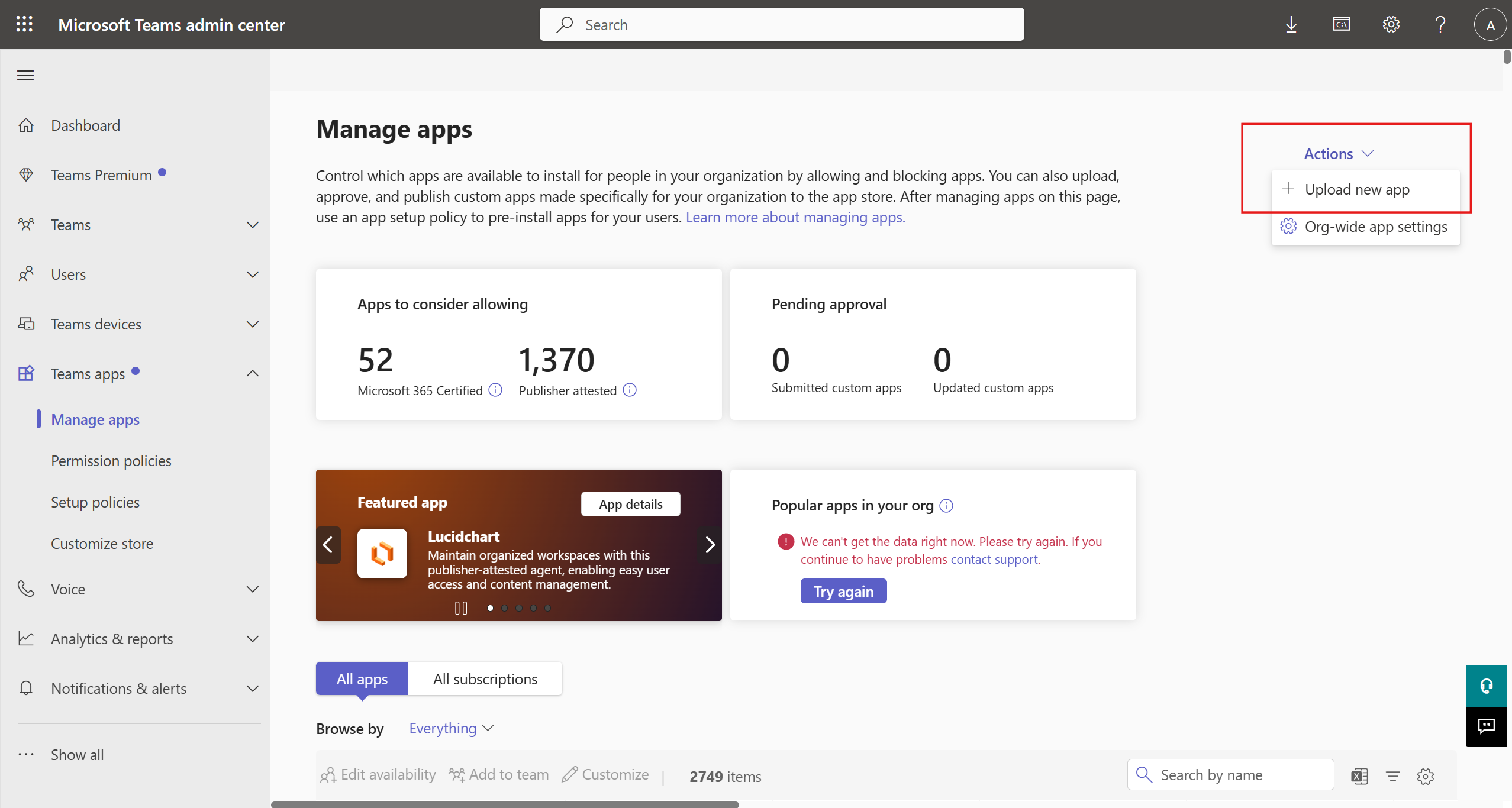
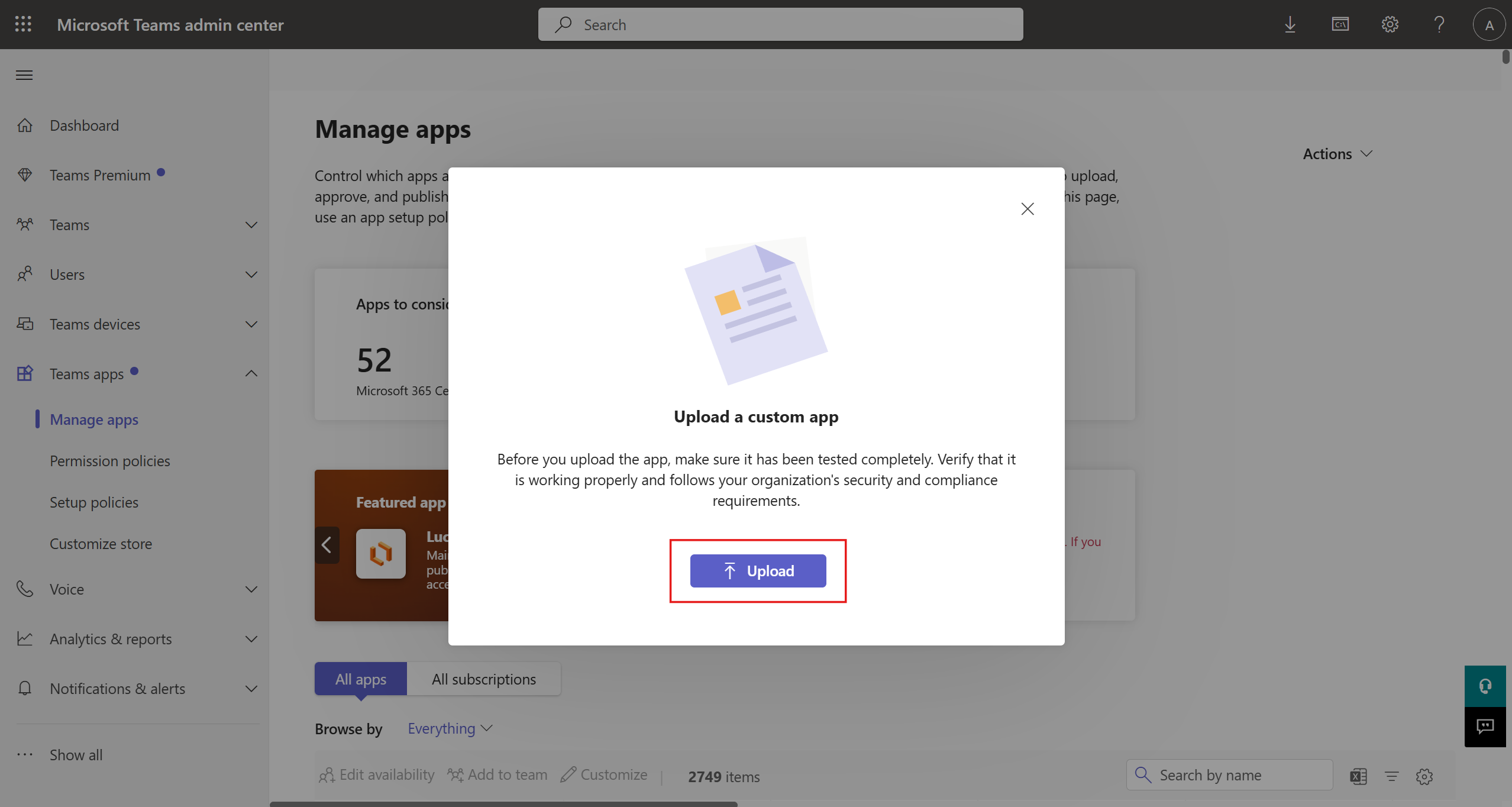
- On the right side of the page select Actions → Upload New App.
- Select the
manifest.zipfile.
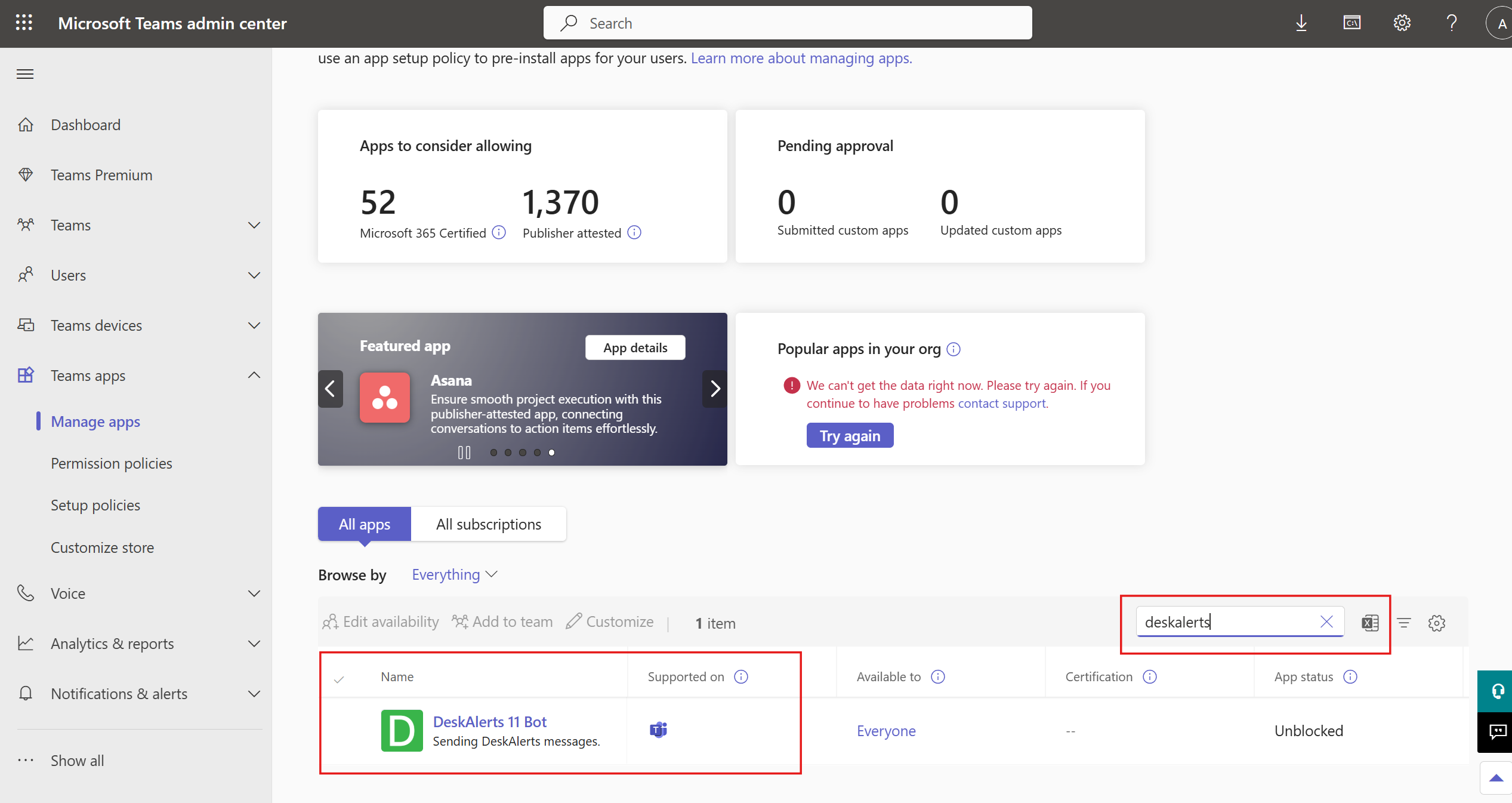
- After upload completes search for "DeskAlerts" to verify it has been installed:
Note: Azure AD synchronization must be performed on your DeskAlerts server and Teams users must be present in the DeskAlerts Audience.
4. Add DeskAlerts Teams Bot to all users in the tenant
- In Microsoft Teams Admin center navigate to Teams apps → Setup policies → Click Global (Org-wide default)
- installed apps → Add apps → find "DeskAlerts 11 Bot" in the list → Click Select → Add
![Configure setup policy on tenant]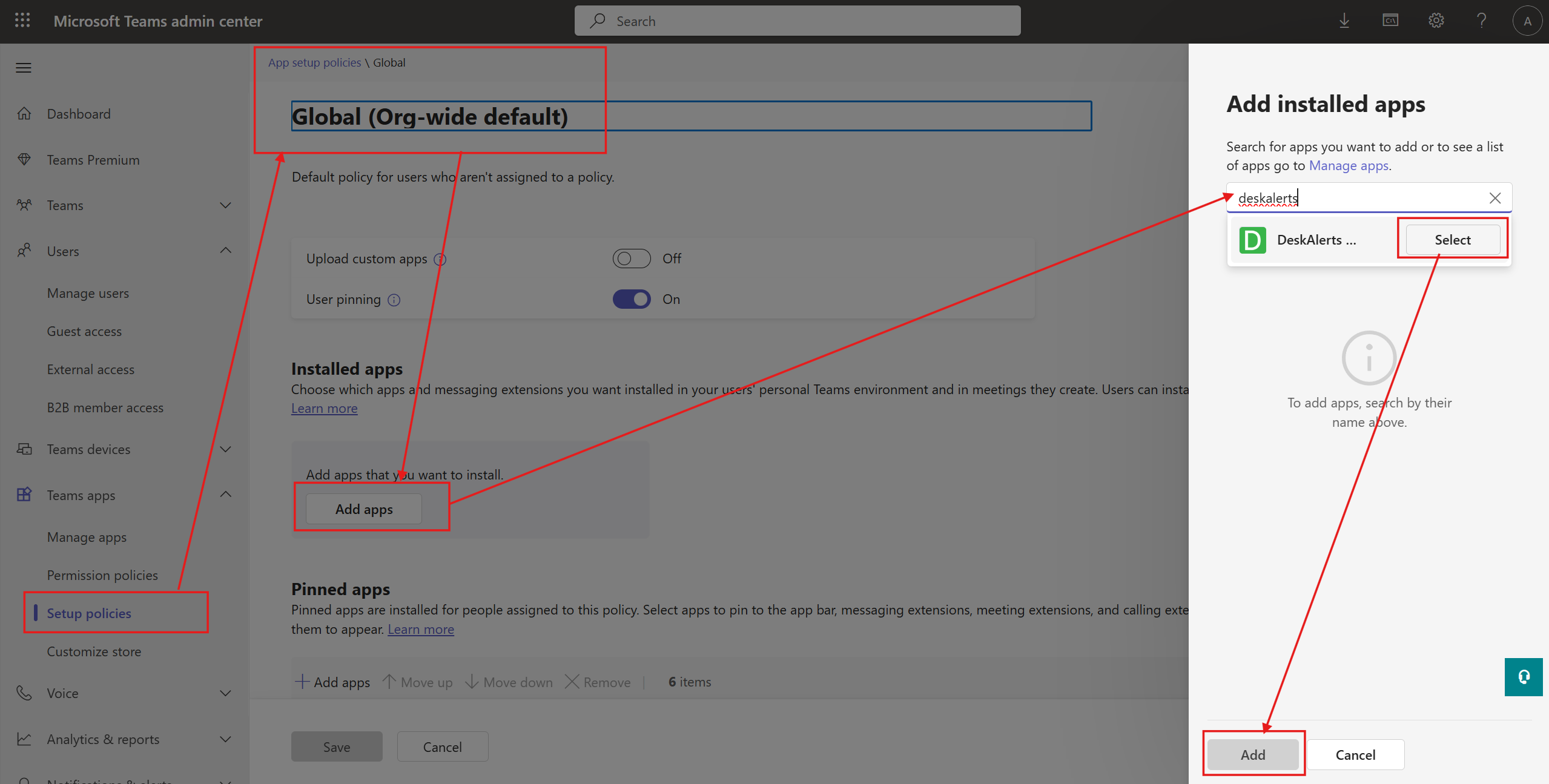
- Add the app to pidded the same way (optional)
- Clieck Save
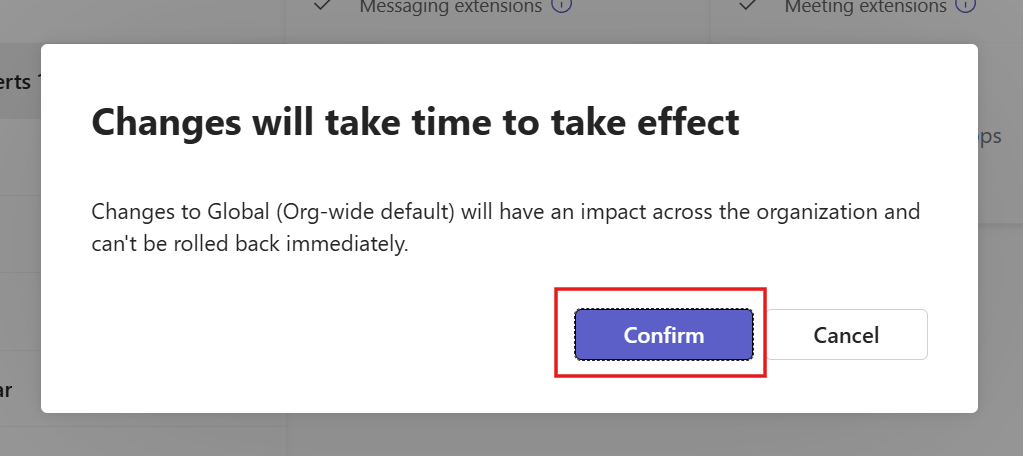
- Confirm changes t oGlobal (Org-wide default) policy by pressing Confirm
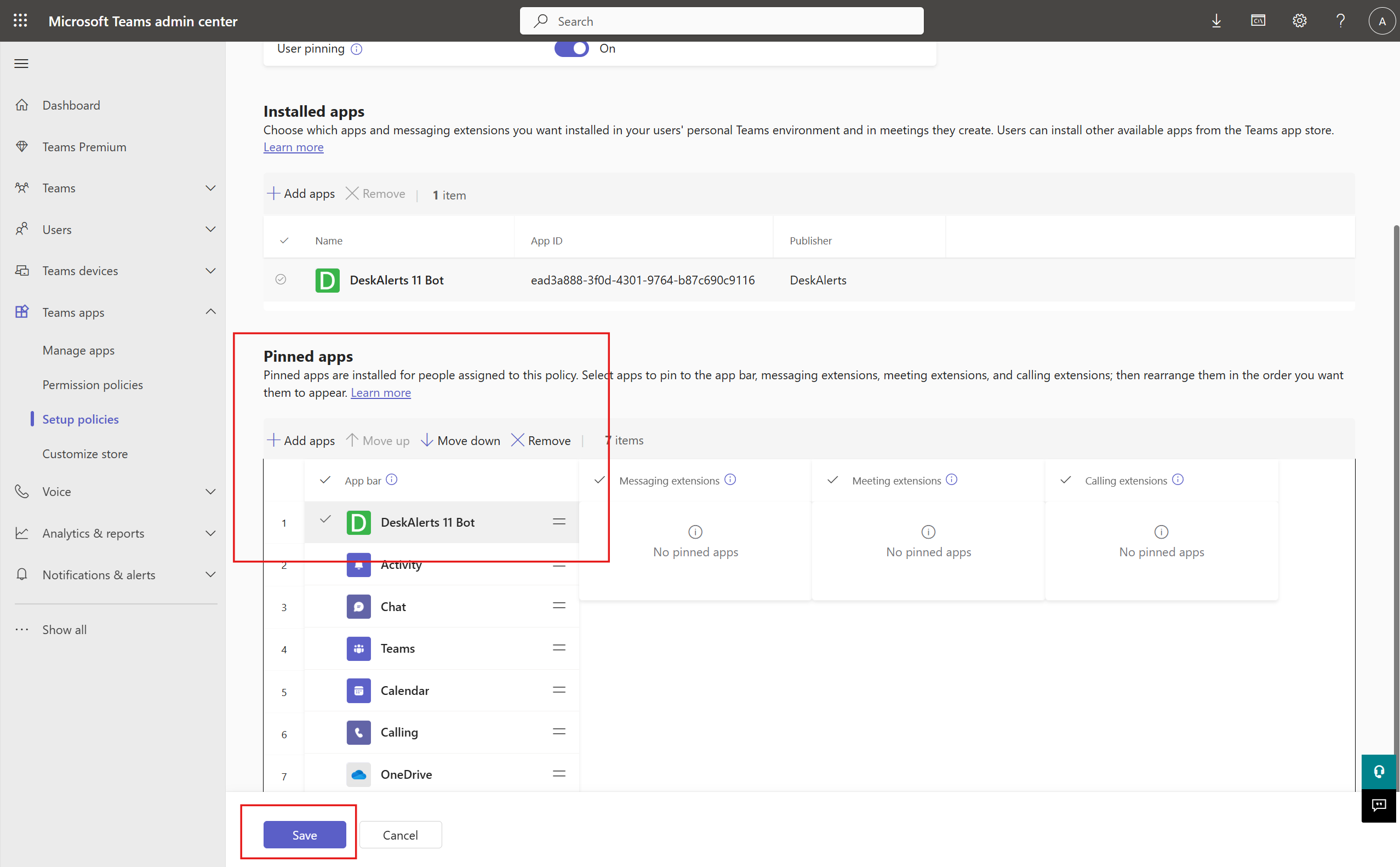
Users will receive DeskAlerts Teams bot app and it will be pinned according to the policy:

If configured correctly, MS Teams will display the following confirmation:

Troubleshooting
If you see an error message like this:

Steps to Resolve:
- Go to the DeskAlerts server and initiate Azure AD Sync.
- Delete the DeskAlerts bot in MS Teams.
- Add the bot again from the list of applications.
