SMS and Text-to-Call Module Configuration
Overview
This guide details the configuration process using Twilio as the service provider, specifically utilizing a trial account.
The DeskAlerts platform does not have native capabilities for independent SMS transmission. Integration with a third-party SMS gateway is mandatory for this module to function.
Prerequisites
Before you start, make sure you have:
- DeskAlerts Server 11 installed and running
- Access to DeskAlerts Server settings
- A mobile phone number you can use to register and test SMS delivery
- Internet access from the DeskAlerts Server to Twilio API endpoints
Twilio Account Registration and Preparation
Registration
- Navigate to
https://www.twilio.comand register for a new account - During the trial account setup, you will be required to provide and verify a personal phone number.
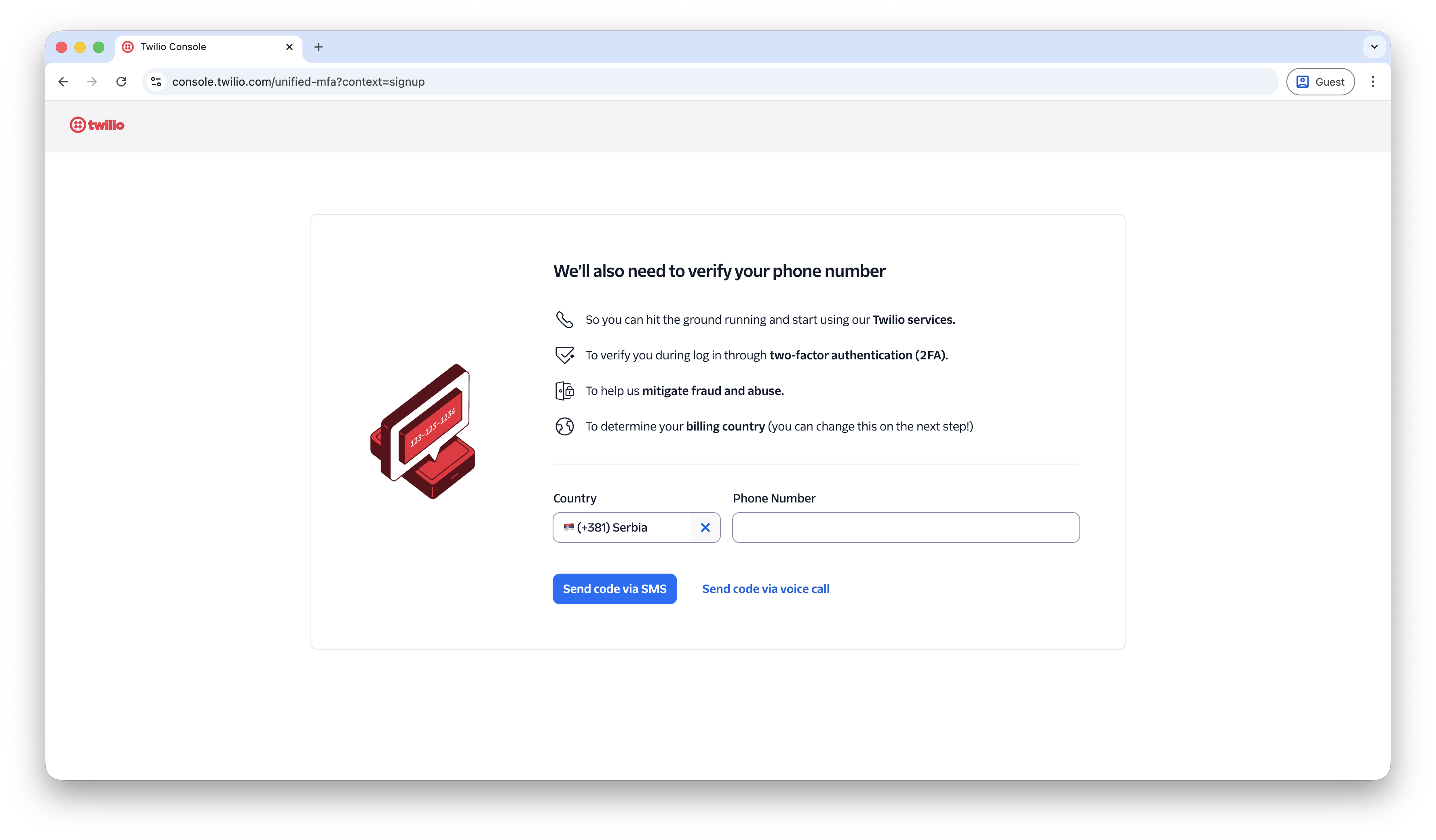
This phone number will later be used for sending test SMS messages.
Acquiring a Twilio Number
Upon successful registration and login, you will be directed to the Twilio Console Dashboard.
- Click the Get a Twilio phone number button.
- Trial accounts are eligible for one complimentary phone number.
Technical Requirements
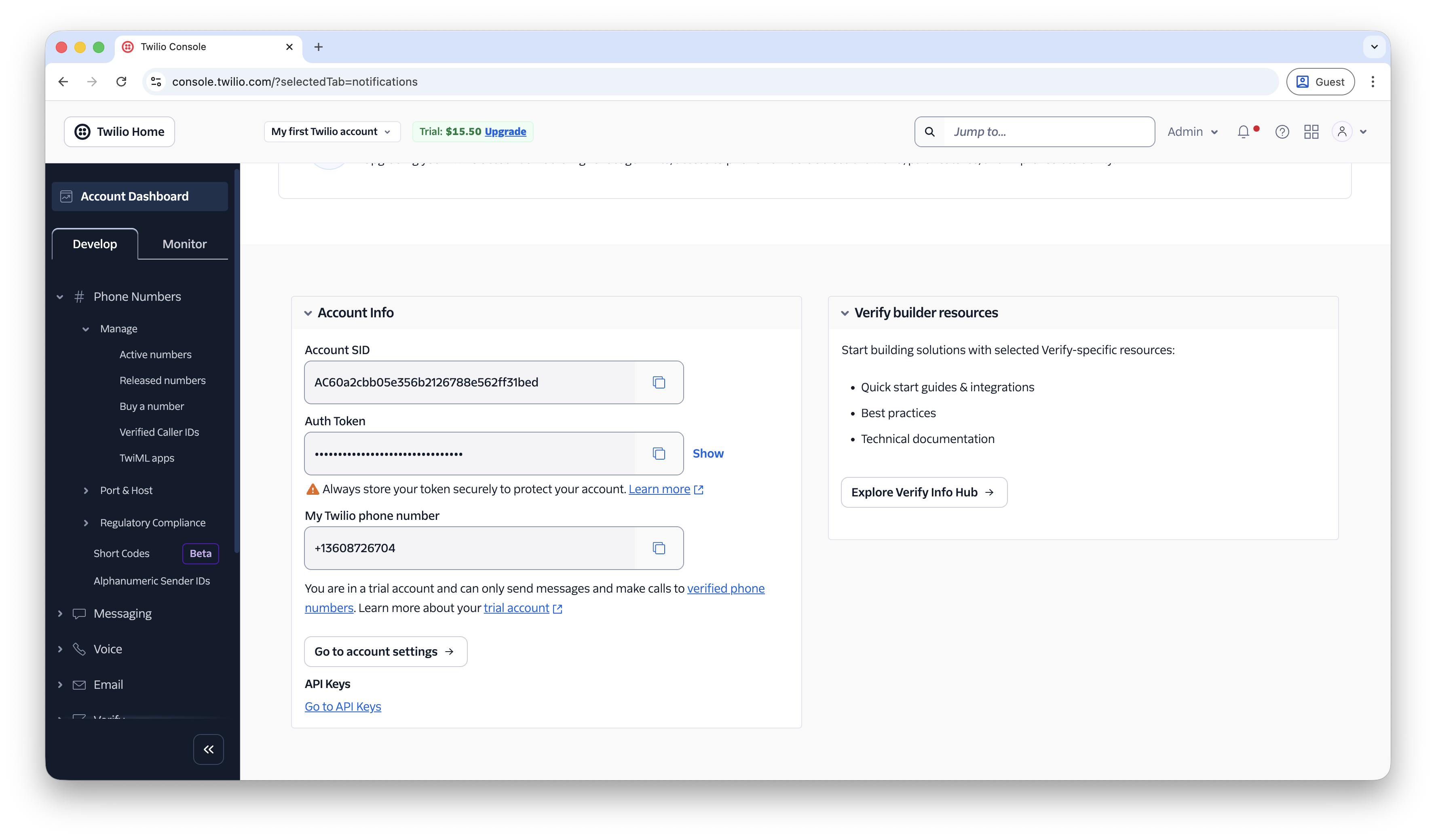
Locate and record the following credentials from your Dashboard, as they are essential for the DeskAlerts configuration:
- Account SID
- Auth Token
- My Twilio phone number
SMS Module Configuration
Configuration
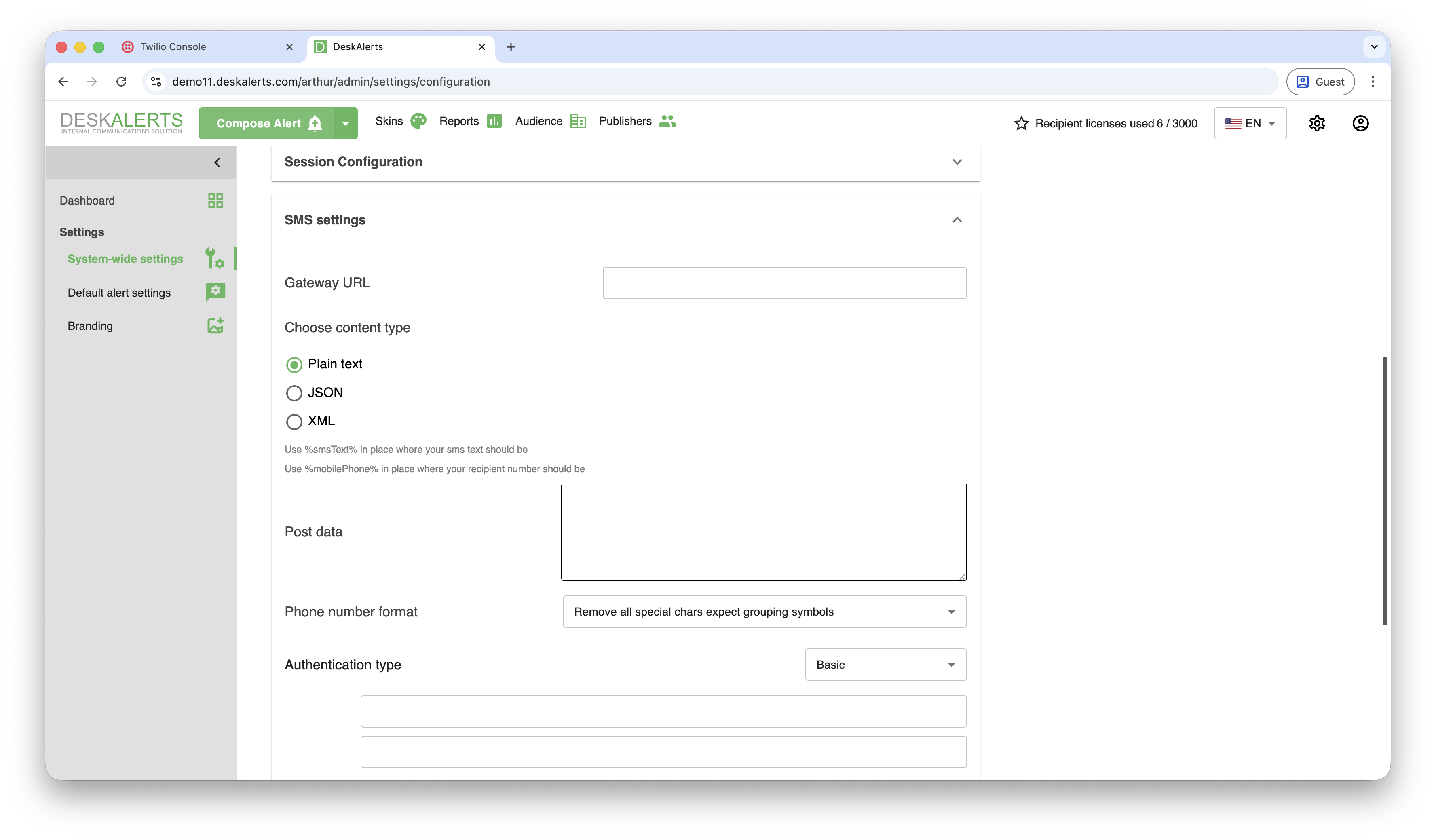
In the DeskAlerts control panel, navigate to Settings -> System wide settings -> SMS settings. Configure the parameters as follows:
| Field | Value / Instructions |
|---|---|
| Gateway URL | https://api.twilio.com/2010-04-01/Accounts/YOUR_ACCOUNT_SID/Messages.json |
(Replace YOUR_ACCOUNT_SID with your actual Account SID) | |
| Content type | Select Plain text |
| Post data | From=YOUR_TWILIO_PHONE&To=%mobilePhone%&Body=%smsText% |
(Replace YOUR_TWILIO_PHONE with your acquired number) | |
| Phone number format | Remove all special chars except grouping symbols |
| Authentication Type | Basic |
| User / Password | Input your Account SID (as User) and Auth Token (as Password) |
| SMS test number | Enter the personal phone number previously verified in Twilio |
Configuration Validation
- Click Save to apply the changes.
- Click Send test SMS to verify the integration.
- A successful configuration will result in a test message delivered to your verified number.
Monitoring and Logs
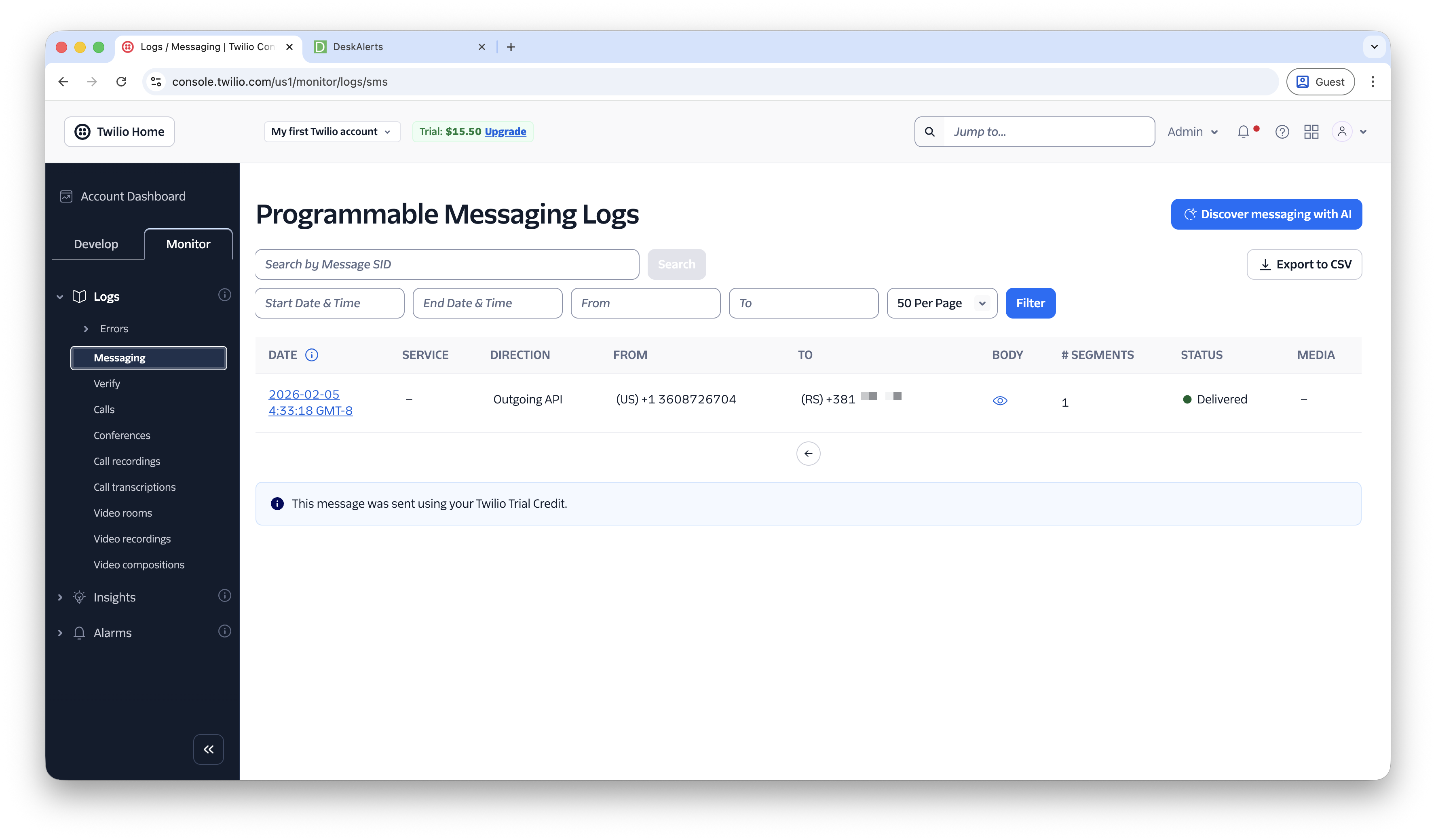
To monitor outgoing messages and troubleshoot issues, use the Twilio Console:
- Navigate to Monitor.
- Select Logs -> Messaging.
Account Limitations
Please be advised that a Twilio Trial Account is intended solely for functional testing and sandbox environments. It includes several restrictions, such as the ability to send messages only to verified phone numbers. For production environments and full-scale deployment, a Paid/Full Twilio Account must be purchased.
Text-to-Call Module Configuration
Overview
Text-to-Call allows sending alerts as voice calls. The system converts text into speech and delivers it via a phone call.
This feature works only if:
- The user has a phone number configured
- The corresponding notification channel is enabled
Configuration Steps
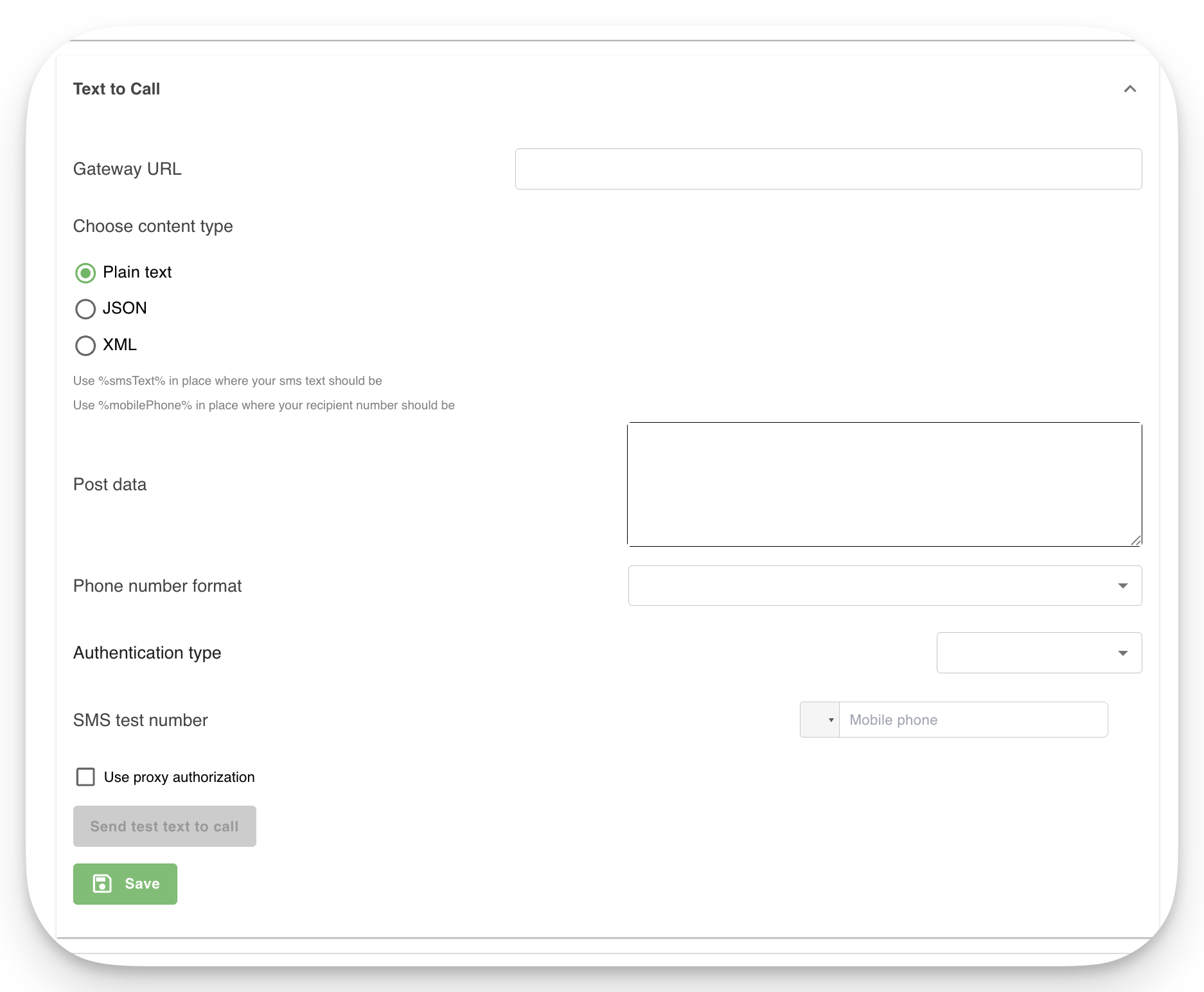
In the DeskAlerts control panel, navigate to Settings -> System wide settings -> Text-to-Call. Configure the parameters as follows:
| Field | Value / Instructions |
|---|---|
| Gateway URL | https://api.twilio.com/2010-04-01/Accounts/YOUR_ACCOUNT_SID/Calls.json |
(Replace YOUR_ACCOUNT_SID with your actual Account SID) | |
| Content type | Select Plain text |
| Post data | From=YOUR_TWILIO_PHONE&To=%mobilePhone%&Twiml=<Response><Say>%smsText%</Say></Response> |
(Replace YOUR_TWILIO_PHONE with your acquired number) | |
| Phone number format | Remove all special chars except grouping symbols |
| Authentication Type | Basic |
| User / Password | Input your Account SID (as User) and Auth Token (as Password) |
| SMS test number | Enter the personal phone number previously verified in Twilio |
How It Works
- Alert is triggered in DeskAlerts
- System sends request to gateway
- Gateway initiates a call
- Message is read aloud using Text-to-Speech