Installing the Agent on Windows
Overview
The DeskAlerts 12 desktop agent for Windows is distributed as an MSI package — DeskAlertsClient12.x.x.x.msi (a separate DeskAlertsClient12.x.x.x-arm64.msi exists for Windows on ARM). It can be installed interactively with the setup wizard, or silently from the command line for mass deployment. This page describes both and the parameters the package accepts.
According to DeskAlerts distribution policy, agent installation packages are not published for public download. Request the package for the current version from the DeskAlerts Support team.
Before You Start
- The server URL with
https://, exactly as the server is published — for example,https://alerts.company.com. - The registration method the server accepts under Settings → Users & access → Audience access level.
- Administrator rights on the workstation; the package installs per machine for all users.
- If the server uses a certificate the workstation does not trust (a test server with a self-signed certificate), decide whether to import the certificate or to install with Allow untrusted SSL certificate.
- Remove an existing DeskAlerts 11 agent first: uninstall it, delete the folder
C:\Program Files\ToolBarStudio Inc\DeskAlerts Client software, and then install the 12 package. If the earlier version was installed by a deployment tool whose cache was cleaned, the removal fails with error 1714 — see Troubleshooting.
Interactive Installation
The screens below are those of the 12.1.0.3 package (DeskAlerts Agent Setup), installed in Advanced mode; Express mode shows only the EULA, the mode, the server URL, and the last two screens.
-
Run
DeskAlertsClient12.x.x.x.msias administrator. The setup wizard opens with the End-User License Agreement; select I accept the terms in the License Agreement and click Next.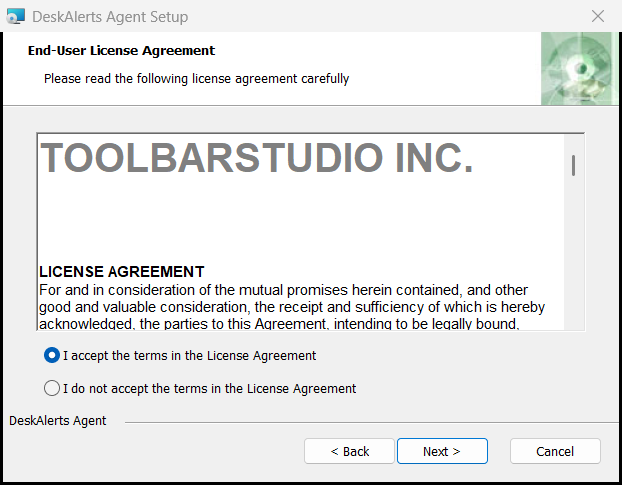
-
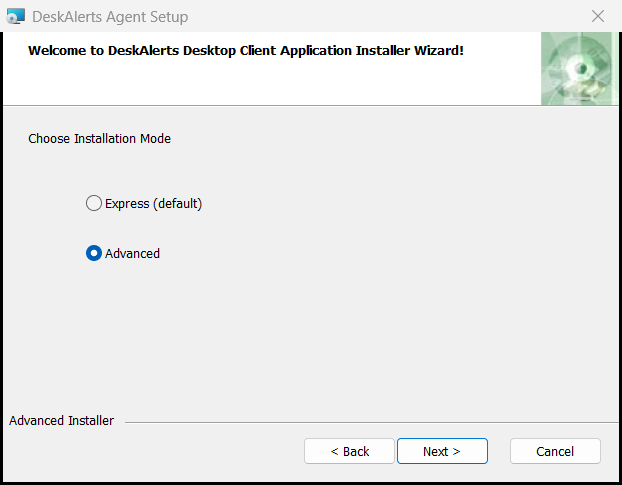
Choose Installation Mode:
- Express (default) — installs with the default registration method (Simple — a sign-in form on first start), the default folder, the Windows service, and the default shortcuts. Only the server URL is asked for.
- Advanced — lets you choose the shortcuts, the folder, the registration method, and the optional features.
-
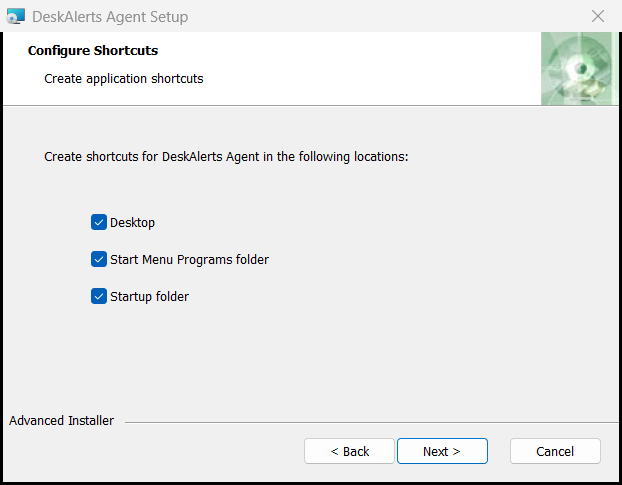
(Advanced) Configure Shortcuts: Desktop, Start Menu Programs folder, Startup folder — all three selected by default. Keep the Startup folder shortcut — it starts the agent with the user's session.
-
(Advanced) Select Installation Folder (by default
C:\Program Files\ToolBarStudio Inc\DeskAlerts Client software\); Browse… chooses another folder.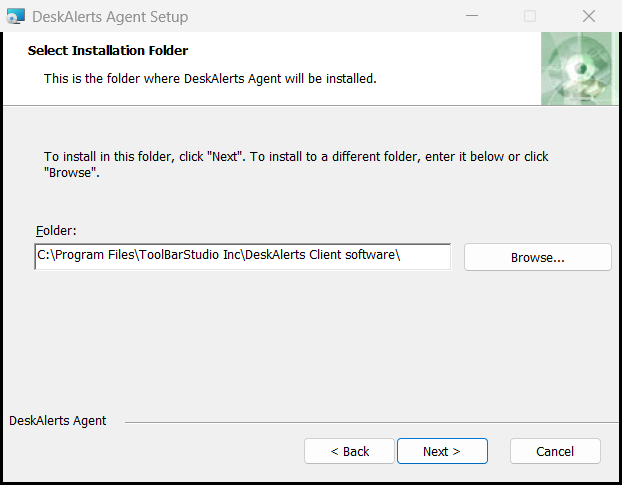
-
Specify DeskAlerts Server URL connection string: enter the
https://address in Server URL (Enter a server https URL address). Under Advance, leave Allow untrusted SSL certificate at No (default); Yes is for test servers whose certificate the workstation does not trust.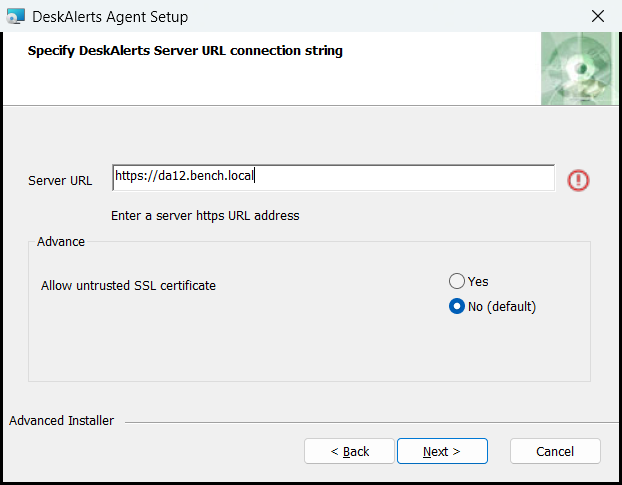
-
(Advanced) Installation Type — Client Registration/Authentication Method: select how the agent identifies the user — Simple (preselected), ComputerName, SimpleAD, AzureAD, Seamless, SeamlessHybridUserAD, or SeamlessForAzureAD (see the table below). The Windows service is installed by default; it can be left out only from the command line (
ENABLE_SERVICE=false).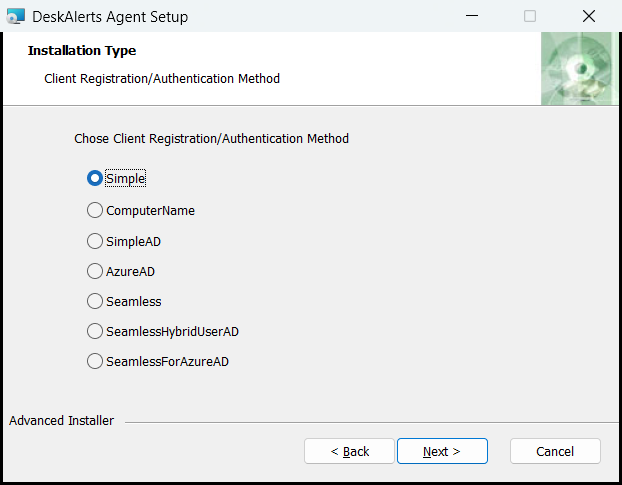
-
(Advanced) Advanced Installation settings: Disable Wallpaper, LockScreen and Screensaver — No (default) keeps the three features, Yes leaves them out. Alerts on the locked screen are controlled from the command line (
ALERT_ON_LOCKSCREEN).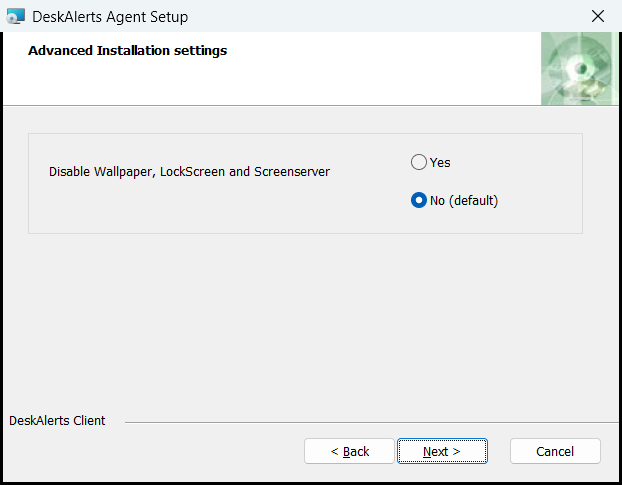
-
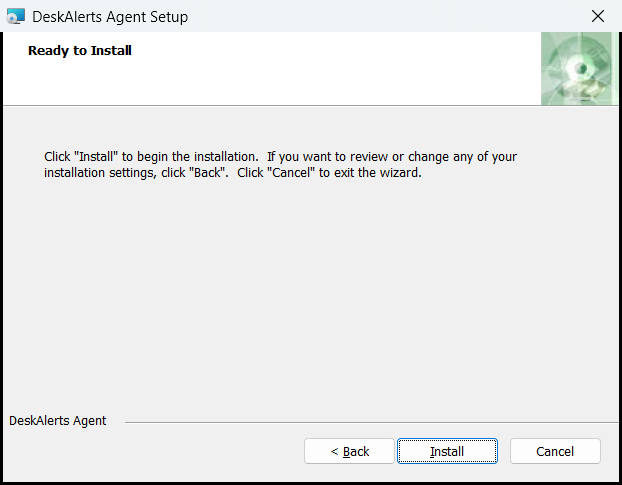
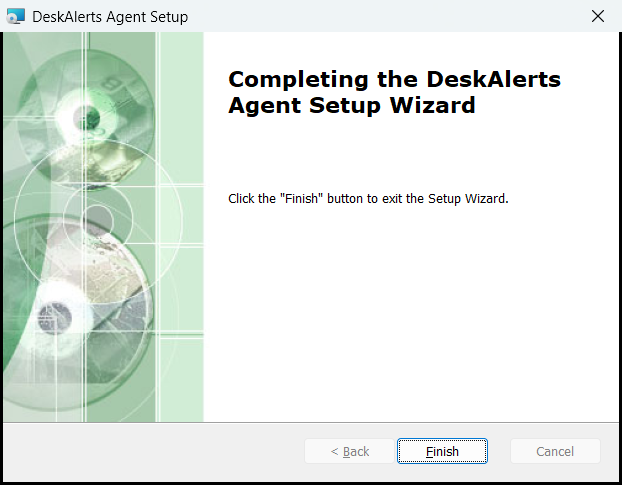
Ready to Install: click Install. The Installing DeskAlerts Agent screen shows the progress (about a minute), then Completing the DeskAlerts Agent Setup Wizard appears; click Finish. The agent starts immediately and registers with the server — with the Simple method it opens the sign-in window described under Verifying the installation.
Registration methods
| Value | Method | Behavior on first start | Requirements |
|---|---|---|---|
0 | Simple | A sign-in form: user name, password, optional email and mobile phone. The server verifies the credentials or creates the user when self-registration is allowed | Audience Access Level that allows self-registration |
1 | Computer name | Registers the computer by its name; the user is not identified. Not recommended: computers with the same name in different domains collide | — |
2 | Simple AD | Registers silently with the domain account of the signed-in user on a domain-joined device; on other devices (LDAP mode) a form asks for the Active Directory credentials | User synchronized from Active Directory; SimpleAdForNonDomainDevices on the server for the form |
3 | Azure AD | Interactive Microsoft sign-in (with MFA when the tenant requires it) | User synchronized from Microsoft Entra ID |
5 | Seamless | Registers silently: the agent sends the computer name, the Windows user name, and a per-installation ID. The server creates the computer and the user in its internal Registered domain if they do not exist yet and links them permanently, so alerts can target the computer or the person. Works for domain and local accounts alike (Windows only); the computer counts as online while at least one of its users is connected | — (no directory synchronization needed; the names are what echo %COMPUTERNAME%, %USERNAME% prints) |
6 | Seamless hybrid | Registers silently with the Windows identity of the signed-in user and matches it to the account synchronized from Entra ID by its UPN (user@domain). For hybrid environments where on-premises accounts are synchronized to Entra ID with Entra Connect | Domain-joined or hybrid-joined device; Entra ID synchronization configured; Audience Access Level set to the mixed level |
7 | Seamless for Azure AD | Registers silently with the Microsoft Entra ID account the device is joined with. In Remote Desktop sessions, where dsregcmd does not list accounts, the agent falls back to the UPN returned by whoami /upn | Entra ID-joined device (dsregcmd /listaccounts shows the default account, whoami /upn returns the UPN); user synchronized from Entra ID — registration never creates users |
Methods 2, 3, 5, 6, and 7 require the user to exist in the audience — run the directory synchronization before deploying agents. Use the same method for the whole fleet: agents installed with another method register the users as new recipients.
Silent installation
System administrators install the agent without a user interface with msiexec — the same command line that a deployment tool (Group Policy, SCCM, Intune) runs. All wizard choices are passed as properties:
msiexec /i "DeskAlertsClient12.1.0.3.msi" BASE_URL=https://alerts.company.com REGISTRATION_TYPE=5 ENABLE_SERVICE=true /qn /norestart /l*v "%TEMP%\DeskAlertsAgent.log"
Run from an elevated command prompt, the command returns exit code 0 after about 15 seconds; the service is running, the agent starts in the user's session at once (with the Simple method it opens the sign-in window), and appsettings.json holds the server URL and the registration type that were passed. A log line Installation success or error status: 0 ends the verbose log.
| Property | Values | Description |
|---|---|---|
BASE_URL | https://host[:port] | The server URL. Required |
REGISTRATION_TYPE | 0, 1, 2, 3, 5, 6, 7 | The registration method from the table above. Default 0 (Simple) |
ENABLE_SERVICE | true / false | Installs the DeskAlerts Client Service. Default true |
ENABLE_WP_LS_SS | true / false | Enables the wallpaper, lock screen, and screensaver features (requires the service). Default true |
DISABLE_WP_LS_SS | 1 / 0 | The inverse of ENABLE_WP_LS_SS; use one of the two, not both. Default 0 |
ALERT_ON_LOCKSCREEN | true / false | Shows alerts on the locked screen (requires the service). Default false |
ALLOWING_UNTRUSTED_SSL | true / false | Accepts a server certificate the workstation does not trust. Default false; test environments only |
DELETEPROFILE | 1 / 0 | Removes the local alert history and content of a previous installation. Default 1 |
APPDIR | A path | The installation folder |
AI_DESKTOP_SH, AI_STARTMENU_SH, AI_STARTUP_SH, PINTOTASKBAR | 1 / 0 | Desktop, Start Menu, Startup, and taskbar shortcuts. Keep AI_STARTUP_SH=1 — the Startup shortcut is what starts the agent with the user's session. The choice is recorded as AI_SHORTCUTSREG (`Startup |
IGNOREDEPENDENCIES | ALL | Skips the dependency checks of Windows Installer; used only in cleanup scripts that remove orphaned earlier versions |
/qn or /quiet | — | No user interface |
/norestart | — | No automatic restart |
/l*v <file> | — | Verbose installation log |
The installer also resets the Windows PersonalizationCSP lock-screen registry values so that lock-screen alerts can be applied on devices managed by MDM policies. Do not pass the internal wizard properties DISABLE_WP_LS_SS_1 and ALERT_ON_LOCKSCREEN_1.
Pre-configured package. When the deployment tool cannot pass properties, the defaults can be written into the MSI itself: open the package in Microsoft's Orca editor (part of the Windows SDK), find the Property table, change the values of BASE_URL and REGISTRATION_TYPE (and any other property from the table above), and save the package. Users who double-click the modified MSI then get the correct server URL and registration method without typing anything. Keep the original package for the next build — a modified MSI is specific to its version.
Silent uninstallation:
msiexec /x "DeskAlertsClient12.1.0.3.msi" /qn /norestart
or by product code, without the package at hand:
msiexec /x {ProductCode} /qn /norestart
Each build has its own product code, visible in the registry under HKLM\SOFTWARE\Microsoft\Windows\CurrentVersion\Uninstall. The ARM64 package accepts the same properties and shows the same wizard pages. After uninstalling, delete the folder C:\Program Files\ToolBarStudio Inc\DeskAlerts Client software before you install the agent again.
For the complete command line with every property, the tool-specific steps (Intune, Group Policy, SCCM, PDQ Deploy) and the return codes see Mass Deployment.
Verifying the installation
-
The DeskAlerts icon appears in the notification area (on a fresh Windows installation behind the Show hidden icons arrow); DeskAlertsClient is running and, if selected, the DeskAlerts Client Service shows
Runningin Services. -
For the Simple method the window Connect to your organization opens with the form Sign in to DeskAlerts — Username and Password are required, Mobile phone and Email optional (Phone and email are used for SMS and email alerts). Enter the phone number without spaces (
+15550100001): the form accepts digits and the leading+only. After Sign in the window confirms You're all set with the user name and closes on Got it. For the seamless methods nothing is shown.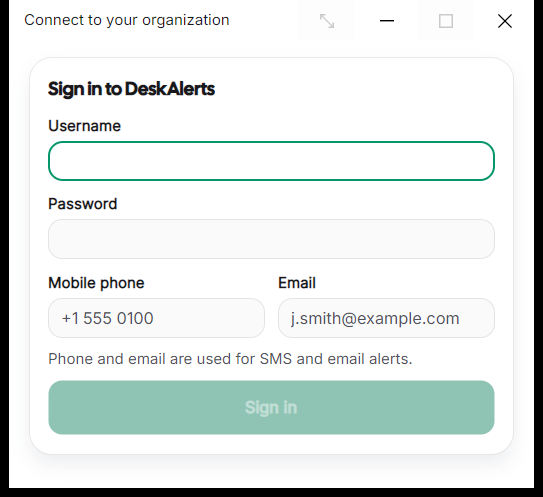
-
Click the tray icon and open the About page of the agent window. It shows the version, the registration type (
Simple), the server, Hub stateConnected, and Registration statusRegistered— see What the recipient sees. -
In the web portal, the user appears in Settings → Static audience setup → Users as a registered user and in Audience explorer with the online marker; the Connected audience widget on the Dashboard counts one more desktop endpoint.
-
Send a test popup to the user with Create alert → Popup; it appears within seconds.
Configuration File
The wizard writes its choices to appsettings.json in the installation folder. The keys most often checked when troubleshooting:
| Key | Meaning |
|---|---|
Server.Url | The server URL (BASE_URL) |
Application.RegistrationType | The registration method |
Application.AllowingUntrustedSSLCertificates | Certificate check disabled when true |
Application.ClientServiceEnabled, Application.ClientServiceUrl | Whether the agent uses the local service, which listens on http://localhost:35100 |
Application.DisableWpLsSs, Application.AlertOnLockScreenEnabled | The optional features |
Application.AccessTokenLifetimeInMinutes | Token lifetime, 1440 by default |
ConnectionSettings.* | Reconnection delays; EnableDetailedConnectionLogging adds connection details to the log |
Application.OsScaling | Scaling of the agent windows: 0 follows the Windows display scaling, 1.25, 1.5, 2 force 125, 150, 200 percent |
The log level and location are set in NLog.config next to the executable (minlevel of the logger rule: Info, Warn, Error, or Debug for support cases). A mistyped appsettings.json — a missing comma or quote — makes the agent exit at start without any log entry; validate the JSON after manual edits.
Edit the file as administrator and restart the agent (Exit desktop agent in the agent window, then start it from the Start menu) to apply a change. Reinstalling with new parameters is the supported way to change the URL or the registration method on many machines. The agent's local data — the SQLite database, downloaded content, and the user-level logs — lives in %LOCALAPPDATA%\DeskAlerts.
Troubleshooting
| Symptom | Cause | Fix |
|---|---|---|
Hub State shows Hubs are not connected, the tray icon is red | No network path to the server URL, an untrusted certificate, or a wrong URL | Open the server URL in a browser on the workstation; import the CA certificate, or reinstall with ALLOWING_UNTRUSTED_SSL=true for a test server |
| The ability to perform this type of registration is disabled on your server | The Audience Access Level does not allow the chosen registration method | Change the level in the portal or reinstall with an allowed REGISTRATION_TYPE |
| Seamless registration falls back to a form or fails with Domain is null | The device is not domain-joined, or the user is not synchronized yet | Join the domain; run the directory synchronization; check the user in Audience Explorer |
| Wallpaper, lock screen, or screensaver alerts do nothing | The Windows service is not installed or the features were disabled | Reinstall with ENABLE_SERVICE=true ENABLE_WP_LS_SS=true |
| Installation fails with Error 1714 / System Error 1612 (The older version of DeskAlerts Client software cannot be removed) | Windows Installer finds earlier versions in the registry but their MSI files are gone (for example, cleaned from the SCCM cache) | Remove the old versions with msiexec /x {ProductCode} /qn IGNOREDEPENDENCIES=ALL, or use the cleanup script from DeskAlerts support that stops the service, removes the orphaned registry entries under HKLM\SOFTWARE\Microsoft\Windows\CurrentVersion\Uninstall, and deletes the leftover files; restart, then install |
| Installation fails with error 2753 (DeskAlertsClient.exe is not marked for installation), followed by return code 1603 | The MSI was damaged in distribution — typically an incomplete copy in the SCCM cache (C:\Windows\ccmcache) run in the SYSTEM context, sometimes combined with a leftover registration of the previous product code | Install the same MSI manually from a local folder with /l*v — if that works, the distribution copy is at fault: clear the cache, re-create the package, and copy the MSI to the local disk before running msiexec; remove the previous version first when its product code is still registered |
| The agent cannot be uninstalled from Programs and Features | A damaged installation | Uninstall with msiexec /x {ProductCode} /qn /norestart, then delete the installation folder |
| The agent starts twice or reports Application is already running | A second copy was started from a shortcut | Harmless; the second instance exits |
| Two DeskAlerts tray icons after the installation; the log shows HTTP 429 You may only perform this action every 3 seconds | Two agent instances run in the same session — one started by the installer at the end of the setup, one from the Startup shortcut (or a second shortcut) — and the server throttles their sign-ins | Sign out and in again (or restart); in deployment scripts avoid a second start of DeskAlertsClient.exe after msiexec, and use DELETEPROFILE=0 for upgrades so that the existing registration is kept |
| Failed to sign in using Azure SDK. Message: ManagedIdentityCredential authentication failed (or another credential name) in the agent log, with registration methods Azure AD and Seamless for Azure AD | The agent's Microsoft sign-in tries the Azure Identity credential sources in turn, and one source fails in the customer's environment | Exclude that source under Settings → Users & access → IAM sync settings → Exclude Credentials (agents pick the change up when they reconnect), or set the corresponding Exclude…Credential value to true in the agent's appsettings.json on that workstation |
| The agent shows an error window instead of an alert | The alert body could not be downloaded from the server: the agent fetches each alert with up to 10 attempts, 10 seconds apart, into %LOCALAPPDATA%\DeskAlerts\Alerts before showing it | Check the network path to the server URL and the server logs; every download attempt is written to the agent log |
| The agent does not start until a VPN connection is up | The workstation resolves the server only over VPN | Start the agent from a scheduled task triggered by the VPN connection event (RasClient event 20225) instead of the Startup folder |
The agent exits at start; the log ends with System.UriFormatException: Invalid URI: The Authority/Host could not be parsed | The agent was installed with an incomplete server URL (for example the wizard's default https:) | Reinstall with the full BASE_URL |
The agent log repeats The proxy tunnel request to proxy 'http://<proxy>:8080/' failed with status code '407' | An authenticating web proxy (Sophos UTM, for example) intercepts the connection | Add the server's https://<FQDN> (no trailing slash) to the proxy's exception list with authentication skipped |
Agent logs: <date>_client.log in the installation folder and Logs\<date>_clientService.log for the service; user-level logs under %LOCALAPPDATA%\DeskAlerts\logs. Windows Installer writes the agent installation events with Event ID 1221 to the Application event log. Attach the logs to support requests together with the server's diagnostics bundle.