What the Recipient Sees
Overview
This page describes the Windows desktop agent 12.1.0.3 from the recipient's side — the first sign-in, the agent window behind the tray icon, how alerts appear, what the recipient can do with them, and the Do not disturb modes — and points to the portal settings that control each element. Use it to explain the agent to employees and to decide which options to enable.
Signing in
An agent installed with the Simple registration type asks the recipient to sign in once. The window Connect to your organization shows the form Sign in to DeskAlerts:
| Field | Description |
|---|---|
| Username and Password | The recipient's DeskAlerts credentials (the ones the administrator created in Settings → Static audience setup → Users or that the directory synchronization provided) |
| Mobile phone | Optional. Enter the number in international format without spaces, for example +15550100001 — the form accepts digits and the leading + only |
Optional, for example j.smith@example.com. Phone and email are used for SMS and email alerts |
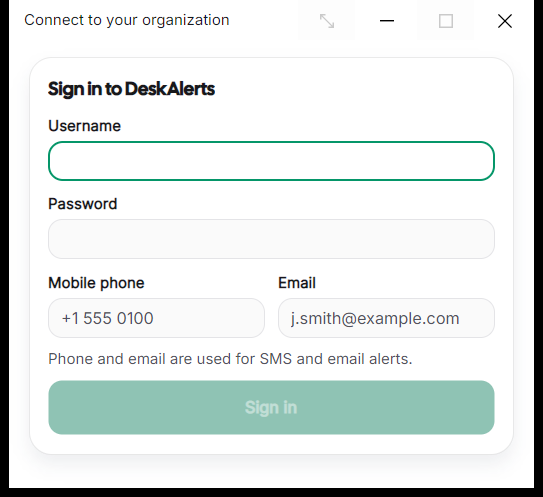 The sign-in form of a Simple-registration agent
After Sign in the window confirms You're all set — DeskAlerts alerts will reach you here with the user name under SIGNED IN AS; Got it closes it. From then on the agent starts with Windows and signs in by itself.
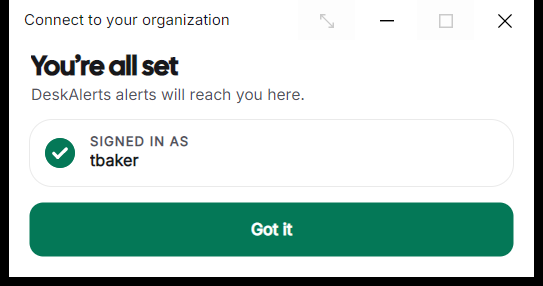 The confirmation after the first sign-in
Agents installed with another registration type (computer name, Windows user, Microsoft Entra ID) take the identity from Windows and show no sign-in window — see Installing the Windows agent.
Note: A recipient who signs in from the agent appears in Settings → Static audience setup → Users as a registered user. Put these registered records into groups rather than creating the same user by hand in advance — see Users and access.
The agent window
The agent shows an icon in the Windows notification area (on a fresh Windows installation it may sit behind the Show hidden icons arrow). Clicking the icon opens the agent window — the header reads DeskAlerts / Desktop agent, a navigation panel on the left lists the pages, and the footer shows the build (Powered by DeskAlerts© v12.1.0.3).
| Page | What the recipient sees and does |
|---|---|
| Do not disturb | A ring with a bell and the current state (Alerts arrive normally while off, Pick a pause below, or drag around the ring for a custom time). The buttons Off, 10 min, 30 min, 1 hour, and 3 hours each show the clock time the pause would end. While a pause runs, the ring counts down (10 MIN LEFT, Paused until 4:18 PM, Emergency alerts still come through) and the navigation item shows the remaining time instead of Off. The switch Pause alerts while presenting in a conference call turns on the automatic pause described below |
| Alert history | The alerts received on this device, grouped by day (TODAY, …), each with its type (Alert, Scrolling ticker, …) and time; a search field (Search alerts) and a type filter (All types). The footer counts the alerts kept on the device (2 alerts kept on this device) and offers Clear history…. Clicking an alert opens it again |
| Settings | Language of the agent interface, Theme (System, Light, Dark), and SHOW ALERTS ON: Specific display, Multiple displays, or All displays, with a picture of the connected monitors to click the target on (the main display is marked main) and Identify displays, which shows each monitor's name on the screen. The line below confirms the choice (Alerts and the ticker appear on Display 1.) |
| About | The user name, the device name and operating system (WS-FIN-012 · Windows 11), then Version (12.1.0.3), Registration type (for example Simple), Server, Hub state (Connected when the agent is online), and Registration status (Registered). Export diagnostics saves the agent's logs and settings for support |
| Trigger emergency alert (under EMERGENCY) | The emergency templates the signed-in user is allowed to send, as colored cards with the color code (for example AMBER) and the template name; a search field (Search buttons…) and a color filter (All colours). Pressing a card arms it for a few seconds (ARMED · 4 S with Send and ×); Send sends the alert at once and the card shows Sent just now; without Send the card disarms by itself and nothing is sent — see Send an emergency alert from the desktop |
| Exit desktop agent | Asks Exit desktop agent? Most of the time a pause is enough. and offers two cards: Pause for 1 hour, marked RECOMMENDED, with the Pause button (Do not disturb. The agent stays connected and catches up on what arrives.), and Exit with the Exit desktop agent button (No alerts on this PC — emergency included — until you sign in again.). Cancel returns to the window |
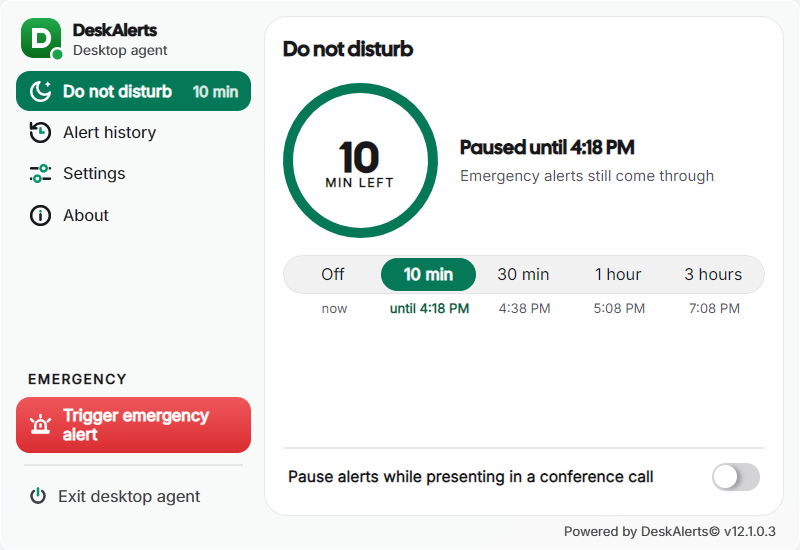 Do not disturb with a 10-minute pause running
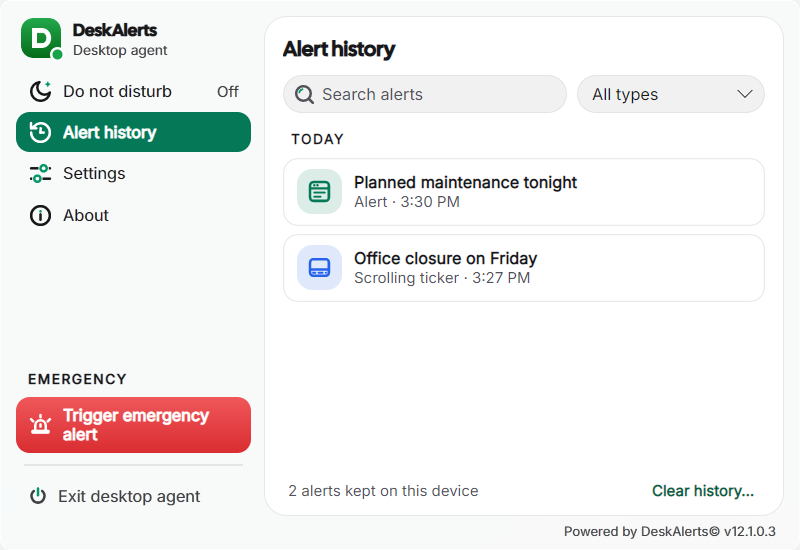 Alert history: the alerts kept on the device, with search and a type filter
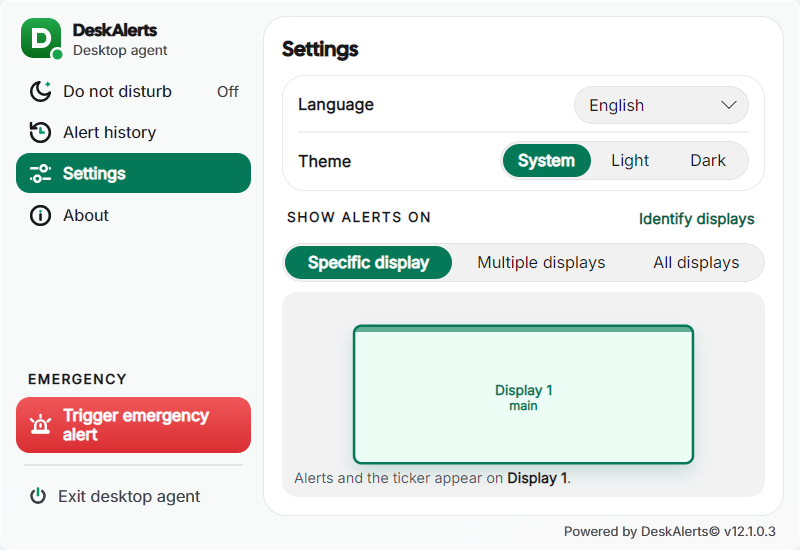 Settings: language, theme, and the display alerts appear on
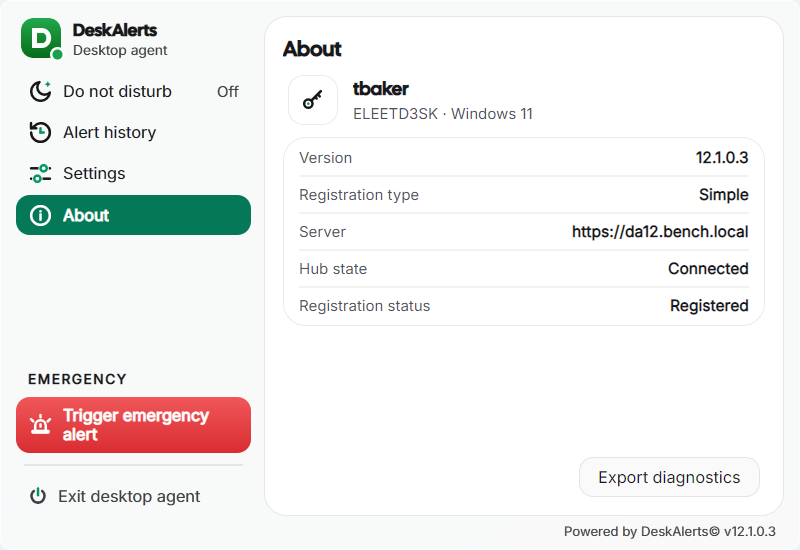 About: version, registration, server, hub state, and Export diagnostics
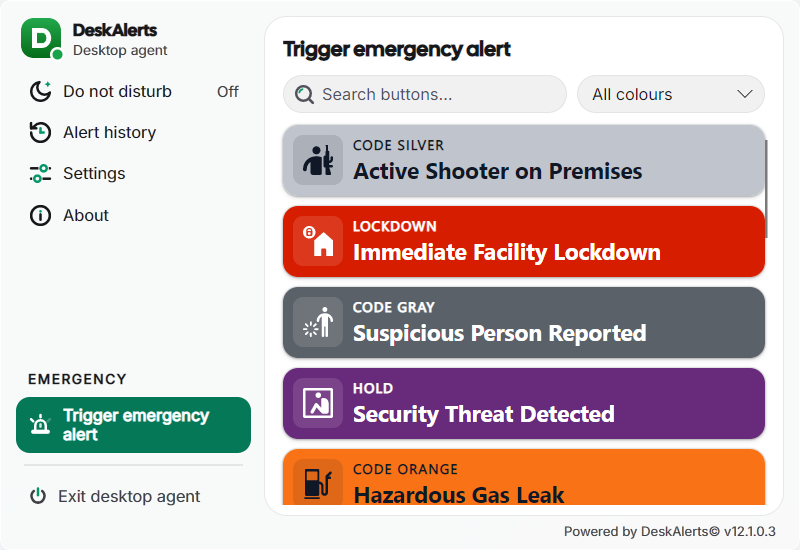 Trigger emergency alert: the emergency templates available to the user
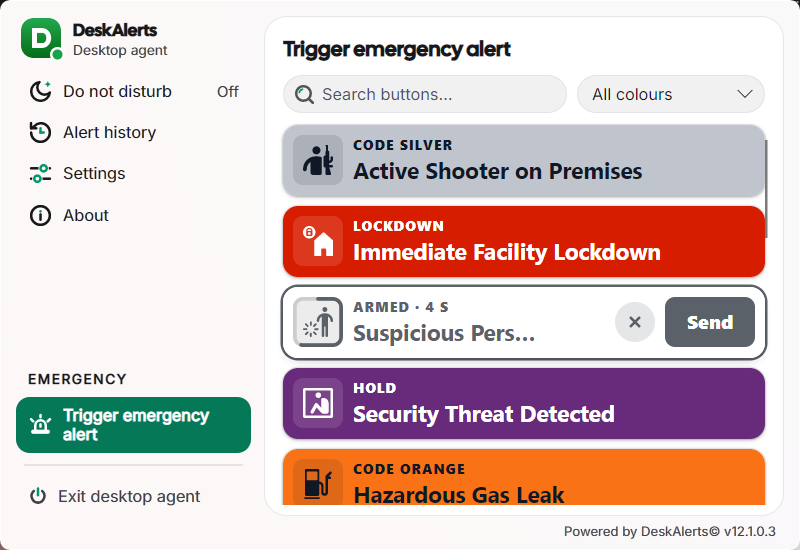 A pressed card: ARMED with a countdown, Send, and ×
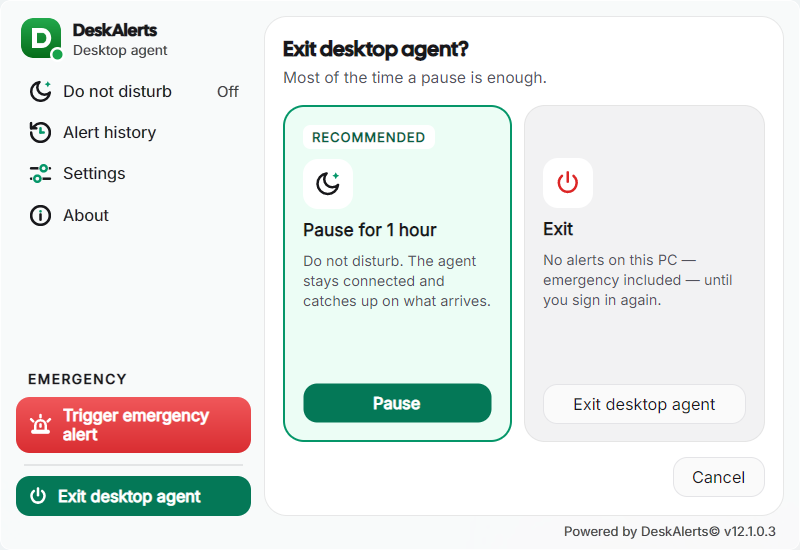 Exiting: the agent recommends a one-hour pause instead
The emergency cards follow the templates' Authorized senders (see Emergency alerts); a user who may send no template sees an empty list.
Alert types on the desktop
| Alert type | How it appears |
|---|---|
| Popup | A window in the alert's skin with the organization's logo, the title, the date and time, the content, and the close button; size, position, and window type come from the alert's Appearance section. The bar at the bottom holds the alert's buttons when acknowledgement, postpone, or feedback is enabled |
| Content Plus | A popup built from the design blocks of the Content Plus editor |
| Scrolling ticker | A one-line strip across the full width of the screen, at the top or bottom, with the title and the scrolling text |
| Video | A popup that plays the video |
| Survey / Quiz / Poll | A popup with the questions; answers are sent back when submitted |
| RSVP | A popup with the event details and the attendance buttons |
| Microtraining | A popup with the training content and its questions |
| Emergency | A popup or ticker in the template's color scheme, shown on top of everything — full screen when the template says so |
| Wallpaper, Lock screen, Screensaver | Replace the desktop background, the lock-screen image, or the screensaver for the alert's lifetime |
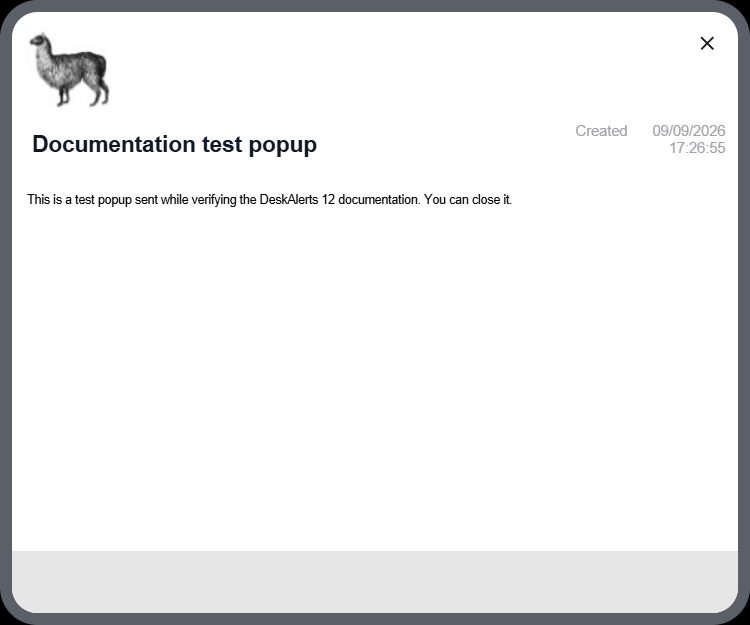 A popup in the default skin: the organization's logo, the title, the creation date and time, the content, and the close button
 The left part of a scrolling ticker at the bottom of the screen: the logo, the title, and the scrolling text
What the recipient can do
| Control | Description | Controlled by |
|---|---|---|
| Close (×) | Closes the alert. Not available while acknowledgement is required | The alert |
| Acknowledge | Confirms reading; the alert cannot be closed otherwise, and the acknowledgement time is reported | Require acknowledgement in the alert's Response & tracking section |
| Postpone | Hides the alert and shows it again later. The button appears only on alerts that also require acknowledgement | The alert |
| Prints the alert content | Print & feedback in Settings → Alerts → New popup and ticker defaults | |
| Feedback | Sends a like that appears in the alert reports | Print & feedback in the same settings page |
| Answers | Survey, quiz, poll, microtraining, and RSVP answers | The alert content |
Every action is reported to the server and visible in the Alert tracking report (Delivered, Acknowledged, response times) and the Recipient report — see Reports.
Do not disturb
| Mode | How it starts | What happens |
|---|---|---|
| Manual | The recipient opens Do not disturb in the agent window and picks 10 minutes, 30 minutes, 1 hour, 3 hours, or a custom time on the ring. Exit desktop agent also offers the one-hour pause instead of exiting | Regular alerts are held and shown when the pause ends or the recipient selects Off; emergency alerts still come through (the window says so) |
| While presenting | The switch Pause alerts while presenting in a conference call on the Do not disturb page | The agent pauses regular alerts while a conference-call application is sharing the screen and delivers them after the session ends |
Offline and reconnection
When the workstation loses the network or sleeps, the agent reconnects automatically; About → Hub state shows Connected again once it has. Alerts sent in the meantime are delivered on reconnection if their lifetime (Set duration in the alert's Delivery section) has not expired; expired alerts are skipped and reported as not delivered. The recipient does not need to do anything. Alerts already received stay in Alert history and can be reopened without a connection.
Diagnostics
About → Export diagnostics saves the agent's logs and settings into one file that the recipient can send to the help desk. The administrator's counterpart on the server side is described in Troubleshooting and maintenance.
Languages
The agent's own interface follows the Language chosen on its Settings page (English by default). Alert content is shown in the language it was written in.