Signing In and Roles
Overview
The DeskAlerts web portal is where administrators configure the system and publishers create and send alerts. What a person can do in it depends on the type of the account and the roles assigned to it. This page explains how to sign in, what the two account types are, how roles shape the portal, and what to do when access does not work.
Signing In
Open the server URL in a browser — for example, https://alerts.acme.example. The login page (Welcome back — Sign in to continue to DeskAlerts) offers the sign-in methods enabled on the server:
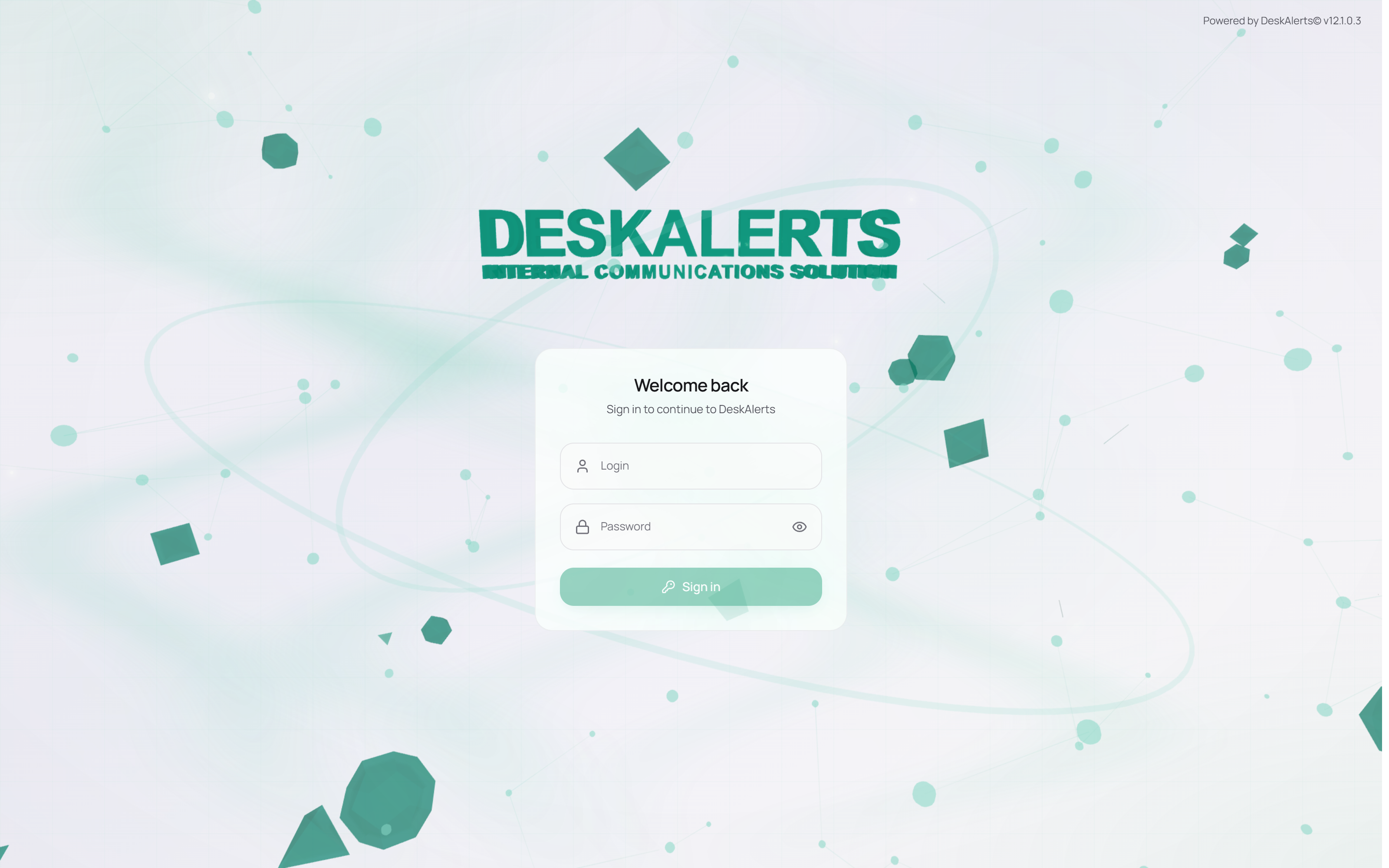 The login page with the user name and password form
| Method | When it is available | How it works |
|---|---|---|
| Login and password | Always, for accounts created in the portal | Enter the web-portal login (for example ecollins) and the password, then click Sign in |
| Active Directory SSO | SSO settings → Active Directory SSO is on | Sign in with the Windows domain account |
| Azure AD SSO | SSO settings → Azure AD SSO is on | Sign in with the Microsoft Entra ID account, including MFA when the tenant requires it |
| Google SSO | SSO settings → Google SSO is on | Sign in with the Google Workspace account |
A Forgot password link appears on the login page when Show password recovery on login is enabled in the password policy — see Password Recovery below. After too many failed attempts the account is locked for the period set in Account Lockout; the lockout notification email tells the user whom to contact. An account whose password has passed the expiration period set in the password policy is locked as well, with the message User is locked by expired password, until an administrator resets the password.
Password recovery
Recovery is available only for accounts created in the portal (not for directory or SSO accounts) that have a valid email address, and it needs a working SMTP configuration on the server:
- On the login page click Forgot Password, enter the user name, and send the request.
- An email with the subject Password Recovery arrives with the user name and a reset link. The link is valid for 15 minutes and works once; check the spam folder if it does not arrive.
- Open the link, enter and confirm the new password, and save. Sign in with the new password.
| Message | Meaning | What to do |
|---|---|---|
| Password recovery feature is disabled | Show Password Recovery on Login is off | An administrator enables it in the password policy |
| No email found for this login | The user name is wrong, or the account has no email address | Check the user name; an administrator adds the email to the account |
| User email is invalid | The stored email address is malformed | An administrator corrects it |
| Password recovery is only available for local accounts… | The account comes from Active Directory or Entra ID | Change the password in the directory; use SSO |
| SMTP server is not configured or Failed to send email | The server cannot send mail | An administrator checks Settings → Delivery channels → SMTP server (emails) and the mail server |
| Invalid or expired link | More than 15 minutes passed, or the link was already used | Request a new recovery email |
After sign-in the portal opens on the Dashboard with the greeting Welcome back, <login>!. The account's initials and login are shown at the bottom of the left navigation panel; Profile settings, Contact us, and Logout are in the account menu — see Global navigation and user account.
Users who sign in through SSO for the first time get a web-portal account created for them automatically, with the roles mapped to their directory groups.
Account types
| Type | Access | Typical use |
|---|---|---|
| Administrator | Everything in the portal, without a role: all content, all recipients, all settings | A few people who run the system |
| Web-portal user | What the assigned roles allow | Publishers, content creators, approvers, help-desk staff |
The type is set when the account is created under Settings → Users & access → Web-portal users and can be changed later. Roles can be assigned only to accounts of the Web-portal user type.
Note: Approval tasks are routed to roles. An Administrator account therefore never receives tasks in My tasks, even though nothing else is restricted for it. Give people who approve alerts a Web-portal user account with the approver role.
What each account sees
The navigation panel shows only what the account may use. In the demo organization of this guide:
| Account | Navigation panel |
|---|---|
admin (Administrator type) | Dashboard, Create alert, Alerts, Audience explorer, Digital signage, Campaigns, Emergency alerts, My tasks, Reports, Shared assets, Settings |
Priya Nair (pnair, role HR Publisher — popup, ticker, video and RSVP alerts only) | Dashboard, Create alert, Alerts, Audience explorer, My tasks, Reports, Shared assets — no Digital signage, Campaigns, Emergency alerts or Settings |
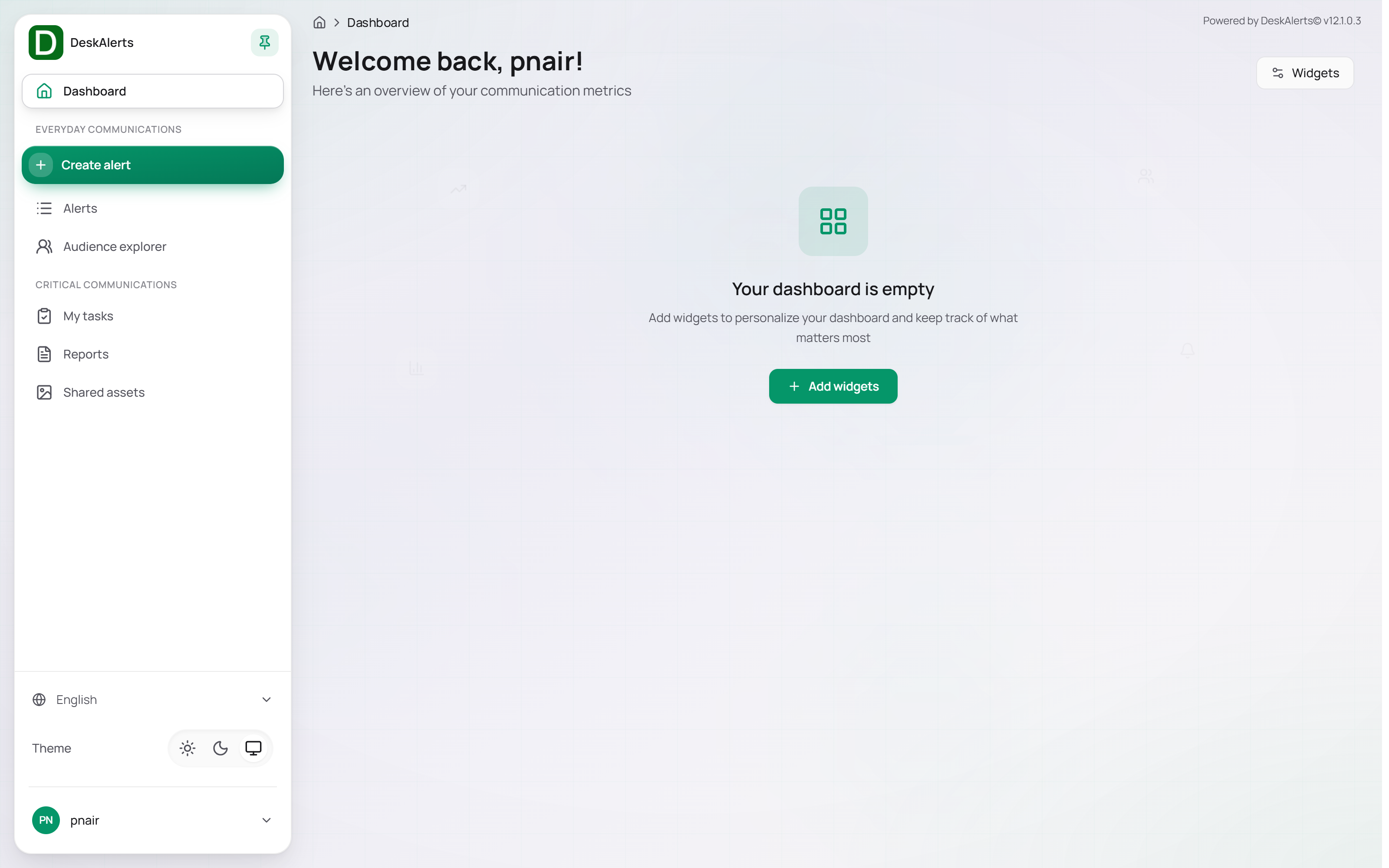 Priya Nair's navigation panel
What a role defines
A web-portal role (Settings → Users & access → Web-portal roles) is a bundle of:
| Part | What it controls |
|---|---|
| Access permissions | Per feature — popups, tickers, videos, RSVP, surveys, templates, email, SMS, Text-to-Call, Teams, digital signage, reports and the User Action Log, screensavers, wallpapers, lock screens, emergency alerts, color codes — the actions Create, Edit, Delete, Send, View, Stop. Menu items and buttons the role lacks are hidden |
| Recipients access | Whether the user can send to the entire organization or only to selected users, groups, and OUs |
| Content and report scope | Whether the user sees only their own alerts and reports, all content, or their own plus that of selected roles |
| Skin access | All skins or selected skins in the alert wizard |
| Directory group mapping | Directory groups whose members receive the role automatically |
A user can hold several roles; permissions add up. Roles are also the addresses of approval workflow steps — an alert waiting for the Administrator step appears in My tasks of every web-portal user with that role. A role change made by an administrator takes effect the next time the user signs in.
Typical role setups
| Role | Permissions | Scopes |
|---|---|---|
| HR Publisher (demo) | Create, Edit, Send for pop-up, ticker, video and RSVP alerts; View for their templates and the statistics reports | Own content |
| Communications Publisher (demo) | Full control | Entire organization; all content |
| Approver | View for alerts and reports | All content; named as approver role in workflows |
| Emergency operator | Send for emergency alerts and color codes | Entire organization |
| Signage editor | Create, Edit, Delete for Digital Signage and its layouts | — |
When access does not work
| Symptom | Cause | Fix |
|---|---|---|
| A menu item or button is missing | The role lacks the permission | Add the permission to the role; the user signs in again |
| The user sees no alerts in the list or reports | Content scope is own content only | Widen the content scope in the role |
| A recipient is not offered in the wizard | Recipients access limited to selected recipients | Add the recipient to the role's recipients list |
| No tasks in My Tasks although the user approves | The account is an Administrator or does not hold the approver role | Use a Web-portal User account with the role named in the workflow step |
| Account locked | Too many failed attempts, or the password expired | Wait for the lockout period or have an administrator reset the password |
| Incorrect login or password without further detail, although the password is right | The sign-in was refused for another reason — the account is disabled, locked, or blocked after repeated failures from the same IP address — and the server is configured not to reveal which | An administrator checks the account in Web-portal Users |
| SSO button missing | The provider is off | Enable it under SSO Settings |