Disable Alerts While Presenting
This article explains how the Disable alerts on presenting feature works in DeskAlerts 11 and how to configure it for desktop agents.
When enabled, this feature suppresses regular alerts while a user is sharing their screen. It is designed to reduce interruptions during meetings, webinars, and presentations.
How the Feature Works
The DeskAlerts 11 agent application monitors active windows in the background and checks whether screen sharing is currently in progress.
Detection is based on:
- The application process name
- The window title or a part of the window title associated with screen sharing
By default, the check is performed every 5 seconds.
This feature is supported only on Windows agent applications.
If screen sharing is detected, alerts are temporarily suppressed. When screen sharing ends, alert delivery returns to normal.
This mode can work together with Disable alerts (n minutes). If either condition is active, alerts will not be displayed.
Enable or Disable the Feature
To enable the feature, open:
DnD → Disable alerts on presenting (on)
To disable it, switch the client back to:
Online
Configuration Requirements
For the feature to work correctly, you must define a valid list of applications and screen-sharing window titles.
The configured titles should match:
- Different application versions
- Different localized interface languages
Recommended Detection Targets
For desktop applications such as Zoom and Microsoft Teams, use the screen sharing toolbar window because its title is usually stable and unique.
For web applications such as Microsoft Teams in Chrome, detection usually relies on the browser process and the screen-sharing notification window. In some cases, this is available only in full-screen sharing mode.
Configure the Agent Locally
To configure screen-sharing detection on a specific client, update the appsettings.json file located at \Program Files\ToolBarStudio Inc\DeskAlerts Client software\DeskAlertsClient.
Use the DefaultPresentingWindows section, for example:
"DefaultPresentingWindows": [
  {
    "ProcessName": "ms-teams",
    "SharingWindowTokens": [
      "Sharing control bar",
      "Kontrollfeltet for deling",
      "Barre de controle de partage",
      "Barra de control de uso compartido",
      "Barra de controlo de Partilha",
      "Freigabesteuerungsleiste"
    ]
  }
]
Configuration Parameters
- ProcessName - The application process name, for example
zoomorms-teams - SharingWindowTokens - A list of window titles or title fragments used to detect screen sharing
You can include multiple values to support different interface languages and application versions.
Configure All Clients Globally
You can also configure screen-sharing detection for all clients from the DeskAlerts 11 web interface.
- Go to System Settings.
- Open Screen share detection settings.
- Add the required process names and window titles.
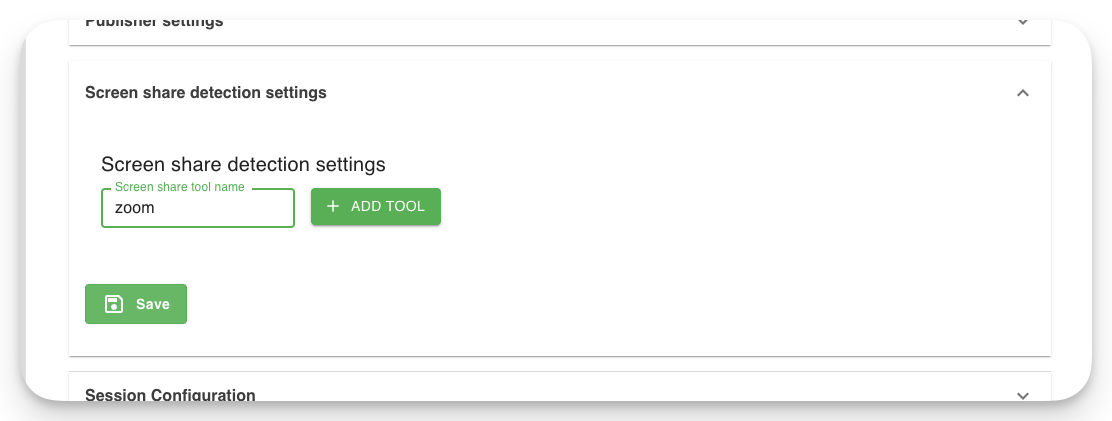
The settings are applied immediately to all connected agent apps.
Add a New Application
If the required application is not yet configured, add it manually to DefaultPresentingWindows.
Example:
{
  "ProcessName": "zoom",
  "SharingWindowTokens": []
}
Identify the Correct Window Title
If you need to determine which window title should be used for detection, enable debug logging and review the client log.
Enable Debug Logging
Add the following parameter to appsettings.json:
"TraceAllPresentingWindows": true
Start Screen Sharing
- Launch the DeskAlerts client.
- Start screen sharing in the target application, for example Zoom or Microsoft Teams.
- Open the screen-sharing toolbar or notification window.
Check the Client Log
Look for entries similar to the following:
|Sharing window candidate: Zoom, |Zoom Conference|
|Sharing window candidate: Zoom, ||
|Sharing window candidate: Zoom, |Screen sharing controls during conference|
Extract the Title
The detected window title appears between the | characters.
Use either:
- The full title
- A unique part of the title
Avoid generic titles such as Conference. Use a unique toolbar or screen-sharing window title to reduce false positives.
Full Configuration Example
"TraceAllPresentingWindows": true,
"DefaultPresentingWindows": [
  {
    "ProcessName": "ms-teams",
    "SharingWindowTokens": [
      "Sharing control bar",
      "Kontrollfeltet for deling",
      "Barre de controle de partage",
      "Barra de control de uso compartido",
      "Barra de controlo de Partilha",
      "Freigabesteuerungsleiste",
      "Barra di controllo Condivisione"
    ]
  },
  {
    "ProcessName": "zoom",
    "SharingWindowTokens": []
  }
]