Global Navigation and User Account
Overview
Every page of the DeskAlerts web portal shares the same frame: the left navigation panel with the global controls at its bottom, the breadcrumb and page header at the top, and the build label in the top-right corner. This section describes these elements and the Profile settings page of the signed-in user.
| Element | Description |
|---|---|
| Left navigation panel | Pinned open by default. The pin button next to the logo (Unpin sidebar) collapses it to a narrow rail that expands when you move the mouse over it; Pin sidebar on the rail pins it open again. Contains the main menu and, at the bottom, the language selector, the theme controls, and the user account menu |
| Breadcrumb | Shows the current location (for example, Home › Settings › Users & access › SSO settings). The home icon returns to the Dashboard |
| Page header | The page title with a one-line description and the page actions — for example, Refresh on the Settings pages, Widgets on the Dashboard |
| Build label | Powered by DeskAlerts© v12.1.0.3 in the top-right corner — the exact server build, useful when contacting support |
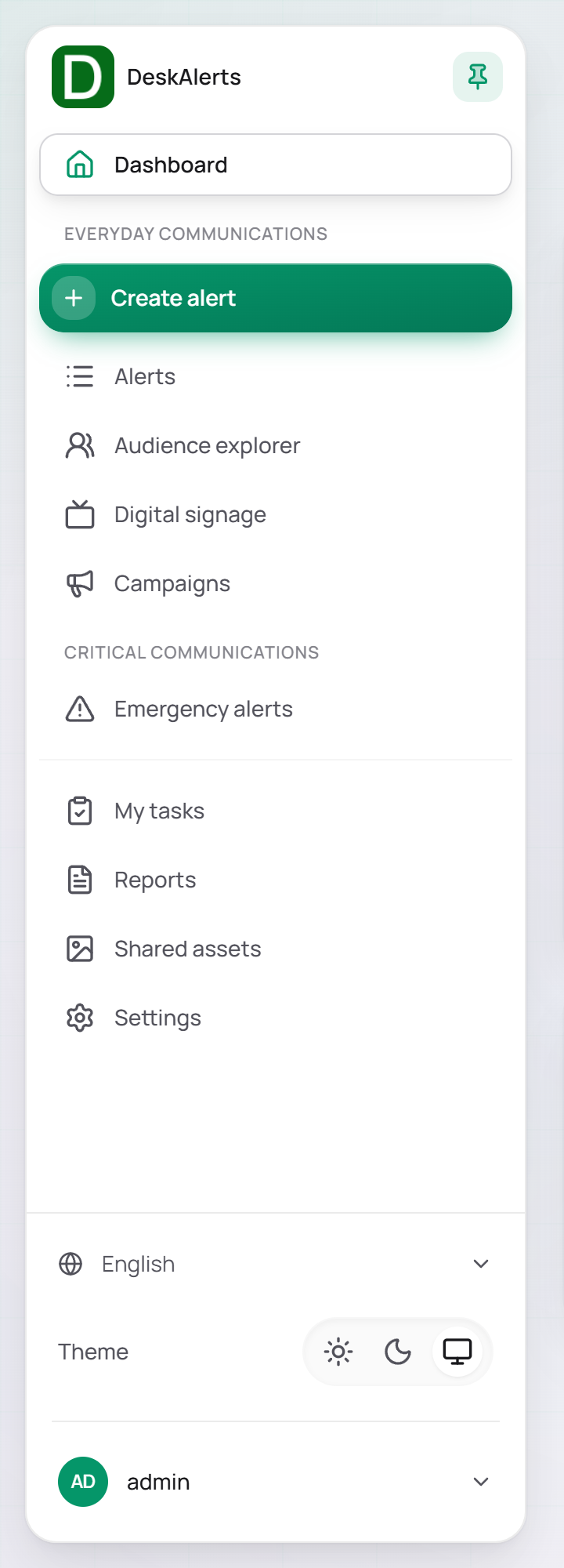 The left navigation panel as the administrator sees it
| Group | Item | Description |
|---|---|---|
| — | Dashboard | The start page with its widgets |
| Everyday communications | Create alert | Opens the Create alert menu with every alert type: Core alerts (Popup, Content Plus, Scrolling ticker, Video), Interactive (Meeting, RSVP, Survey/quiz/poll, Microtraining), Ambient (Wallpaper, Lock screen, Screensaver) |
| Alerts | The list of alerts and the alert templates | |
| Audience explorer | Users, bundles, groups, organizational units, computers, and IP groups | |
| Digital signage | Screens and their content | |
| Campaigns | Groups of related alerts | |
| Critical communications | Emergency alerts | Emergency alert templates, color codes, and dispatched emergency alerts |
| — | My tasks | Approval tasks assigned to you |
| Reports | Alert, recipient, and usage reports | |
| Shared assets | Images, videos, and other media shared across alerts and templates | |
| Settings | System-wide configuration (administrators) |
The panel shows only the items the account may use — a web-portal user with a limited role does not see, for example, Settings or Emergency alerts (see Signing in and roles).
Language selector
The Language selector is located near the bottom of the left navigation panel. It displays the currently active interface language next to a globe icon.
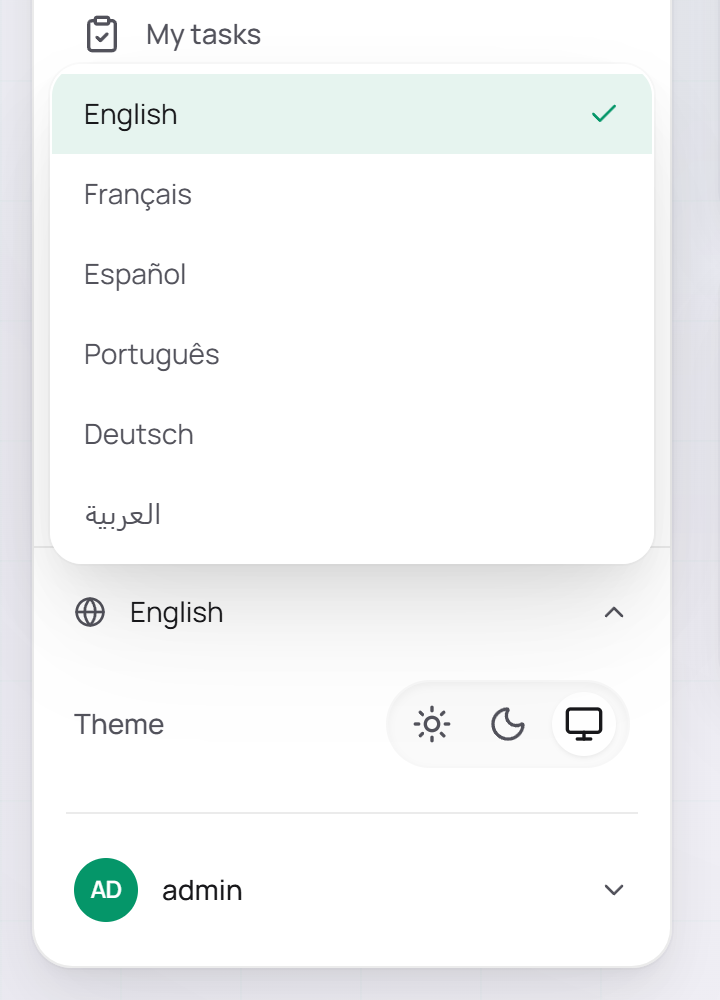 The language list
Click the control to expand the language list.
| Language | Display Name |
|---|---|
| English | English |
| French | Français |
| Spanish | Español |
| Portuguese | Português |
| German | Deutsch |
| Arabic | العربية |
Select a language to switch the web-portal interface to it. The change applies immediately to the current session; the same setting is available under Settings → Branding → Language and in the Preferences section of Profile settings.
Note: The interface language applies to the web portal only. It does not affect the language of alert content or of the desktop agent.
Theme controls
The Theme row is located immediately below the language selector.
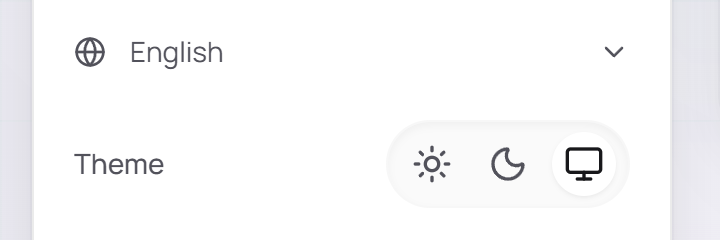 The Theme row — the three theme modes
| Control | Description |
|---|---|
| ☀ Light | Applies the light interface theme |
| ☾ Dark | Applies the dark interface theme |
| ☐ System | Follows the operating system's current light or dark mode preference |
Click an icon to switch the active theme. The change takes effect immediately, without a page reload, and is saved for your user account. The same switch is available under Settings → Branding → Theme; the animated background behind the pages is chosen under Settings → Branding → Animated background — see Branding.
User account menu
The user account row is displayed at the very bottom of the left navigation panel. It shows the current user's initials and login; click it to expand or collapse the menu.
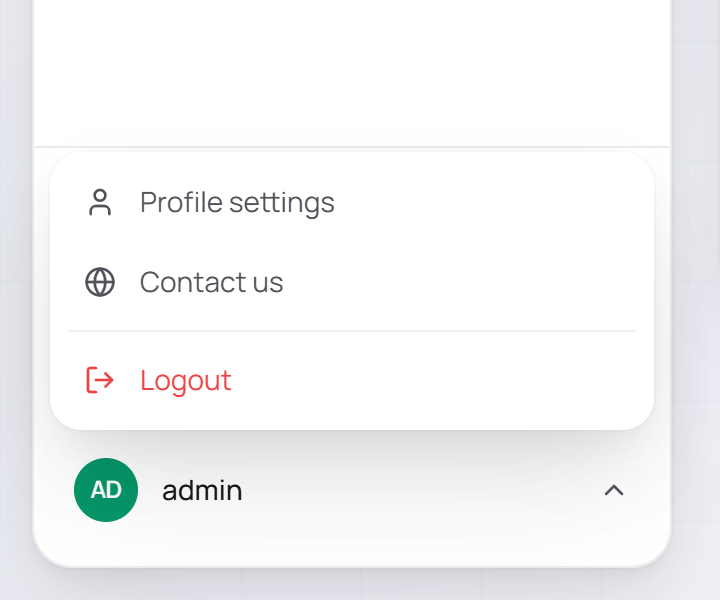 The expanded user account menu
| Option | Description |
|---|---|
| Profile settings | Opens the Profile settings page for the current user |
| Contact us | Opens the DeskAlerts contact page |
| Logout | Ends the current session and returns to the login page |
Note: Logout is displayed in red to distinguish it from the navigation actions.
Product assistant
When the Product assistant feature of Settings → Integrations → AI integrations is on, a floating button in the bottom-right corner of every page opens the built-in help chat, which answers questions about the product and helps you find the right page. When that feature or the AI assistance master switch is off — as on a fresh installation — the button is not shown. See Integrations.
Profile settings
Profile settings lets the signed-in web-portal user review their account information, set their interface language, and manage their password. Open it from the user account menu at the bottom of the left navigation panel.
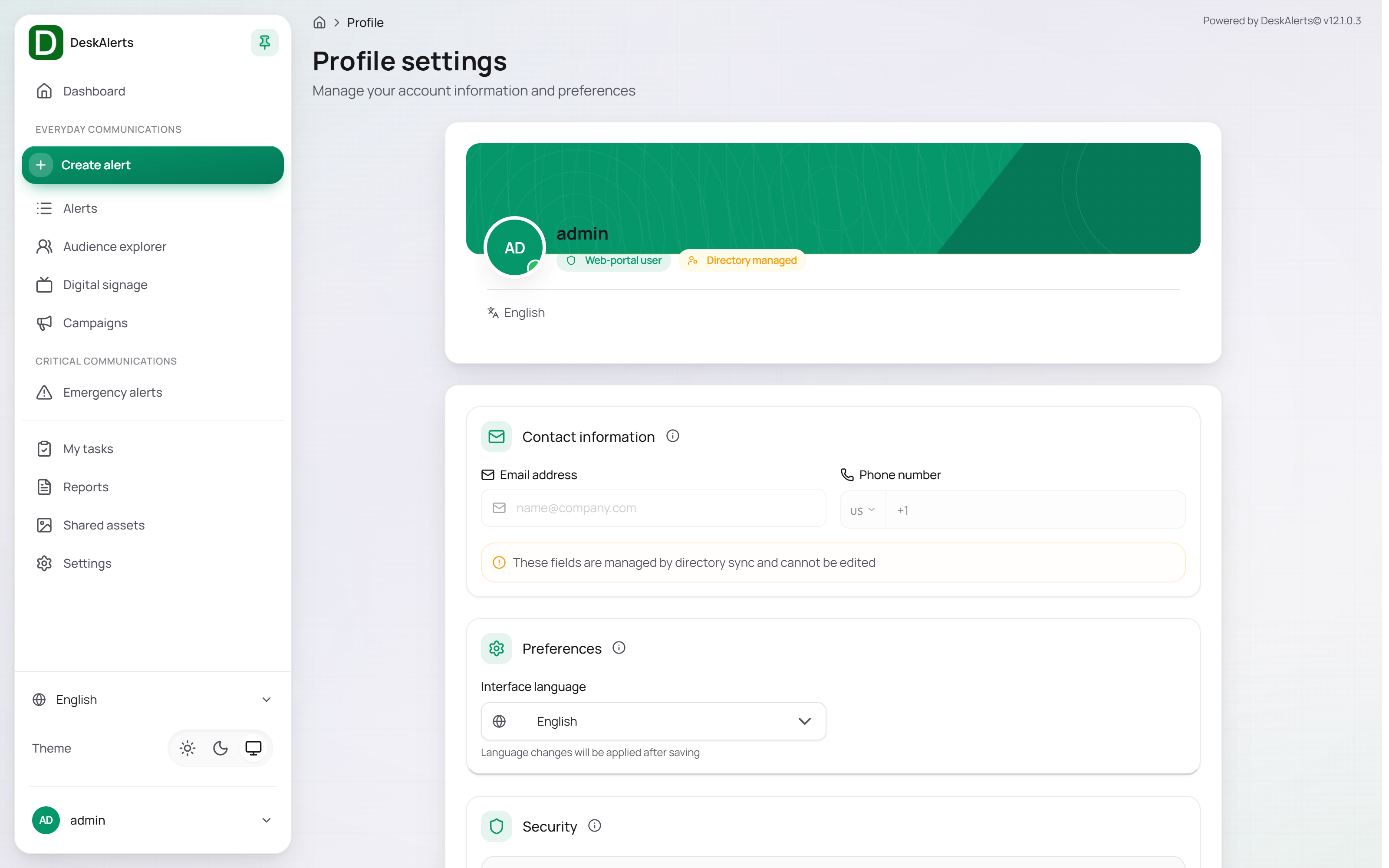 The Profile settings page
Profile card
The card at the top of the page summarizes the account:
| Element | Description |
|---|---|
| Avatar | The user's initials in a colored circle |
| Login | The account's login, with the Web-portal user badge |
| Directory managed badge | Shown when the contact details of the account are managed by directory sync and cannot be edited in DeskAlerts |
Contact information
| Field | Description |
|---|---|
| Email address | The email address associated with the account |
| Phone number | The phone number associated with the account, with a country-code selector |
For directory-managed accounts both fields are read-only and the section shows the notice These fields are managed by directory sync and cannot be edited. Change the details in the source directory and wait for the next synchronization.
Preferences
| Setting | Description |
|---|---|
| Interface language | The display language of the web portal for this account. The list is the same as in the language selector of the left navigation panel. Language changes will be applied after saving |
Security
The Security section shows the Password protection status of the account (Your account is protected with a password) and the Change password button.
Change password
Click Change password to open the dialog.
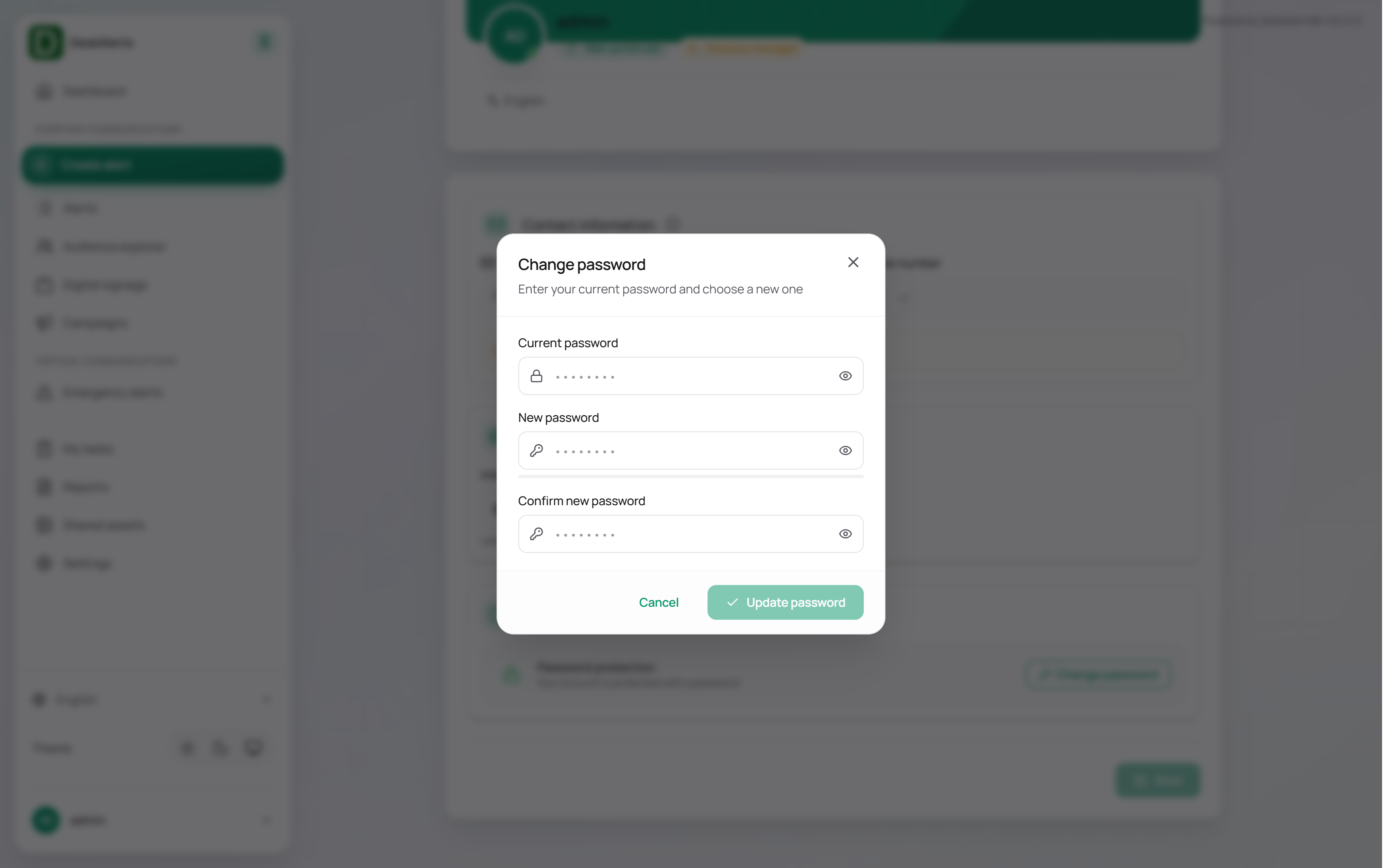 The Change password dialog
Enter the current password, the new password, and the new password once more; each field has an eye icon that reveals the typed value. Confirm the dialog to apply the change. The new password must satisfy the rules configured under Settings → Users & access → Web-portal password policy — see Users & Access; otherwise the update is rejected with a message.
Saving profile settings
Click Save at the bottom of the page to apply changes to Contact information or Preferences. A password change is applied by the Change password dialog and does not require Save.