What the Recipient Sees in the Web Client
Overview
The web client shows the same alerts as the desktop agent in a browser window — on a desktop computer without the agent, on a shared terminal, or on a phone. This page describes what a recipient sees and can do in the web client of DeskAlerts 12.1.0.3, and which portal settings control it, so that publishers know what their alert looks like off the desktop and administrators can explain the client to employees. The phone screenshots show the web client at phone size; the native mobile app for iOS and Android receives the same alerts as push notifications and is documented separately.
Signing in
The web client opens at https://<server>/pwa/ (for example https://alerts.acme.example/pwa/). The sign-in page Welcome back — Sign in to receive DeskAlerts notifications asks for Username and Password — the recipient's DeskAlerts credentials, as for the desktop agent (Your credentials should be provided by your facility). After Sign in the client stays signed in on that browser until the recipient logs out.
The browser asks whether the site may show notifications. If they stay blocked, the client warns Notifications are disabled — Browser notifications are disabled for this site. You may miss incoming alerts until you enable them in the browser settings; alerts still appear while the client's tab is open.
Note: As with the desktop agent, a recipient who signs in to the web client appears in Settings → Static audience setup → Users as a registered user. Put these registered records into groups rather than creating the same user by hand in advance — see Users and access.
The client window
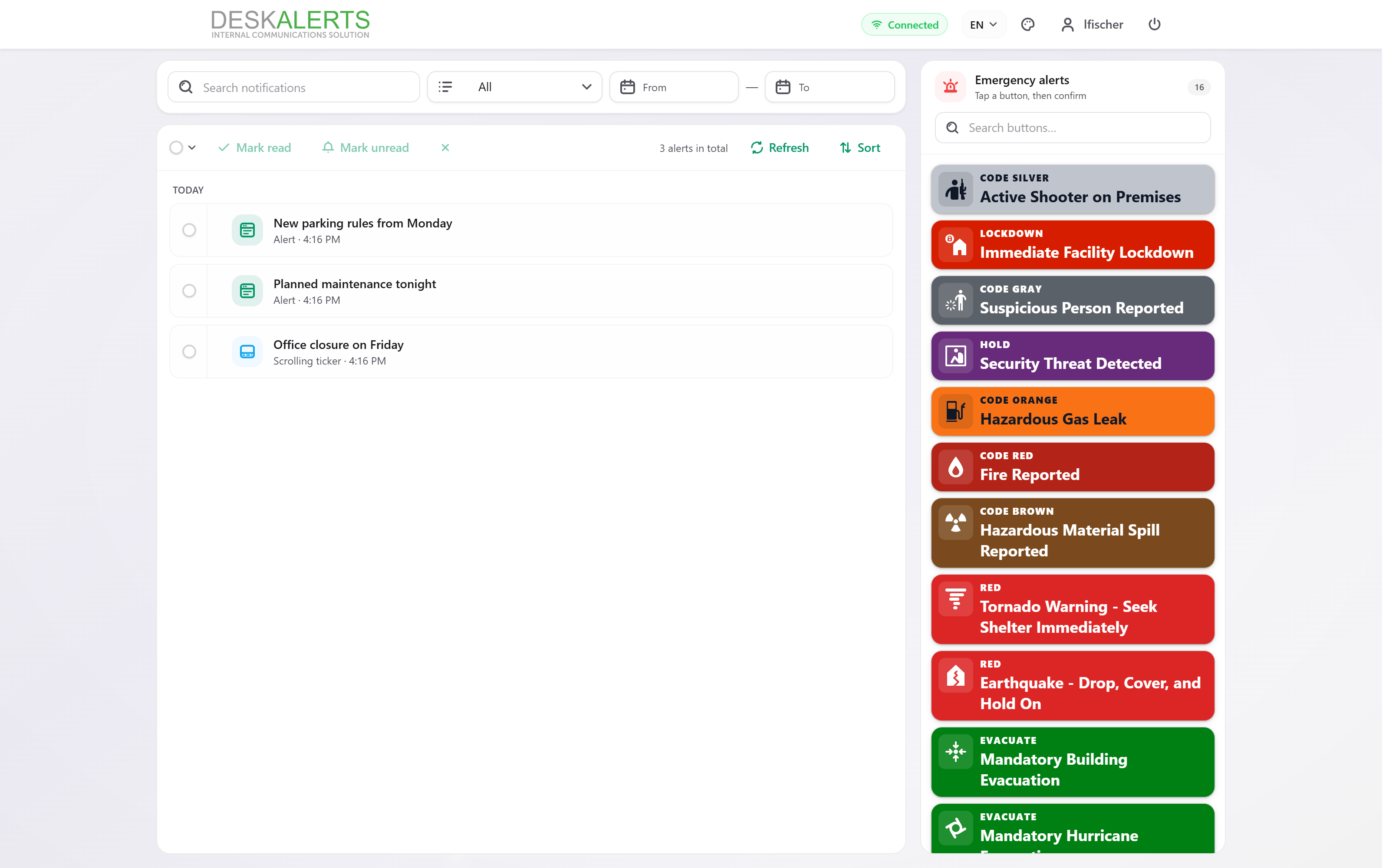 The web client at desktop size: the alert list on the left, the emergency buttons on the right
| Area | What the recipient sees and does |
|---|---|
| Header | The DeskAlerts logo (or the organization's logo), the connection badge (Connected), the language selector (EN), the theme button, the account button with the user name, and Log out |
| Account information | Opens from the account button: the account Name, the Hub state (Connected), and the server URL with a copy button |
| Toolbar | Search notifications, a type filter (All), and a From – To date range. On a phone the filters sit behind a single Filters button |
| Selection bar | A checkbox to select alerts, Mark read, Mark unread, delete (×), the counter (3 alerts in total), Refresh, and Sort |
| Alert list | The received alerts grouped by day (TODAY, …), each with its type icon, title, and type and time (Alert · 4:16 PM, Scrolling ticker · 4:16 PM). Tickers are listed like any other alert |
| Emergency alerts | The emergency templates the signed-in user is allowed to send, as colored cards with the color code and name, a counter, and Search buttons… (Tap a button, then confirm). On a phone the panel is a bar at the bottom of the screen that opens upward. See Emergency alerts |
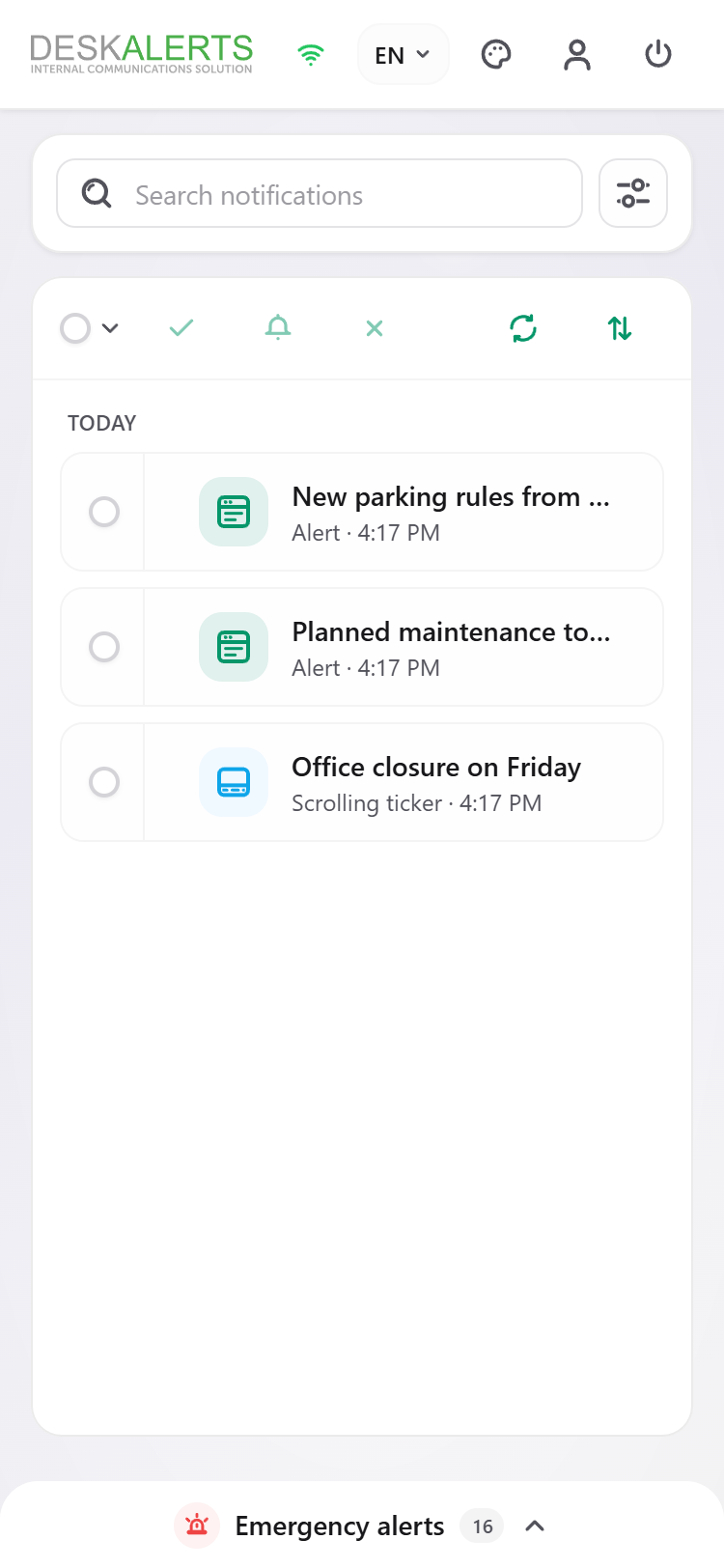 The same client at phone size: icon toolbar, the list, and the Emergency alerts bar at the bottom
Receiving and reading an alert
A new alert opens on top of the list as soon as it arrives while the client is open; the browser shows a system notification as well when the recipient allowed notifications. Alerts that arrived while the browser was closed are listed on the next sign-in, within the alert's lifetime (Set duration in the alert's Delivery section).
Clicking an alert in the list opens the viewer: a bar at the top with the type, the title, the date and time, the position in the list (1 of 3) with arrows to move to the previous and next alert, and a close button; below it the alert rendered in its skin — the logo, the relative and absolute time (4 minutes ago · Today 4:15 PM), the title, the content, and the close button.
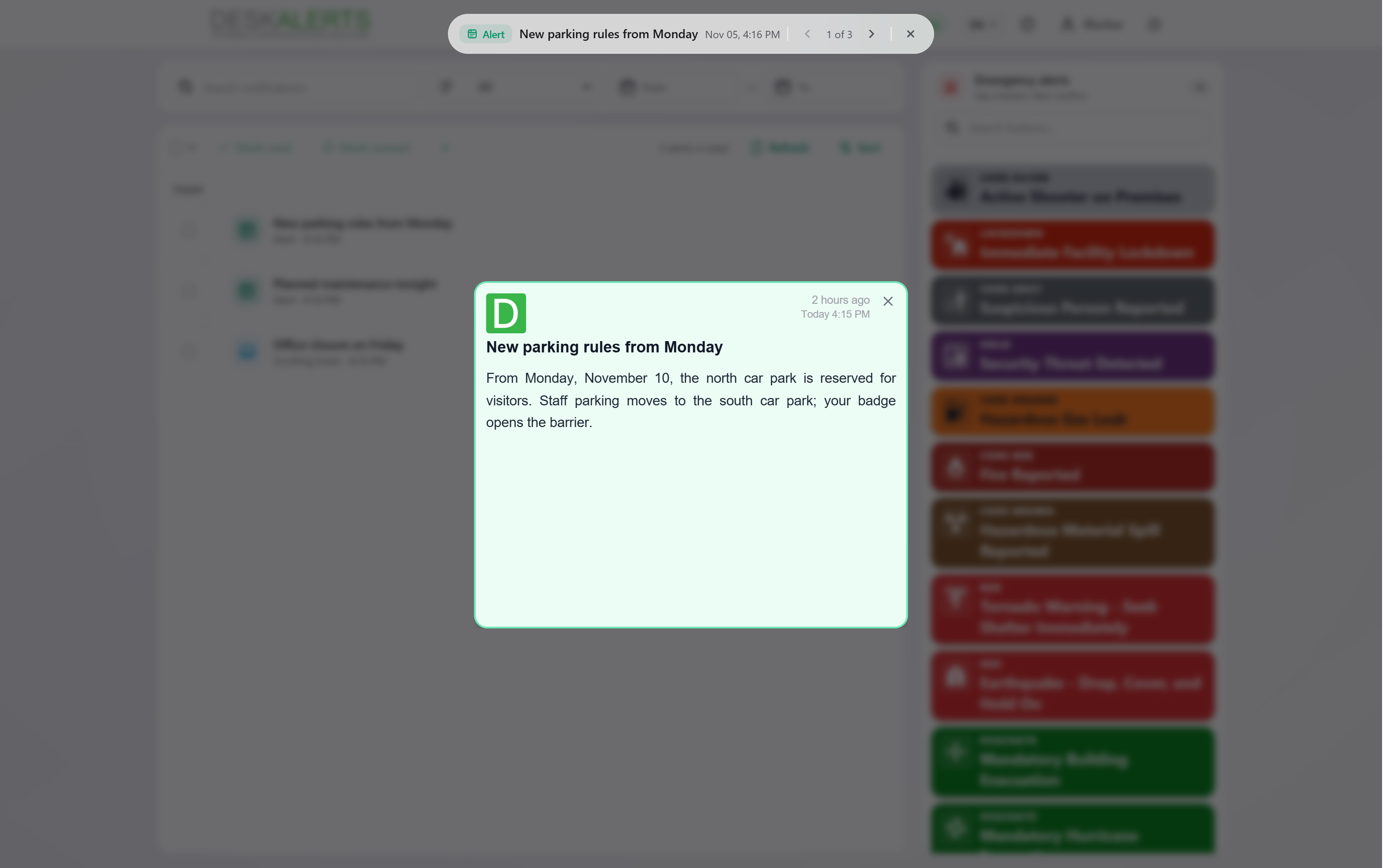 The viewer: the navigation bar and the alert in its skin
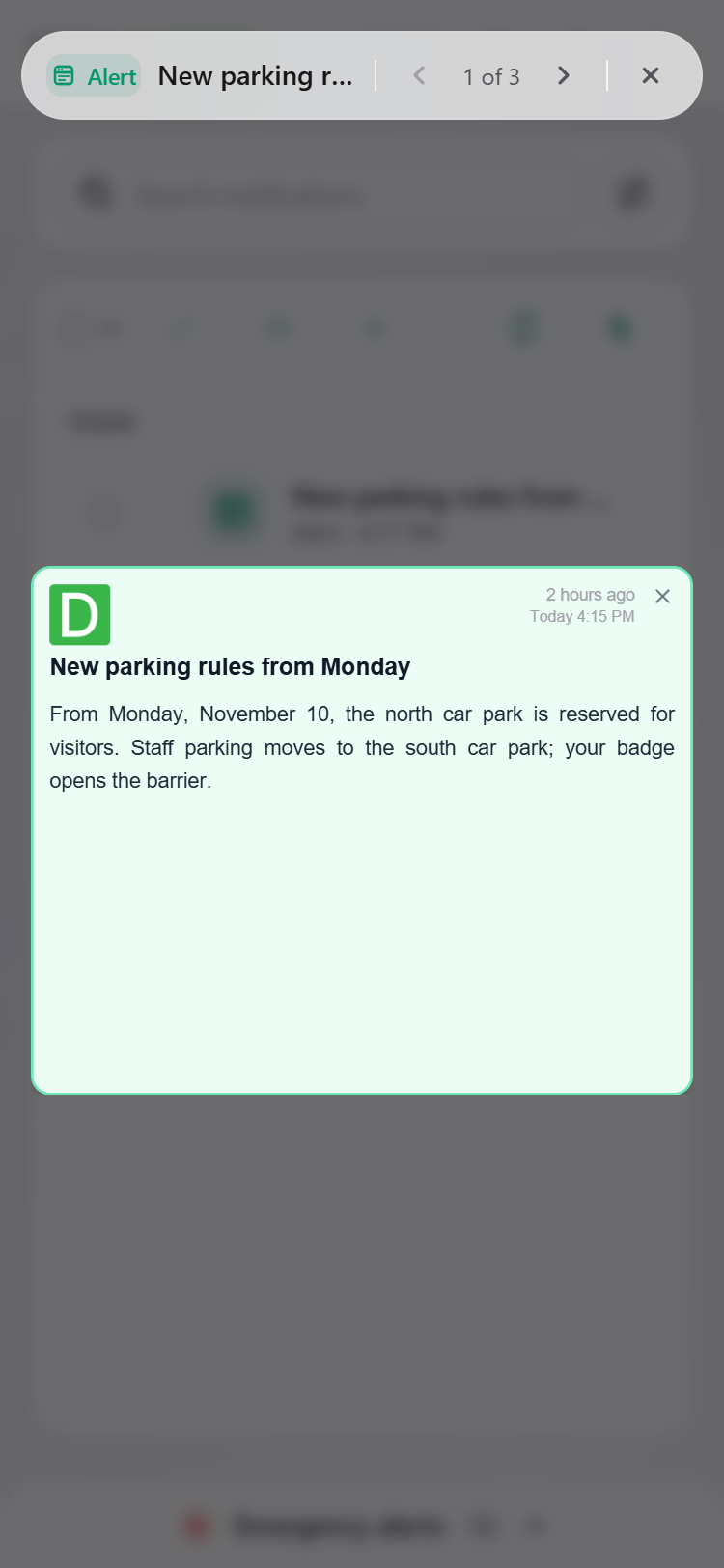 The same alert at phone size
| Element | Description | Controlled by |
|---|---|---|
| Title and content | The alert's title and content, rendered with its skin; images and video from Shared assets are loaded from the server | The alert |
| Acknowledge | Confirms reading; required alerts cannot be dismissed otherwise, and the acknowledgement time is reported | Require acknowledgement in the alert's Response & tracking section |
| Answers | Survey, quiz, poll, microtraining questions and RSVP attendance buttons; answers are sent when submitted | The alert content |
| Video | Plays inside the alert window | The alert content |
| Mark read / Mark unread, delete | Housekeeping of the list on this browser; they do not change the delivery records on the server | — |
Every delivery and acknowledgement is reported to the server and visible in the Alert tracking report and the Recipient report — see Reports.
What is different from the desktop agent
- No tray icon, no Do not disturb, and no wallpaper, lock-screen, or screensaver alerts; a scrolling ticker is shown as a regular alert in the list and the viewer.
- Alert windows do not have a fixed size; the content reflows to the browser window. Publishers should preview popup and Content Plus alerts at a narrow width before sending to recipients who read on a phone.
- The client receives alerts only while a browser has it open (or while the browser can show notifications for the site); it does not run in the background like the agent.