Emergency Alerts
Overview
Emergency alerts is the module for high-priority, time-sensitive notifications that demand immediate attention. Unlike everyday alerts, an emergency alert is prepared in advance and stored as an emergency alert template — a ready-to-send card with its recipients, content, delivery channels, duration, and appearance already configured. When an incident occurs, an operator sends the template with a tap from this page, from the Dashboard, or from the emergency buttons of the desktop agent, the web agent, or the mobile app, without rebuilding the alert.
Emergency alert templates are classified with color schemes (for example, Red, Code Red, Evacuate, Lockdown) that show the severity of the situation on the template cards, in the Dispatched alerts list, and in the alert itself.
The page is available under Critical communications → Emergency alerts in the left navigation panel.
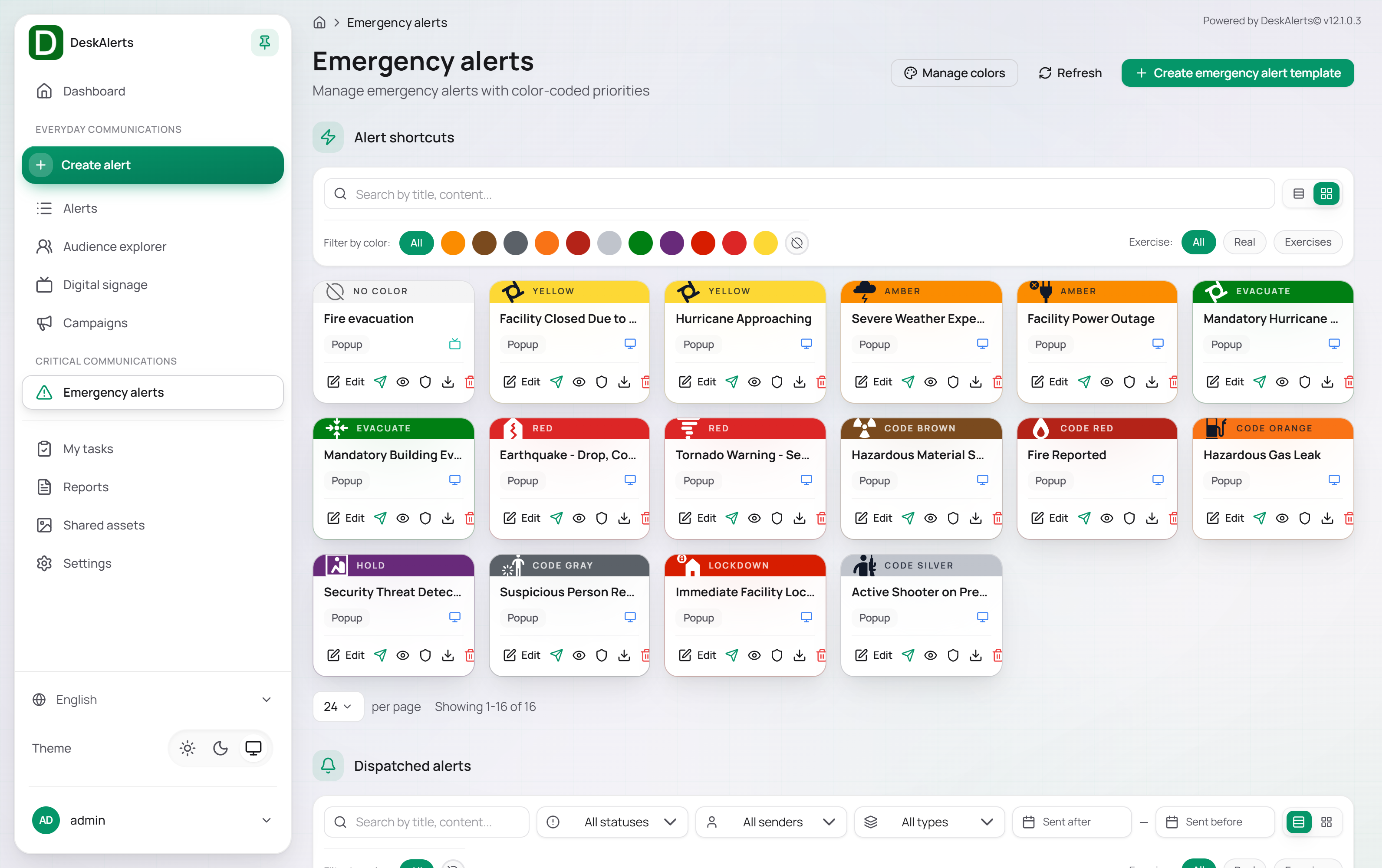 The Emergency alerts page — Alert shortcuts
Page layout
| Area | Description |
|---|---|
| Manage colors | Opens the Color schemes page where you create and manage color schemes. See Color schemes |
| Refresh | Reloads both lists on the page |
| Create emergency alert template | Opens the template editor. See Creating an emergency alert template |
| Alert shortcuts | The emergency alert templates as cards, each a button that sends the template |
| Dispatched alerts | The history of emergency alerts that have been sent, with per-alert details and reports |
Alert shortcuts
The Alert shortcuts section lists every emergency alert template. A new installation ships 15 ready-made templates (Fire Reported, Mandatory Building Evacuation, Tornado Warning - Seek Shelter Immediately, Active Shooter on Premises, and others); the demo organization adds Fire evacuation. Each card shows:
| Element | Description |
|---|---|
| Color band | The color scheme assigned to the template, with its name (for example, CODE RED, EVACUATE, LOCKDOWN), or NO COLOR |
| Title | The template name |
| Type | Popup or Scrolling ticker — the visual format of the alert |
| Edit | Opens the template in the editor |
The card itself is the send button: tap it to send the template to its saved recipients. Whether one tap sends at once or arms the button for a 6-second countdown and a second tap is set under Settings → Alerts → Emergency alerts → Activation — see Alert appearance.
Filtering
| Control | Description |
|---|---|
| Filter by color | Click a color to show only templates with that color scheme; All removes the filter |
| Exercise | All, Real, or Exercises — templates marked as exercises are drills, not real incidents |
| Per page | Number of templates per page, with page navigation at the bottom of the list |
Sending an emergency alert
- Find the template in Alert shortcuts — use the color or exercise filter if the list is long.
- Tap the card. With the Two taps activation the card arms itself and starts a 6-second countdown; tap it again to send, or let the countdown run out to cancel. With One tap the alert is sent at once.
The alert is dispatched to the recipients, through the channels, and for the duration saved in the template, and appears at the top of the Dispatched alerts list with the status Distributing.
Important: The card uses everything saved in the template. Review the recipients and content with Edit before an incident, not during one.
Note: Templates are also listed in the Send emergency alert template widget on the Dashboard, so operators can send them without opening this page. See Dashboard. The desktop agent offers the templates the user is an authorized sender of under Trigger emergency alert in its tray window — see Agent recipient experience.
Dispatched alerts
The Dispatched alerts section is the history of every emergency alert sent from this server (No alerts have been dispatched via emergency templates yet on a fresh server).
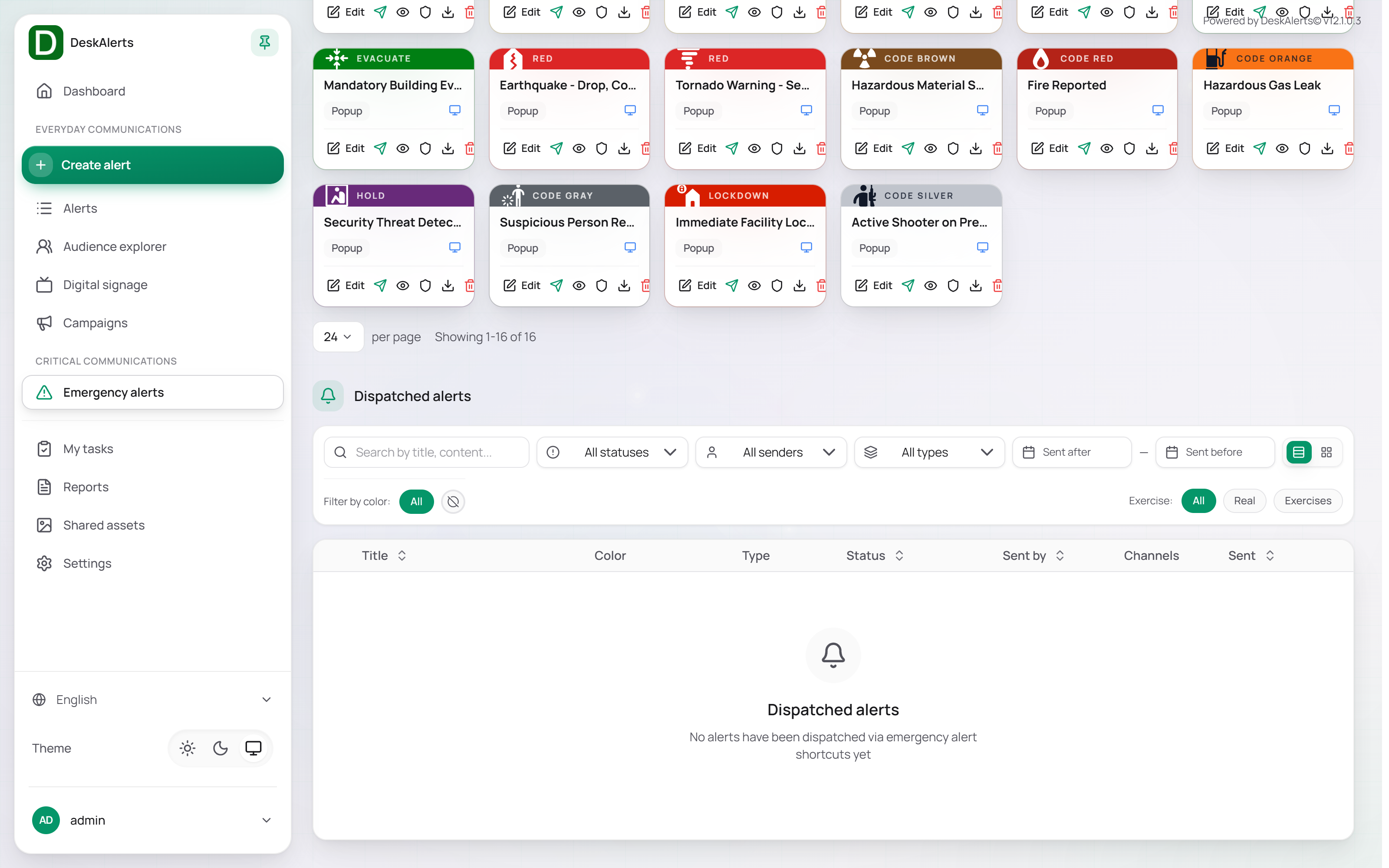 Dispatched alerts with its filters
| Column | Description |
|---|---|
| Title | The template name |
| Color | The color scheme of the template at the time of sending |
| Type | Popup or Scrolling ticker |
| Status | The current delivery status of the alert (for example, Distributing, Expired) |
| Sent by | The web-portal user who sent the alert |
| Channels | Icons of the delivery channels used |
| Sent | Date and time of sending |
Use the controls above the table to narrow the history: All statuses, All senders, All types, the date range, Filter by color, and Exercise.
Dispatched alert actions
Click a row to expand it. The row shows the actions Preview, Details, View schedule, Analytics, Full report, and Delete (plus Stop while the alert is Distributing):
| Action | Description |
|---|---|
| Preview | Shows the alert as it was displayed to recipients |
| Stop | Shown for an alert that is still Distributing. Stops delivery — the status changes to Stopped |
| Details | Opens the alert details — title and priority, recipients, active time, position, color scheme, channels, and a preview |
| View schedule | Shows the alert's status and its start and end times |
| Analytics | Opens a quick delivery report |
| Full report | Opens the Alert tracking report for this alert on the Reports page |
| Delete | Removes the alert from the history, after a confirmation |
Creating an emergency alert template
Click Create emergency alert template. The editor is a single scrolling page with the sections Sender settings, Exercise, Recipients, Content, Delivery, Appearance, and Response & tracking, a live preview on the right, and the buttons Preview, Emulate, and Create emergency alert template (or Update emergency alert template when editing). You can fill in the sections in any order.
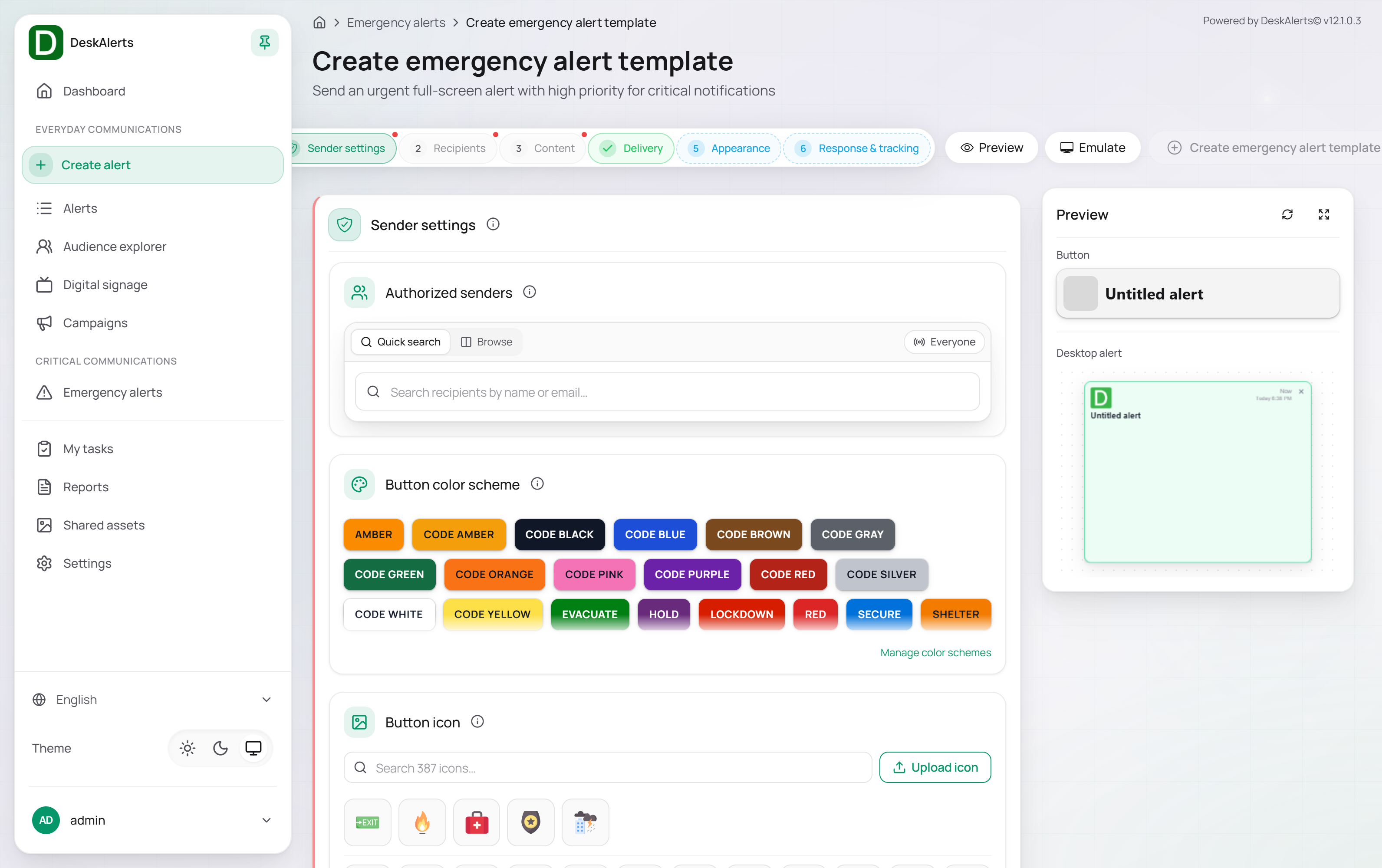 The emergency alert template editor
Sender settings and Exercise
| Setting | Description |
|---|---|
| Authorized senders | Who may send this template from the emergency buttons of the agents and from the Dashboard — everyone (Everyone (broadcast)) or selected users and groups |
| Exercise | Marks the template as a drill: the card gets a hatched button and the alert is labelled Exercise: |
Recipients
The same recipient picker as in the alert composer — Quick search, Browse, or Broadcast (everyone).
Content
| Field | Description |
|---|---|
| Template | Optionally pre-fill the content from a saved content template |
| Title (required) | The headline of the alert, up to 255 characters |
| Body | The alert body, edited in the rich-text editor |
Delivery
| Setting | Description |
|---|---|
| Delivery channels | The channels the alert is sent through — desktop, mobile, the configured auxiliary channels, and Digital signage to take over the signage screens |
| Quick presets / Set duration | How long the alert stays active after it is sent (30 min, 1 hour, 4 hours, 1 day, 7 days, or a custom duration) |
Note: An emergency alert template has no scheduled send time — the alert starts the moment an operator sends it and stays active for the configured duration.
Appearance
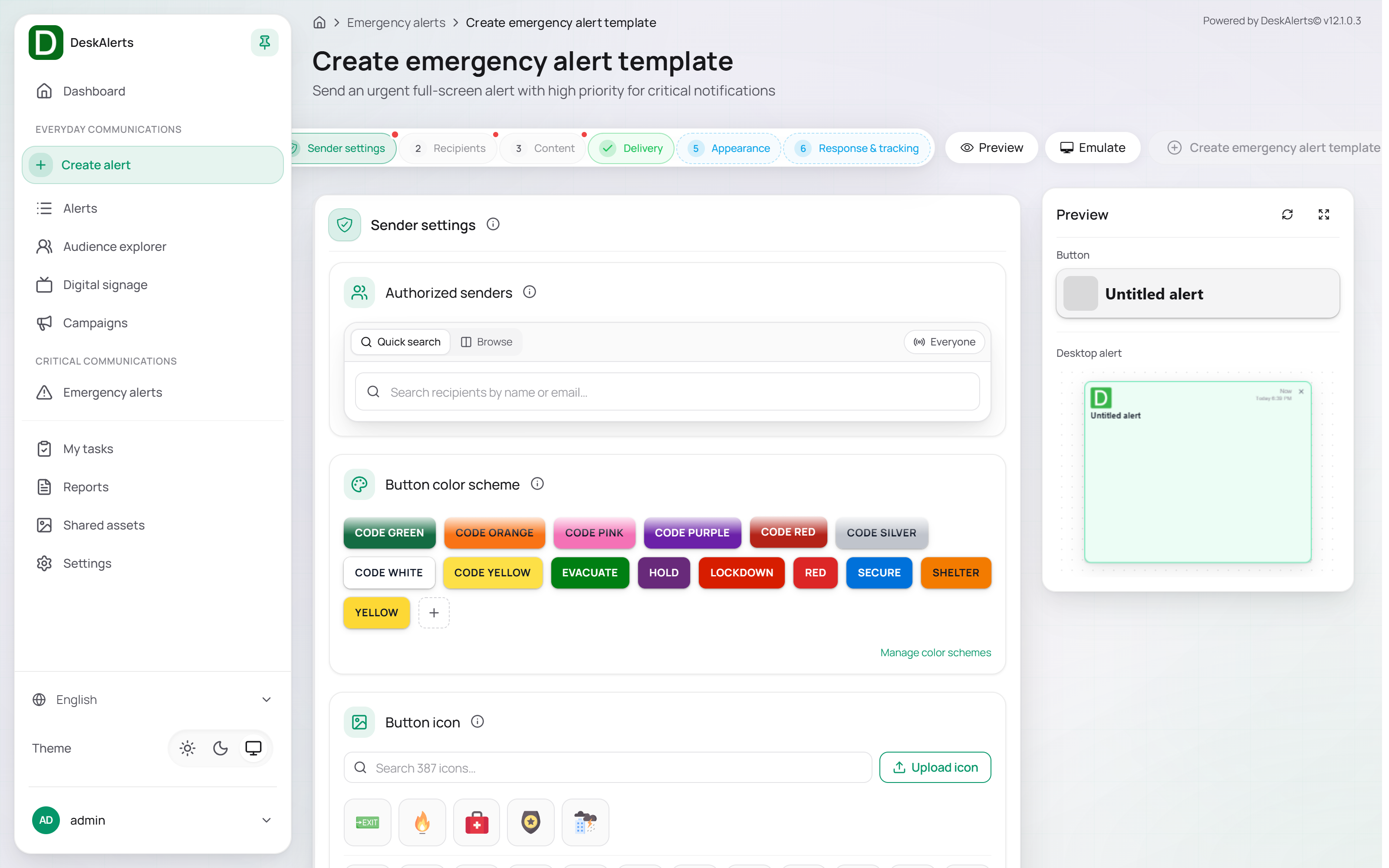
| Setting | Description |
|---|---|
| Alert type | Popup or scrolling ticker |
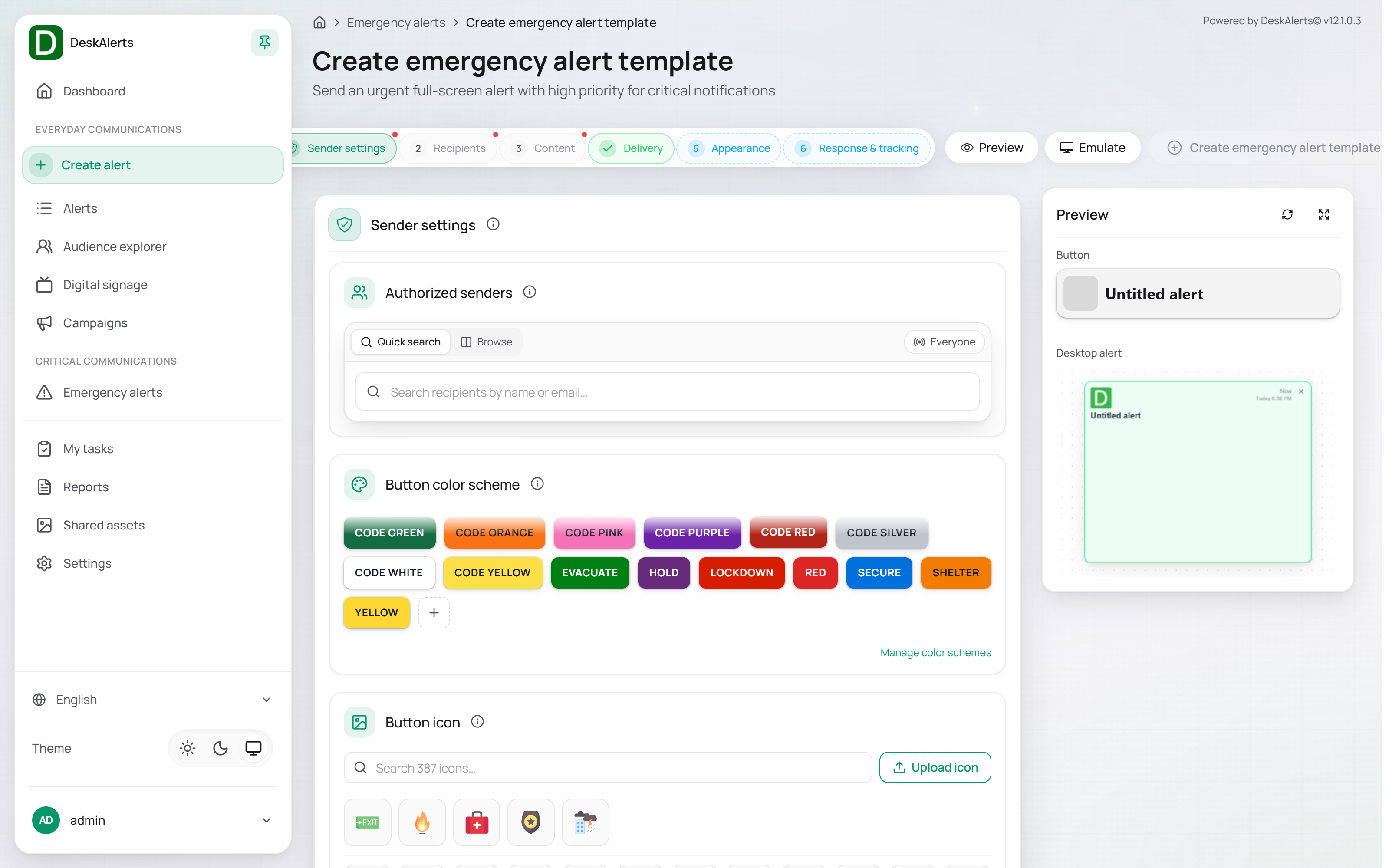
| Color scheme | The severity color scheme of the template, from the list managed with Manage colors |
| Alert skin | The visual theme of the popup — the built-in skins and the skins of Settings → Alerts → Popup and ticker skins |
| Layout & position | The window type, size, and on-screen position |
| Button | The icon of the emergency button that represents this template on the agents (search among the built-in icons) |
Response & tracking
The same switches as for a popup alert: Require acknowledgement, Enable postpone, User feedback, Self-destructing, Auto-close, Show print button.
Saving the template
Click Preview to check the alert as recipients will see it, then Create emergency alert template. The confirmation dialog summarizes the title, recipients, active time, position, size, skin, color scheme, authorized senders, and channels next to a preview; confirm it. The template appears in Alert shortcuts and in the Dashboard widget, ready to be sent.
Color schemes
Color schemes classify the severity of emergency alerts. Each scheme has a name, a color, and an active or inactive status. Schemes appear as the color band on template cards, as Filter by color buttons, and in the Color column of Dispatched alerts.
Open the Color schemes page with Manage colors on the Emergency alerts page. Use Back to alerts to return.
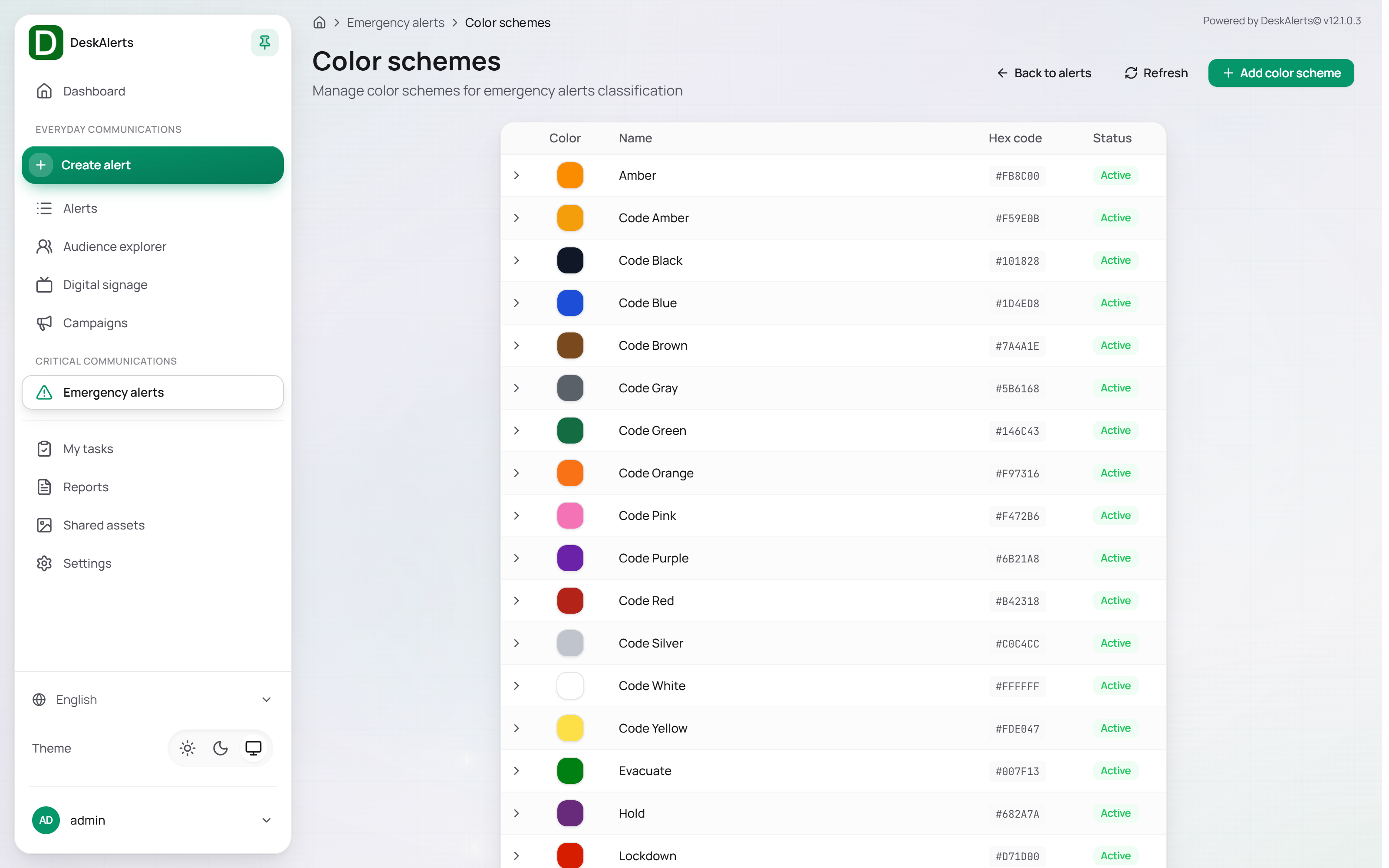 The Color schemes page
| Column | Description |
|---|---|
| Color | A swatch of the scheme's color |
| Name | The display name — a new installation ships Amber, Code Amber, Code Black, Code Blue, Code Brown, Code Gray, Code Green, Code Orange, Code Pink, Code Purple, Code Red, Code Silver, Code White, Code Yellow, Evacuate, Hold, Lockdown, Red, Secure, Shelter, and Yellow |
| Hex code | The hexadecimal color value (for example, #B42318 for Code Red) |
| Status | Active or Inactive |
Click Add color scheme to create a scheme with a name and a color; it is immediately available in the template editor.