Reports
Overview
The Reports page collects the analytics of the DeskAlerts server: what was sent, whom it reached, what web-portal users did, and how the system is used over time. It is organized into four tabs:
| Tab | Purpose |
|---|---|
| Alerts (the first tab) | Every alert sent from the server, with a full Alert tracking report per alert |
| Recipients | Per-recipient delivery statistics |
| Usage | Aggregated usage reports for a chosen period |
The page is available under Reports in the left navigation panel.
 The Alerts tab
Alerts
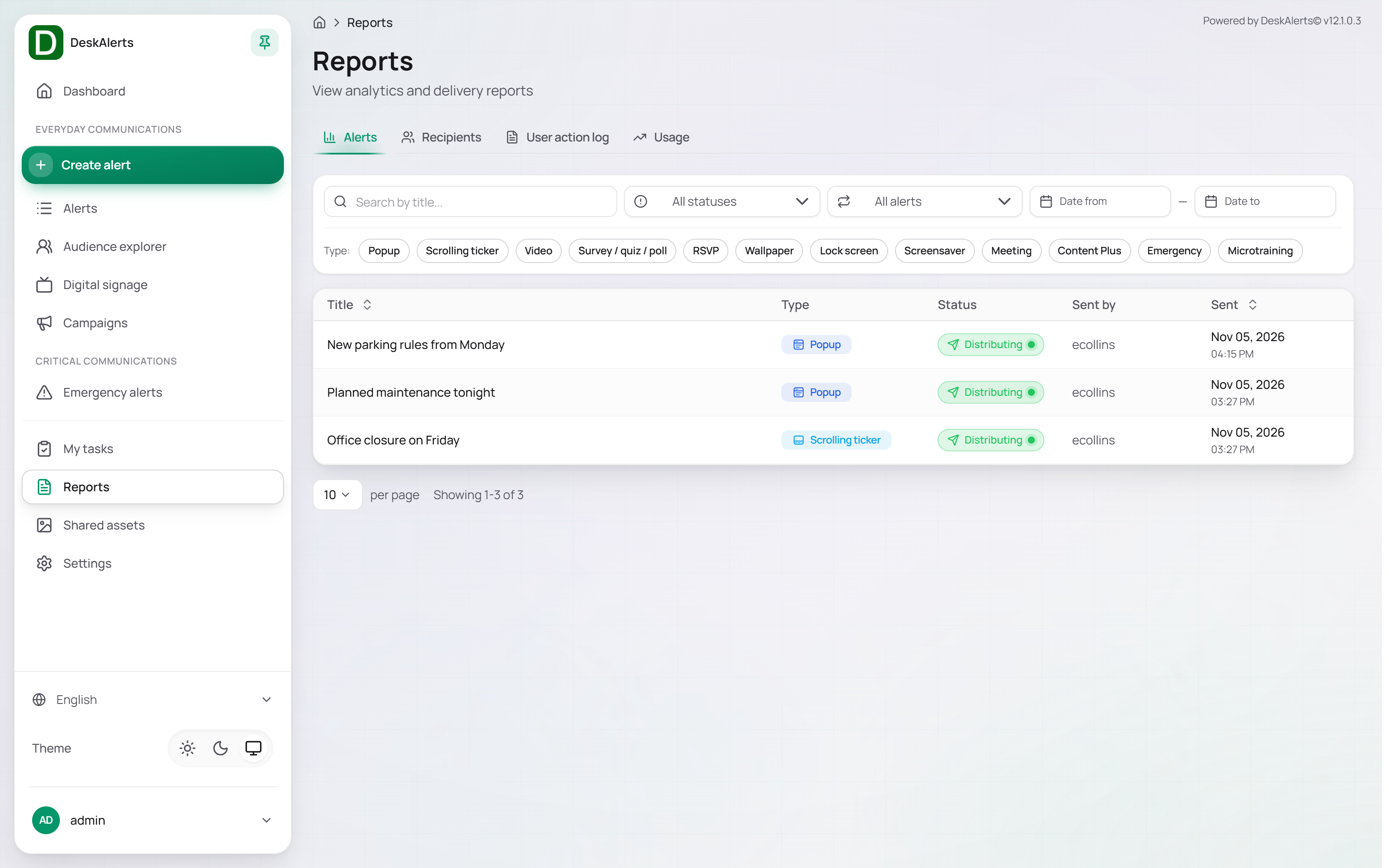
The Alerts tab lists all alerts sent from the server — everyday alerts and emergency alerts alike — newest first.
| Column | Description |
|---|---|
| Title | The alert title. Click it to open the Alert tracking report |
| Type | The alert type (Popup, Scrolling ticker, Emergency, …); emergency alerts carry an additional Emergency badge |
| Status | The lifecycle status of the alert |
| Sent by | The web-portal user who sent it |
| Sent | Date and time of sending |
The footer shows the page size and the total (for example, Showing 1-4 of 4).
Filtering
| Control | Description |
|---|---|
| All statuses | Filter by lifecycle status |
| All alerts | Recurring or one-time alerts |
| Date range | Alerts sent within a date range |
| Type chips | Popup, Scrolling ticker, Video, Survey / quiz / poll, RSVP, Wallpaper, Lock screen, Screensaver, Meeting, Content Plus, Emergency, Microtraining. Click a chip to show only that type; click it again to remove the filter |
Alert tracking report
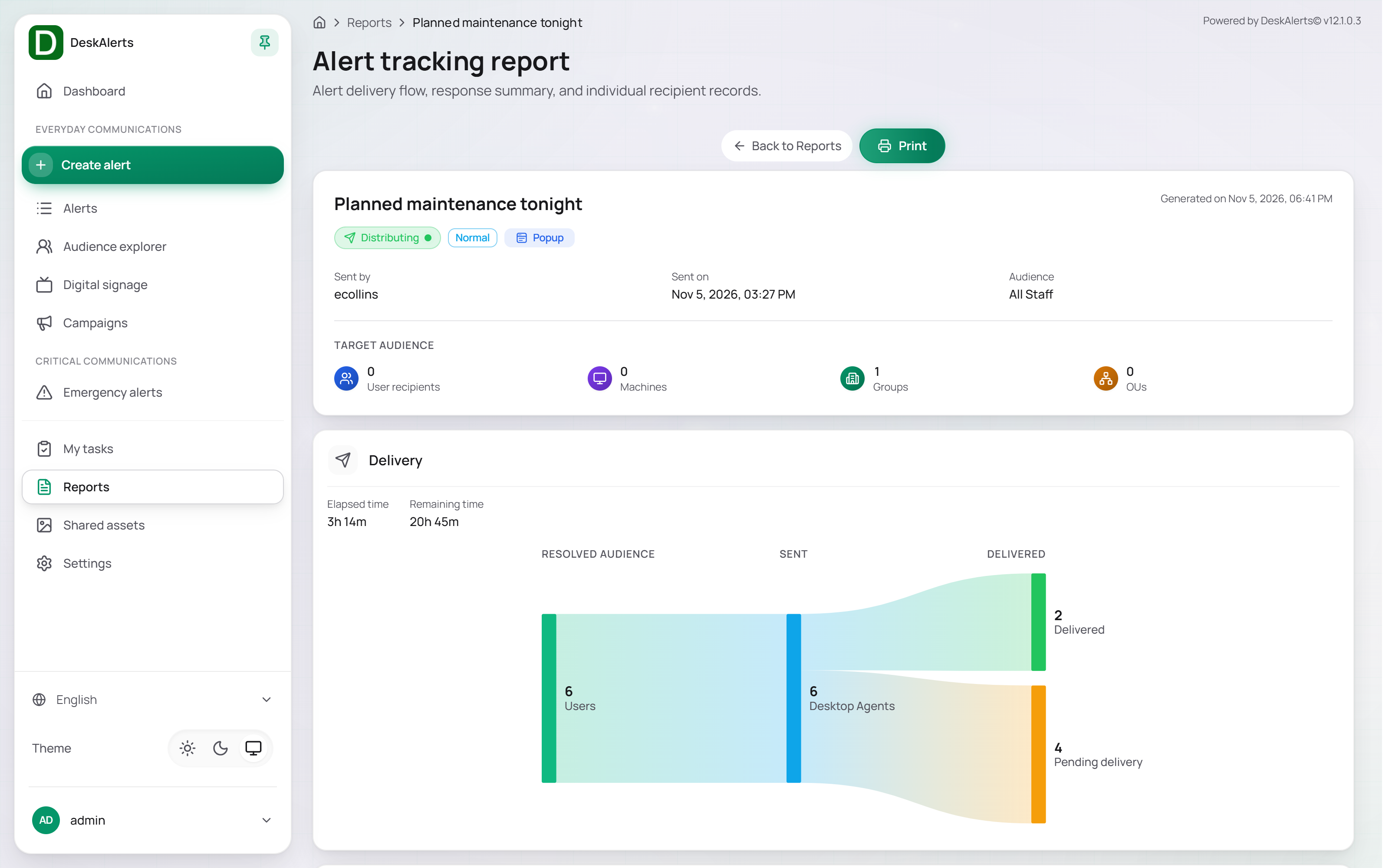
Click an alert to open its Alert tracking report — Alert delivery flow, response summary, and individual recipient records. The same report opens from Full report in the row actions of the Alerts page.
 An Alert tracking report
| Section | Description |
|---|---|
| Header | The alert title with its status, priority, and type badges; Sent by, Sent on, and Audience (for example, All Staff); the report generation time; and the Target audience tiles — user recipients, machines, groups, and OUs the alert was addressed to |
| Delivery | Elapsed time and Remaining time of the alert's active period, and the delivery funnel: Resolved audience (the users the audience resolved to, for example 5 Users) → Sent (5 Desktop agents) → Delivered / Pending delivery (agents that have not yet received the alert — offline users) |
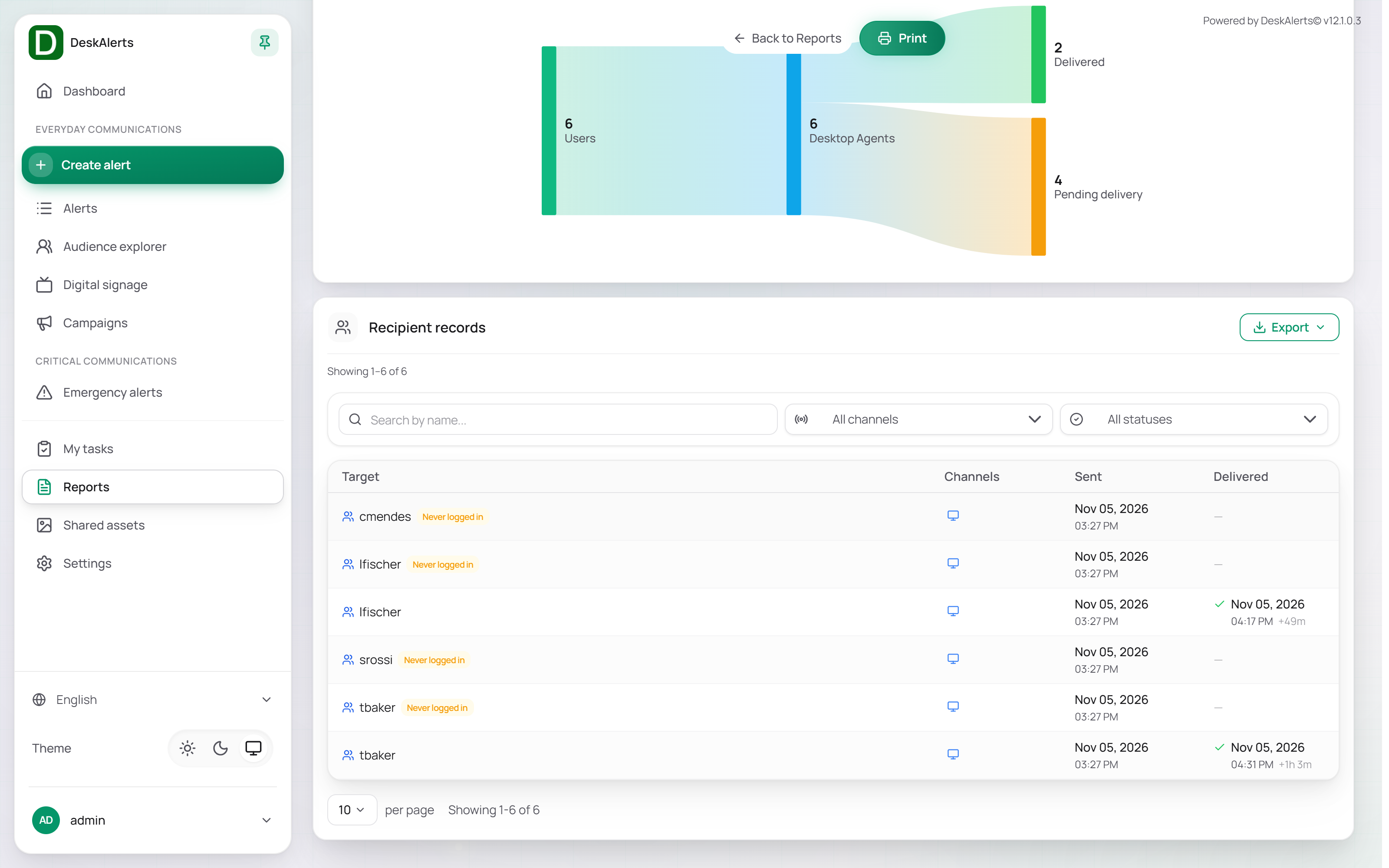
| Recipient records | One row per target endpoint with the channel used and the sent and delivered times |
Use Back to Reports to return to the list or Print to print the report.
Responses
For alerts that collect a response — acknowledgement, RSVP answers, survey answers — the report also shows how many delivered recipients responded and when.
Recipients
The Recipients tab shows delivery statistics per recipient.
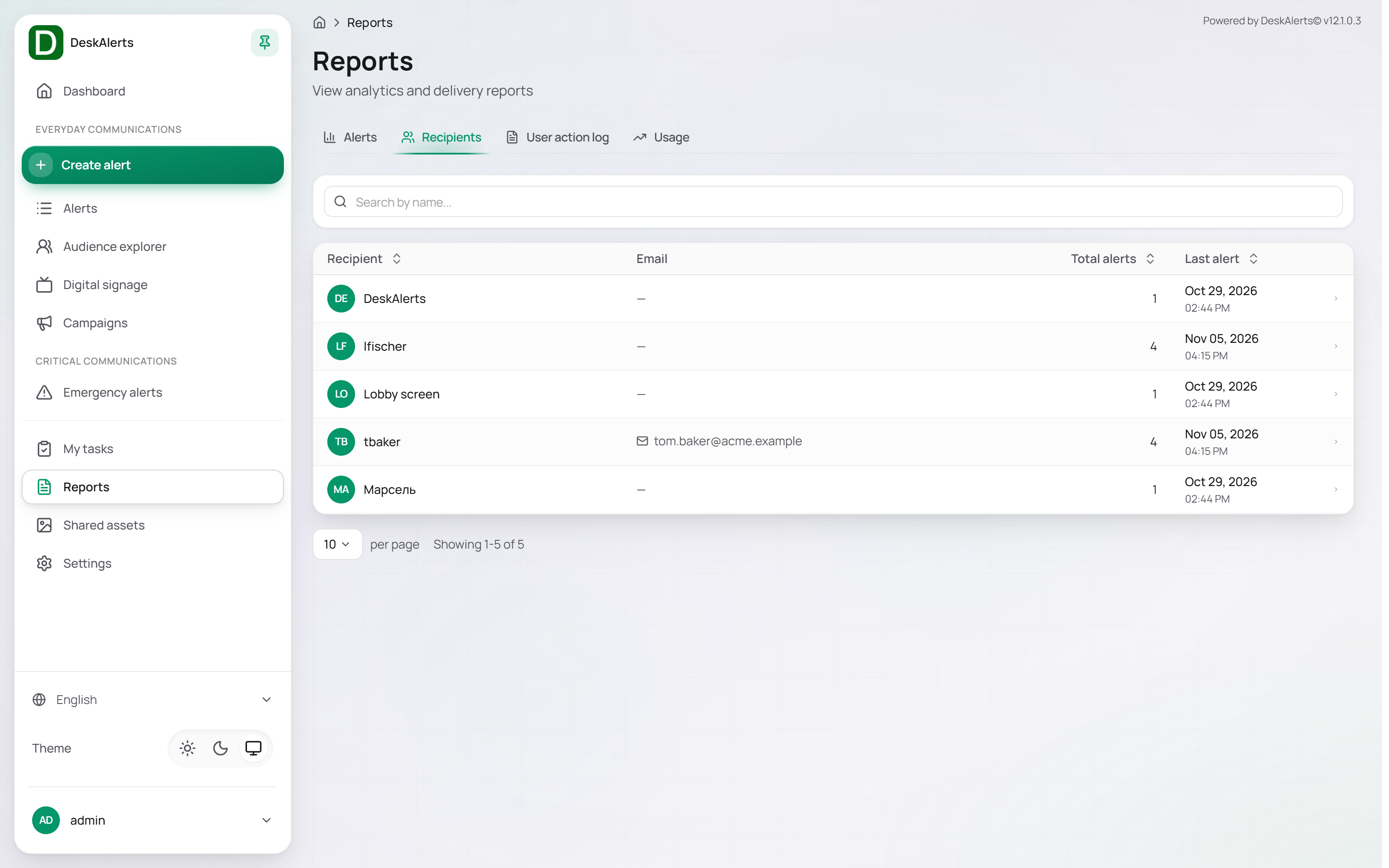
| Column | Description |
|---|---|
| Recipient | The recipient's name. Recipients that no longer exist are marked Deleted |
| The recipient's email address, when known | |
| Total alerts | The number of alerts addressed to the recipient |
| Last alert | Date and time of the most recent alert |
Use Search by name… to find a recipient and the Recipient, Total alerts, and Last alert headers to sort.
Recipient report
Click the › arrow at the right end of a row to open the Recipient report — the delivery and response records of a single recipient.
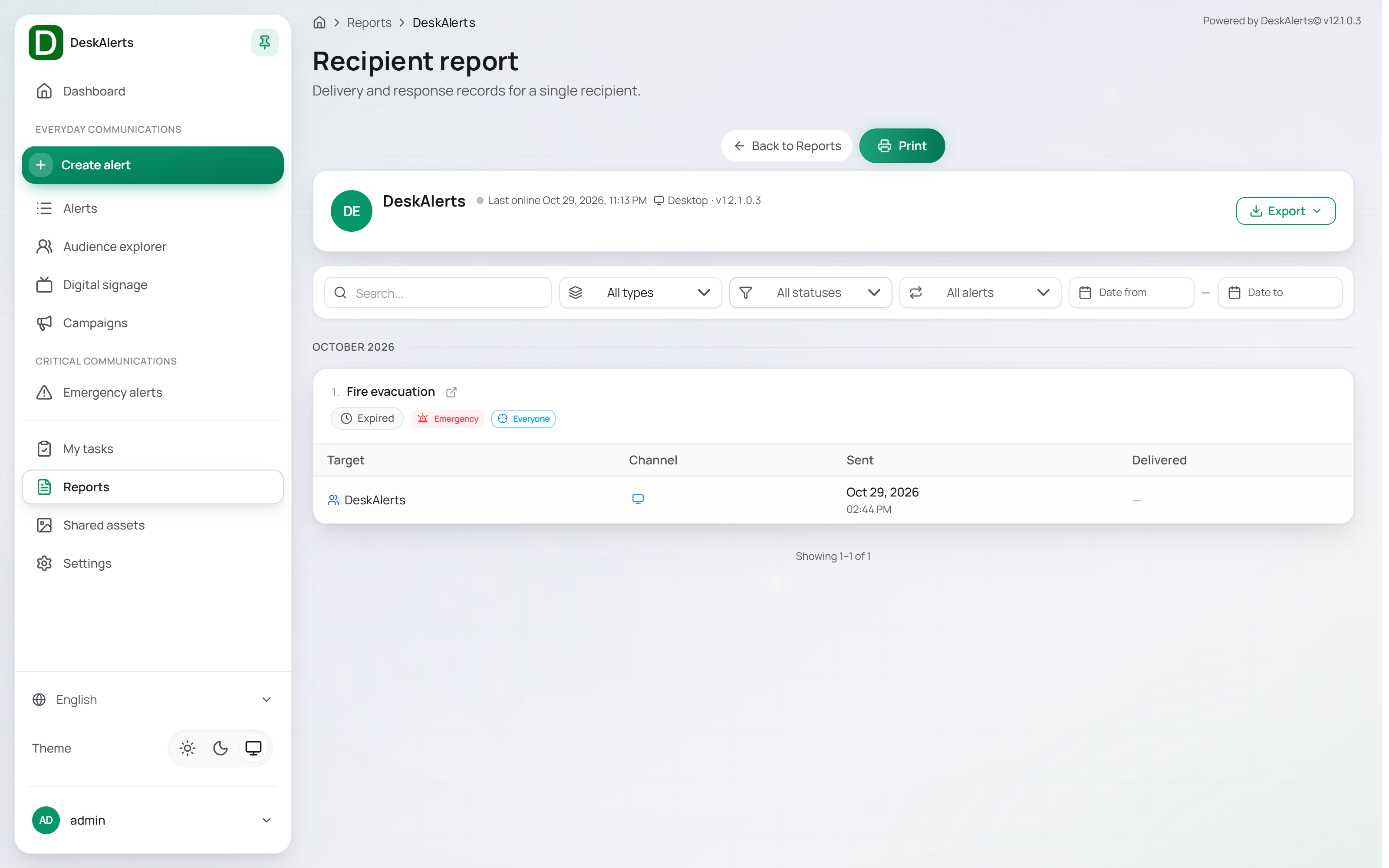 A Recipient report
| Area | Description |
|---|---|
| Header | The recipient's name, whether the recipient is online now, and the platform and version of the agent (for example, Desktop · v12.1.0.3), with an Export button |
| Filters | Search, All types, All statuses, All alerts (recurring or one-time), and a date range |
| Alert records | One block per alert, grouped by month. The block shows the alert title (with a link to the alert), its status, type, and how the recipient was targeted (Directly targeted, Everyone, or through a group or OU), followed by a table with the Target, Channel, Sent, Delivered, and — for alerts that collect a response — Acknowledged columns |
Use Back to Reports to return or Print to print the report.
Usage
The Usage tab produces usage reports — a summary of alert activity, delivery channels, and audience reach over a chosen period — and keeps the history of generated reports. The usage report counts the desktop channel.
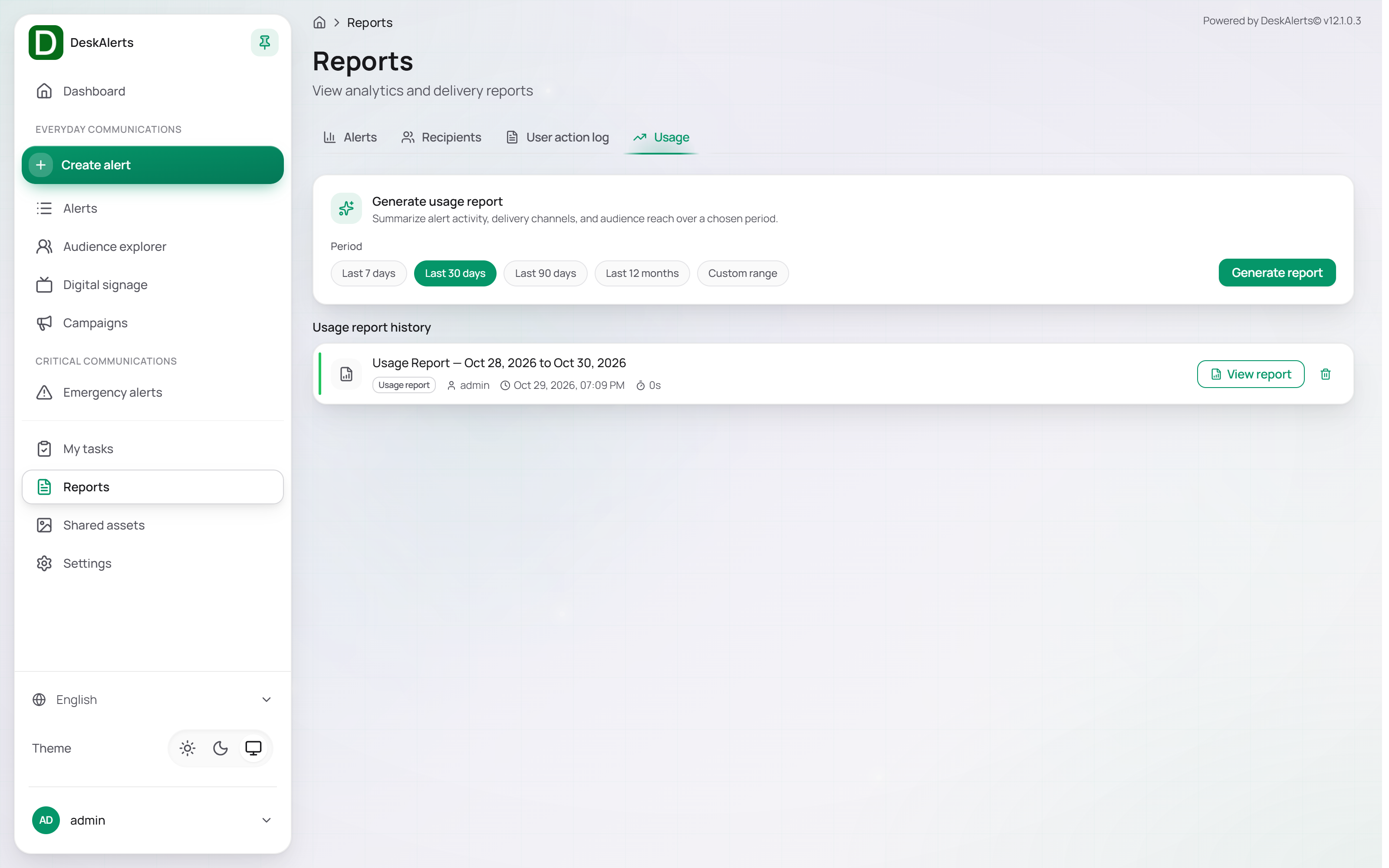
Generating a usage report
- Under Generate Usage Report, choose the Period: Last 7 days, Last 30 days, Last 90 days, Last 12 months, or Custom range.
- Click Generate report. The report is generated on the server and added to the Usage report history list with the period, the user who initiated it, the generation time, and how long it took.
Usage report history
Each entry offers View report and a delete icon. A usage report contains:
| Section | Description |
|---|---|
| Summary tiles | Alerts Sent, Alert types, Unique Recipients, Delivery channels, Active Senders, and Target Groups/OUs for the period |
| Alerts sent, by type | A bar per alert type — Popup, Ticker, Emergency, Video, Survey, Wallpaper, Meeting, Quiz, RSVP, Lockscreen, Screensaver, Content Plus |
| Recipients reached, by delivery channel | Recipients per delivery channel |
| Active Senders | Alerts sent by each web-portal user |
| Targeted Groups & OUs | Groups and OUs addressed in the period with the number of alerts |
| Alert list | Every alert of the period with its date, title, and type |
Use Back to Reports to return or Print to print the report.