Auxiliary Delivery Channels
The Delivery channels group of Settings configures the external providers used for SMS, voice calls, email delivery, and Microsoft Teams messages.
| Page | Purpose |
|---|---|
| SMS portal | The SMS gateway used by the SMS channel |
| Text-to-call | The voice gateway used by the text-to-call channel |
| SMTP server (emails) | The email provider used by the email channel and by system notifications |
| MS Teams (text messages) | The Azure AD application and Teams app used by the MS Teams channel |
The Azure AD application used by Meeting alerts is configured under Settings → Alerts → Meeting alert (MS Teams); it is described at the end of this page.
SMS portal
SMS portal configures the external SMS gateway used to send SMS alerts.
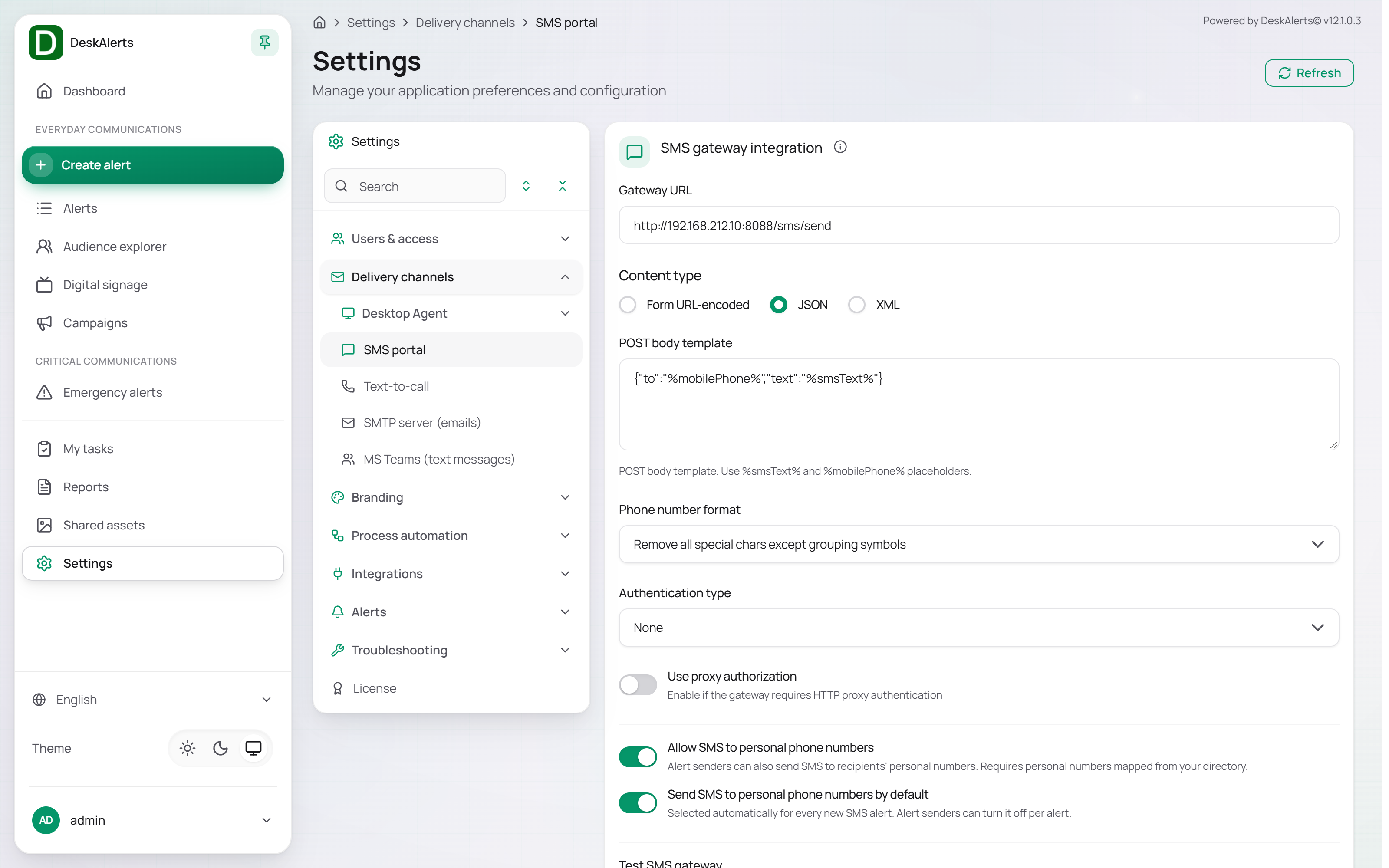
| Field | Description |
|---|---|
| Gateway URL | SMS gateway API endpoint |
| Content type | Request format: Form URL-encoded, JSON, or XML |
| POST body template | Request payload template. Use the %smsText% and %mobilePhone% placeholders |
| Phone number format | Phone number normalization method (see below) |
| Authentication type | None, Basic authentication, API key, or Zenvia |
| Use proxy authorization | Enable if the gateway requires HTTP proxy authentication |
| Allow SMS to personal phone numbers | Alert senders can also send SMS to recipients' personal numbers. Requires personal numbers mapped from your directory (see Custom field mapping in Users & Access) |
| Send SMS to personal phone numbers by default | Selected automatically for every new SMS alert; the sender can turn it off per alert |
Phone number formats
- Don't convert phone numbers
- Remove all special chars except grouping symbols
- Remove all special chars
- Remove all special chars except '+' symbol
- Use international E.164 phone format
- Use international E.164 phone format with '+' symbol
Use Remove all special chars except '+' symbol and store the numbers with the country code (for example +15550100001): the gateway then receives +15550100001.
Test SMS gateway
Enter a destination phone number and click Send test SMS to verify gateway connectivity and delivery. The test uses the saved settings — click Save first; a test before saving reports Failed to send test SMS without reaching the gateway.
Click Save to store the configuration. The gateway reports little more than Failed when a message is rejected, so check two things on the provider side first: the account's geographic permissions must allow the destination country (Twilio: Messaging Geographic Permissions, and Voice Geographic Permissions for Text-to-Call — without them nothing arrives and nothing is logged), and a trial account can send only to verified numbers.
Text-to-Call
Text-to-Call configures a voice-call gateway that converts alert text into automated phone calls.
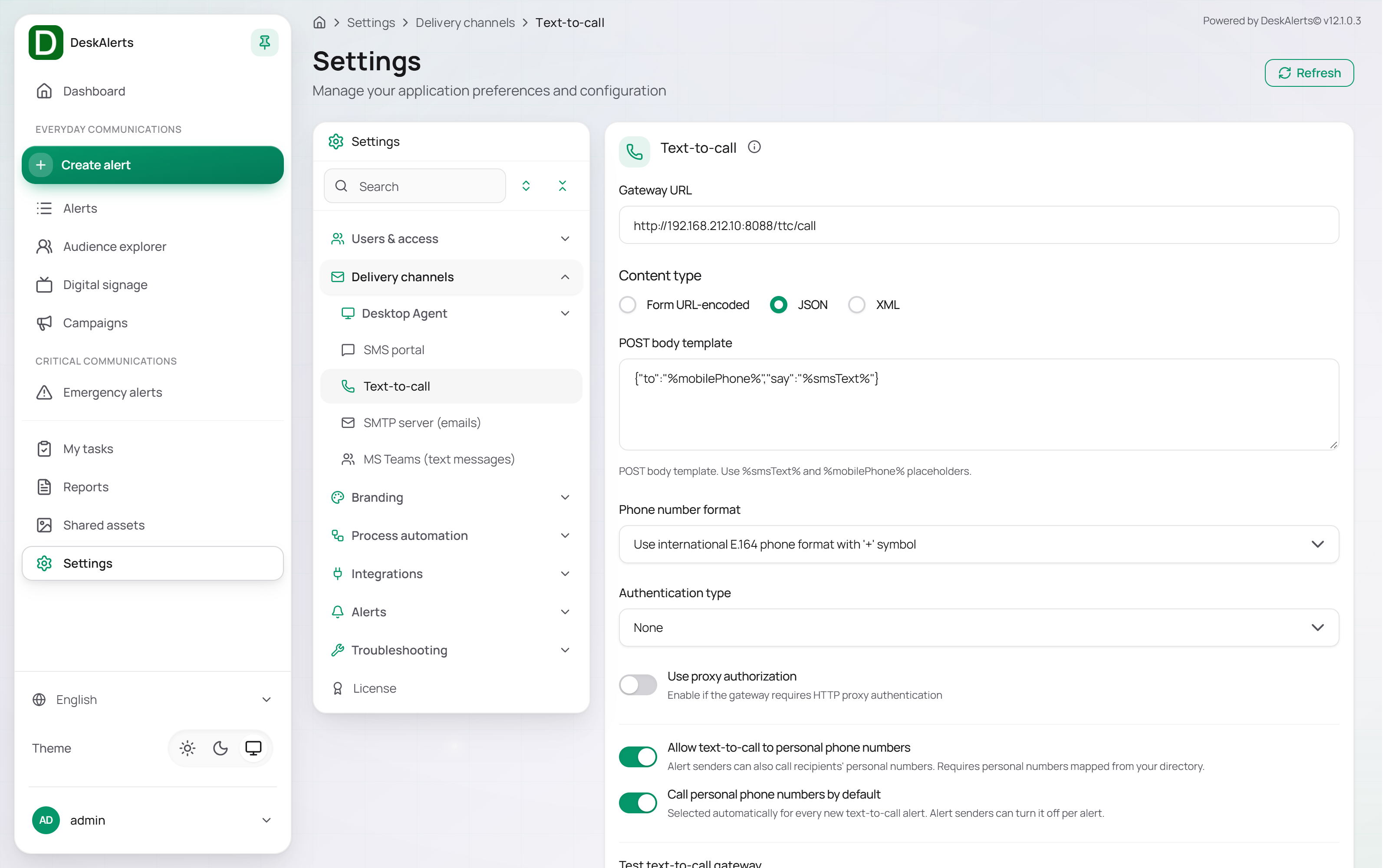
The configuration is the same as for the SMS portal.
| Field | Description |
|---|---|
| Gateway URL | Voice gateway API endpoint |
| Content type | Request format: Form URL-encoded, JSON, or XML |
| POST body template | Request payload template with the %smsText% and %mobilePhone% placeholders |
| Phone number format | Phone number normalization method (the same list as for SMS) |
| Authentication type | Gateway authentication method |
| Use proxy authorization | Enable if the gateway requires HTTP proxy authentication |
| Allow text-to-call to personal phone numbers | Alert senders can also call recipients' personal numbers |
| Call personal phone numbers by default | Selected automatically for every new text-to-call alert; the sender can turn it off per alert |
Under Test text-to-call gateway, enter a phone number and click Send test call to place a test call.
Click Save to apply changes.
SMTP server (emails)
SMTP server configures the email delivery provider used for email alerts and system notifications. The page has two tabs: Email provider and Custom server.
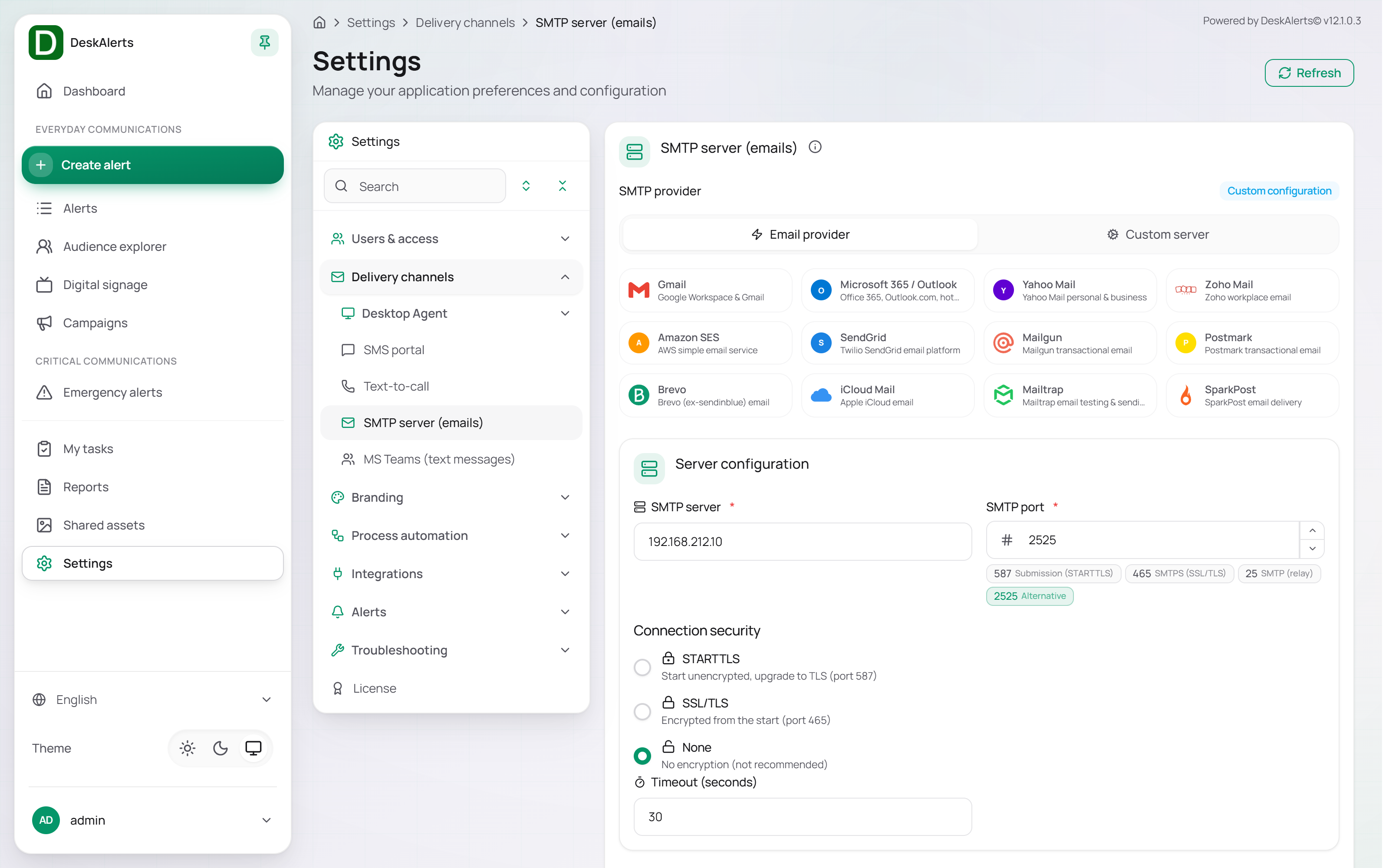 SMTP server — the Email provider tab; the SMTP provider card at the top shows the current state
Note: Gmail and Google Workspace accounts no longer accept the account password for SMTP. Enable 2-step verification on the sending account, create an App password under Manage your Google Account → Security → 2-Step Verification → App passwords, and use it as the SMTP password with
smtp.gmail.com, port 587, SSL and authentication on. The app password is shown once. The SMTP provider card at the top shows the current state: the selected provider orCustom configuration, and the server, port, and encryption in use.
Email provider tab
The Email provider tab offers quick setup using a predefined list of popular email services. Select a provider to auto-populate the server configuration for that service.
Supported providers:
- Gmail (Google Workspace & Gmail)
- Microsoft 365 / Outlook (Office 365, Outlook.com, Hotmail)
- Yahoo Mail (Yahoo Mail personal & business)
- Zoho Mail (Zoho Workplace email)
- Amazon SES (AWS Simple Email Service)
- SendGrid (Twilio SendGrid email platform)
- Mailgun (Mailgun transactional email)
- Postmark (Postmark transactional email)
- Brevo (ex-Sendinblue email)
- iCloud Mail (Apple iCloud email)
- Mailtrap (Mailtrap email testing & sending)
- SparkPost (SparkPost email delivery)
After selecting a provider, fill in the Server configuration, Authentication, Sender information, and Diagnostics & testing fields described below — they are the same for both tabs.
Custom server tab
The Custom server tab allows manual configuration of any SMTP server not listed as a preset provider — for example an internal relay on port 2525 with Connection security None and Require authentication off, which is what an internal mail relay usually needs.
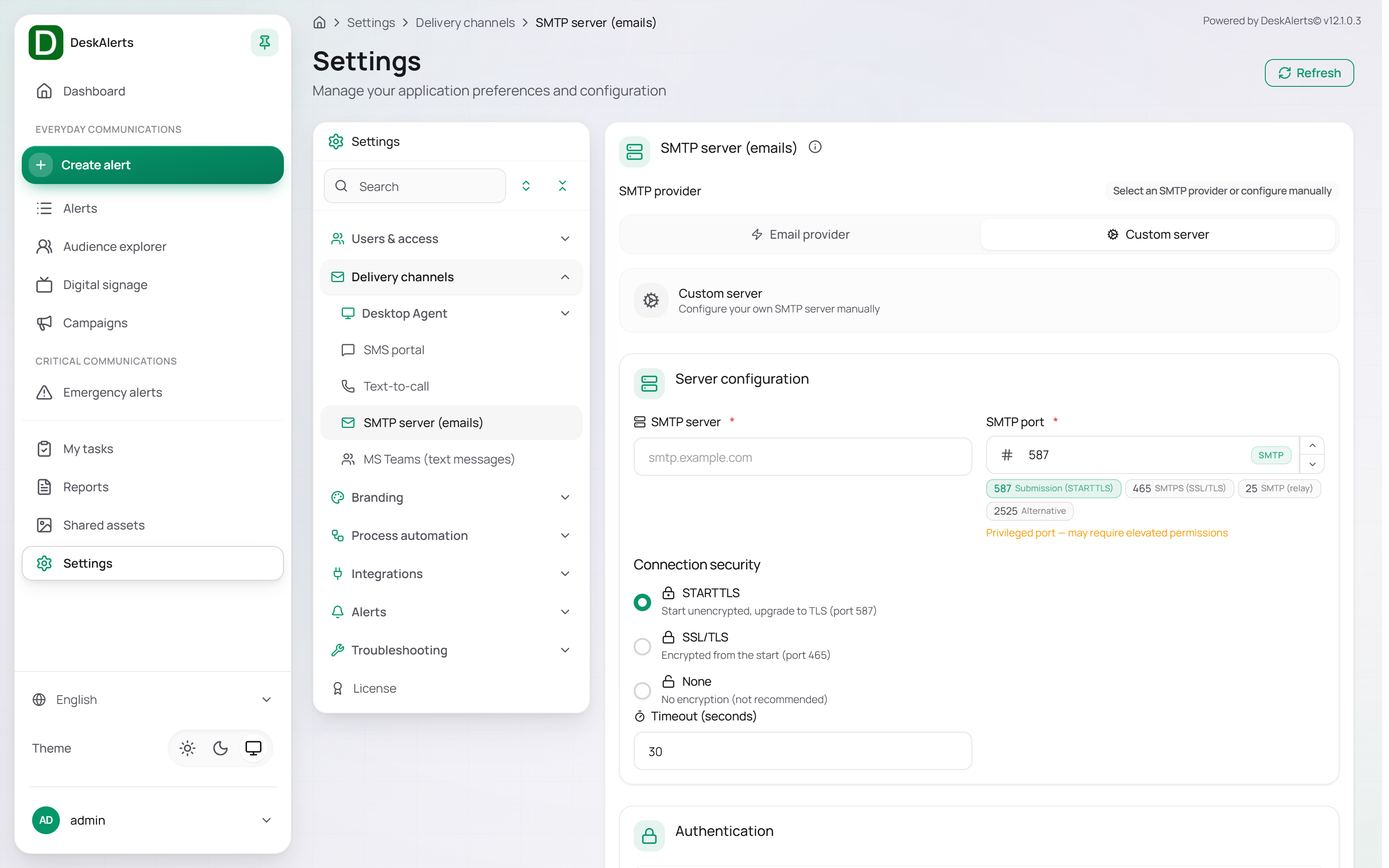
Server configuration
| Field | Description |
|---|---|
| SMTP server | Required. The SMTP server hostname (e.g., smtp.acme.example) |
| SMTP port | Required. The port number for the SMTP connection. Quick presets: 587 Submission (STARTTLS), 465 SMTPS (SSL/TLS), 25 SMTP (relay), 2525 Alternative |
Connection security
Choose how the connection to the SMTP server is encrypted:
| Option | Description |
|---|---|
| STARTTLS | Starts the connection unencrypted and upgrades to TLS (recommended for port 587) |
| SSL/TLS | The connection is encrypted from the start (recommended for port 465) |
| None | No encryption. Not recommended for production use |
Timeout (seconds) — the number of seconds DeskAlerts waits for a response from the SMTP server before treating the connection as failed. Default: 30.
Authentication
Require authentication — toggle on to require credentials when connecting to the SMTP server. Enable this for all servers that require a username and password to send email.
When enabled, provide the SMTP account username and password (or app password / API key, depending on the provider).
Sender information
| Field | Description |
|---|---|
| From address | Required. The email address that appears in the "From" field of all outgoing emails (e.g., alerts@acme.example) |
| From display name | The sender name shown to recipients in their email client (e.g., Acme Alerts) |
Diagnostics & testing
Enable SMTP logging — when enabled, records detailed SMTP session logs for debugging purposes. Useful when troubleshooting delivery failures.
Two test actions are available:
| Action | Description |
|---|---|
| Test current settings | Tests the SMTP connection using the values currently in the form, including any unsaved changes |
| Test saved settings | Tests the SMTP configuration stored on the server. Save your changes first before using this option |
Each test sends a DeskAlerts SMTP Connection Test message to the From address; Save runs the test again, so expect more than one test message in that mailbox.
Click Save to apply the configuration, or Reset to discard unsaved changes.
What to expect after the setup. Email alerts go only to recipients that have an Email attribute. The first message leaves about a minute after the alert is created; the subject is the alert title and the body is the HTML of the alert. Approval decisions are also emailed to the sender (Alert <title> — Approved / — Rejected).
MS Teams (text messages)
MS Teams integration allows DeskAlerts to deliver alert notifications as messages directly into Microsoft Teams channels or chats. This requires a registered Azure AD application and the DeskAlerts Teams app installed in your Teams tenant.
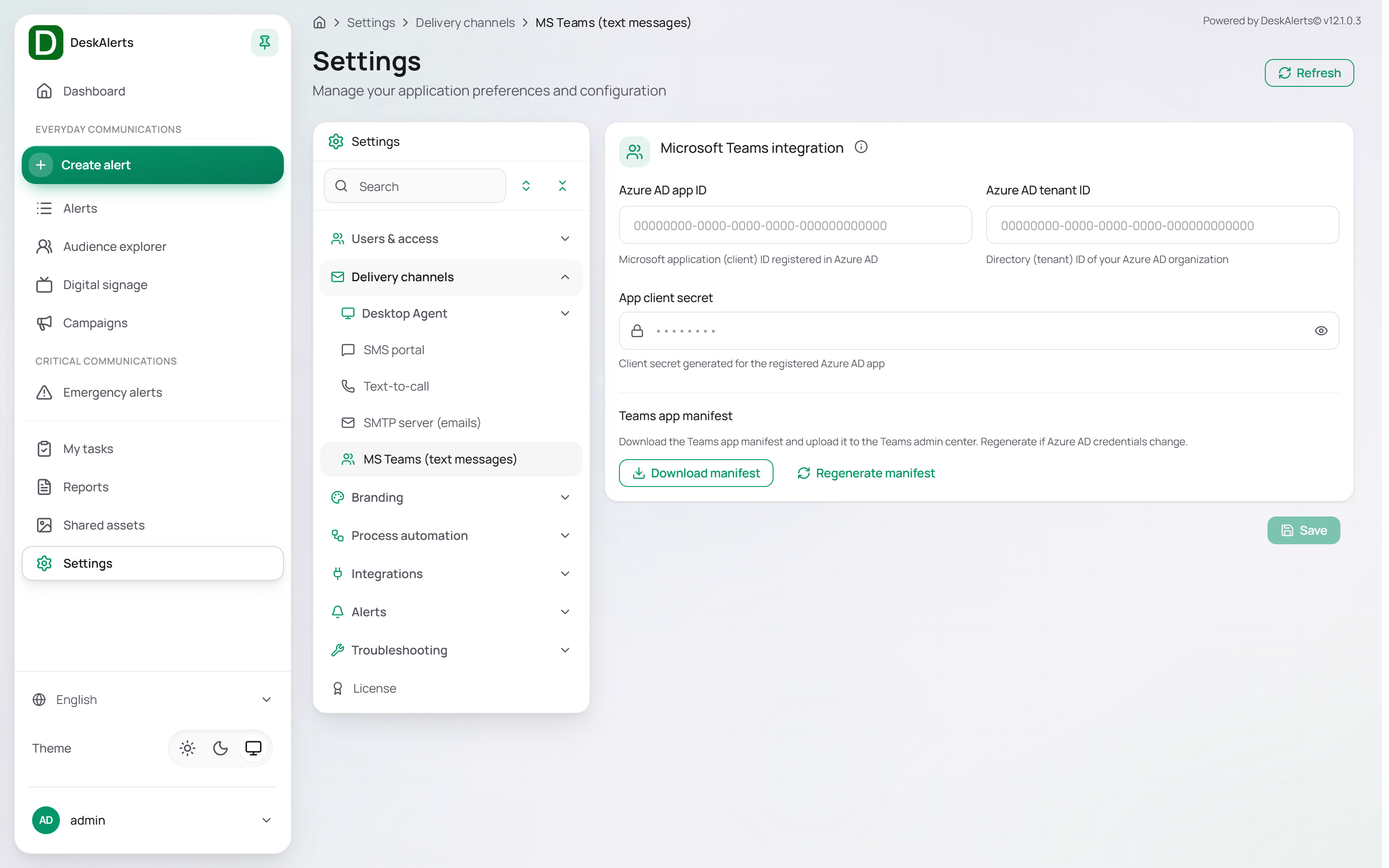
| Field | Description |
|---|---|
| Azure AD app ID | The Microsoft application (client) ID registered in Azure AD |
| Azure AD tenant ID | The directory (tenant) ID of your Azure AD organization |
| App client secret | The client secret generated for the registered Azure AD app. Keep this value secure |
Teams app manifest
The Teams app manifest is a package that installs DeskAlerts as an app inside Microsoft Teams.
| Action | Description |
|---|---|
| Download manifest | Downloads the manifest package to upload into the Microsoft Teams admin center |
| Regenerate manifest | Rebuilds the manifest — use this after updating Azure AD credentials or changing the app configuration |
After downloading the manifest, upload it in the Microsoft Teams admin center under Manage apps to complete the integration setup.
Click Save after updating credentials.
Meeting alert (MS Teams)
Meeting alerts create a real Microsoft Teams calendar event on the publisher's behalf. This requires its own Azure AD application registration with access to Microsoft Graph, configured under Settings → Alerts → Meeting alert (MS Teams).
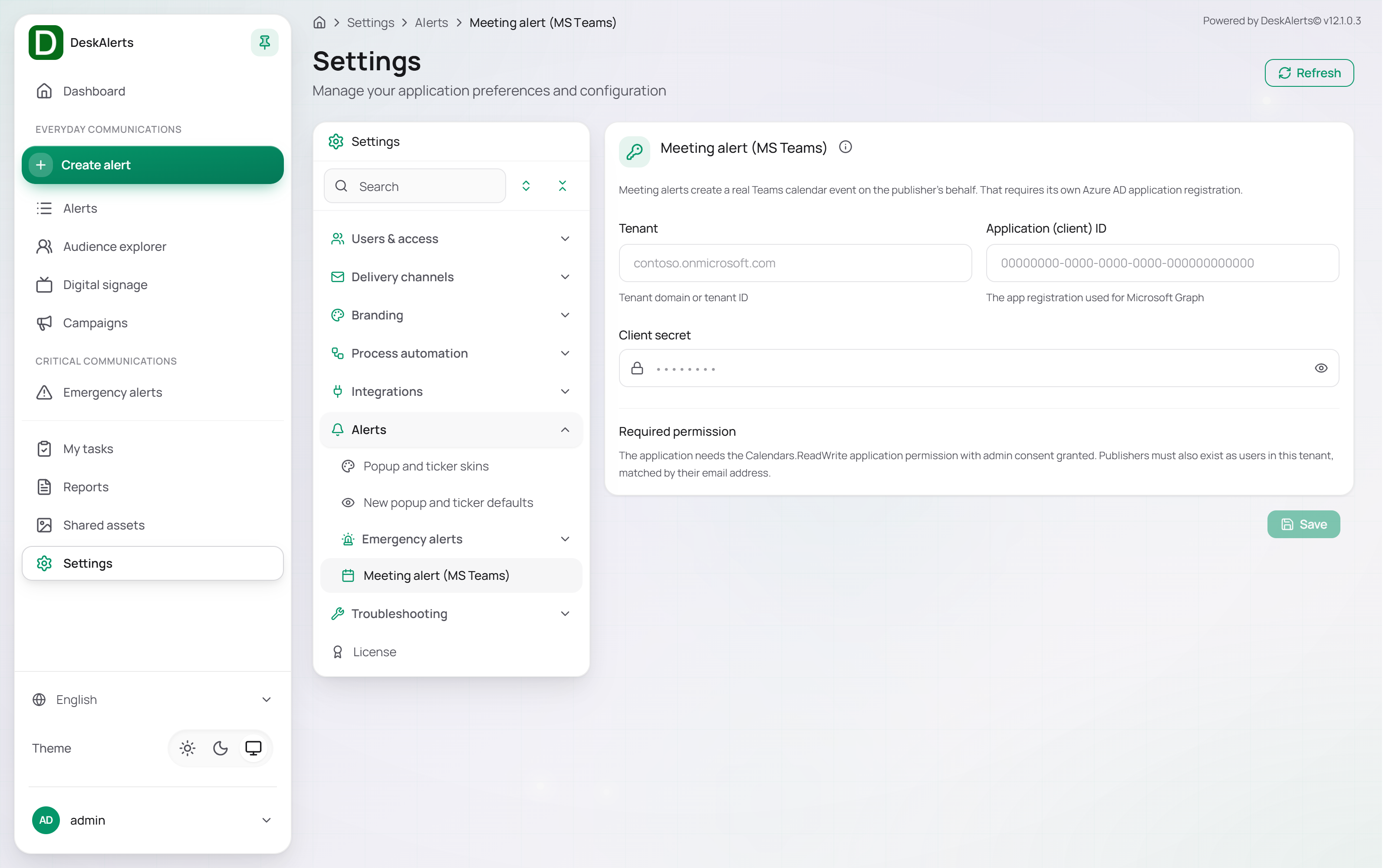 Settings → Alerts → Meeting alert (MS Teams)
| Field | Description |
|---|---|
| Tenant | The tenant domain or tenant ID |
| Application (client) ID | The app registration used for Microsoft Graph |
| Client secret | The client secret of the app registration |
Prerequisites. Publishers who send Meeting alerts must also exist as users in this tenant, matched by their email address. Without this configuration a Meeting alert cannot be created — the composer reports that the Azure AD settings are not configured.
Click Save after updating credentials.