Integrations
Overview
The Integrations section configures how external systems and AI services connect to DeskAlerts. It contains two settings pages:
| Page | Purpose |
|---|---|
| Inbound API | Lets external systems call the DeskAlerts API, protected by an API secret |
| AI Integrations | Connects the AI features of the web portal — the DeskAlerts Assistant, Content Plus generation, and the AI actions of the text and HTML editors — to AI providers |
⚠ Administrator Access Required API and AI provider credentials give programmatic access to DeskAlerts and to paid external services. Treat the API secret and provider API keys as sensitive credentials and restrict access to authorized personnel only.
Inbound API
Inbound API allows external systems — such as monitoring tools, ITSM platforms, or custom integrations — to interact with DeskAlerts programmatically. The page has a single API access toggle.
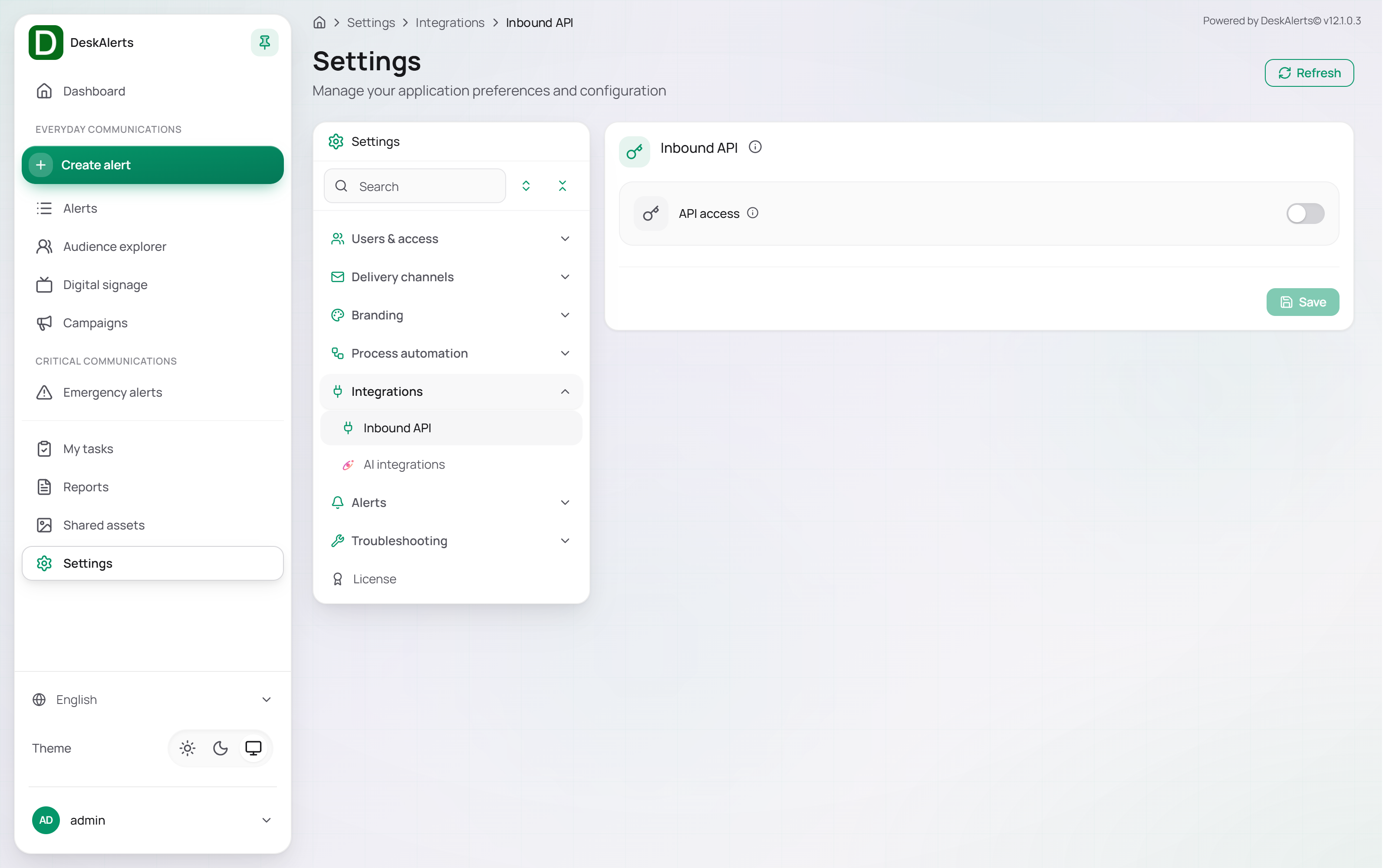 Inbound API with API access disabled
| Setting | Description |
|---|---|
| API access | Master toggle to enable or disable all inbound API access. When disabled, external API requests are rejected |
When the toggle is on, the page shows the API secret controls and the Save button becomes active.
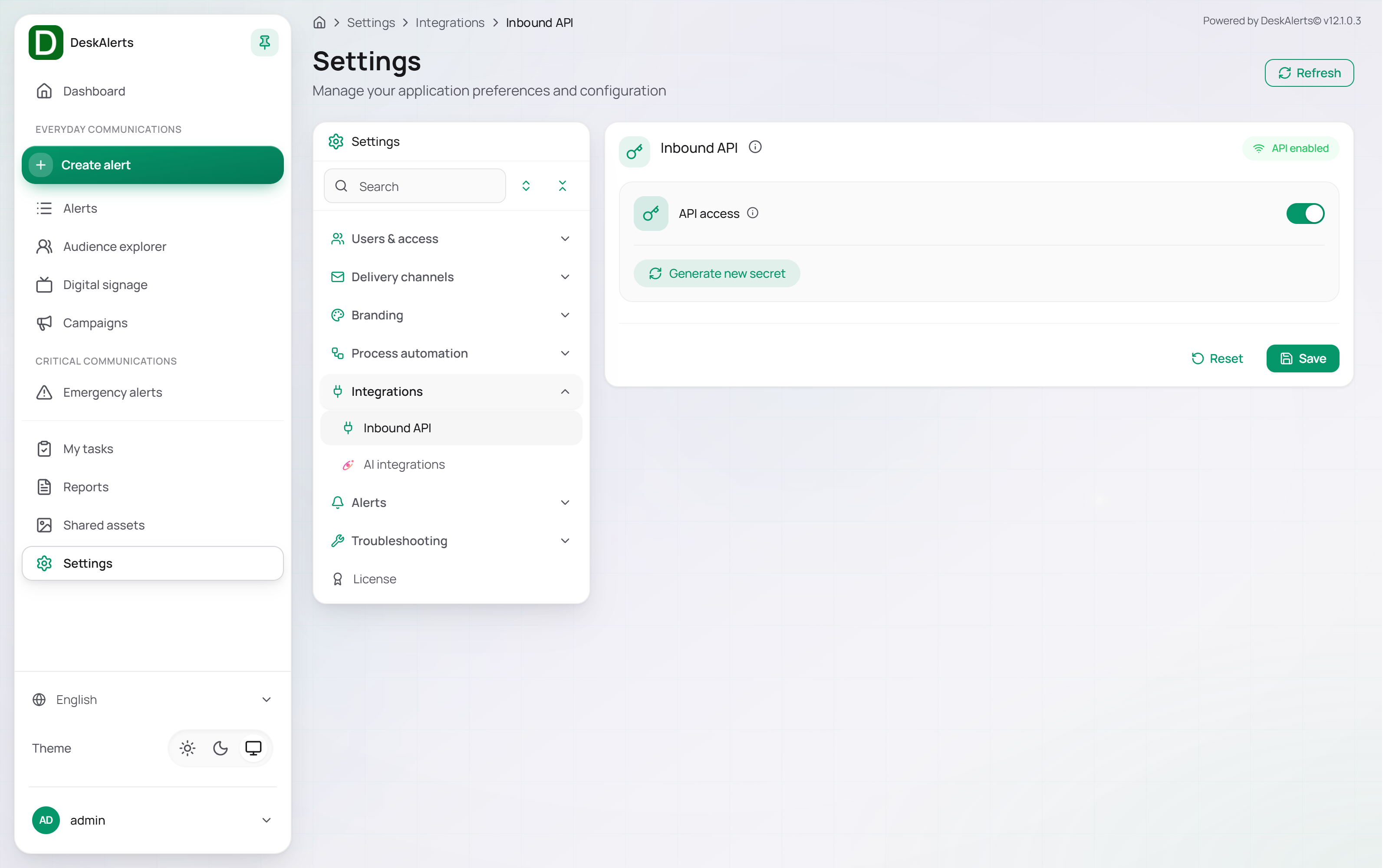 Inbound API with API access enabled
API secret
The API secret is the credential that external systems must include in API requests to authenticate to DeskAlerts. Click Generate new secret to create it, then copy the value into the calling system.
Important: Generating a new secret immediately invalidates the previous one. Any external systems using the old secret will fail to authenticate until they are updated with the new value. Coordinate secret rotation with all teams that have integrated with the DeskAlerts API before generating a new secret.
- The secret is accepted only while API Access is on; with the toggle off, a request with the correct secret is refused (API secret key invalid).
- Alerts created with the API secret appear in the Alerts list with the sender admin.
- Emergency shortcuts carry the API secret. Every shortcut file (
SendInstant_<template>.bat, see Emergency Shortcut) passes the installation's API secret in clear text toDeskAlertsAPI.exe. Anyone who has a shortcut can call the API while API Access is on. Hand shortcuts out only to trusted devices, keep API Access off unless an integration needs it, and generate a new secret when a shortcut leaves the organization — this also disables all existing shortcuts until they are downloaded again.
Actions
| Action | Description |
|---|---|
| Save | Applies the API access toggle |
| Reset | Discards unsaved changes and restores the last saved state |
AI Integrations
AI Integrations is the control panel of the AI features built into the web portal. It defines which AI providers DeskAlerts talks to (connectors), which feature runs on which connector, an organization-wide brand voice, request limits and token budgets, and it keeps a usage log.
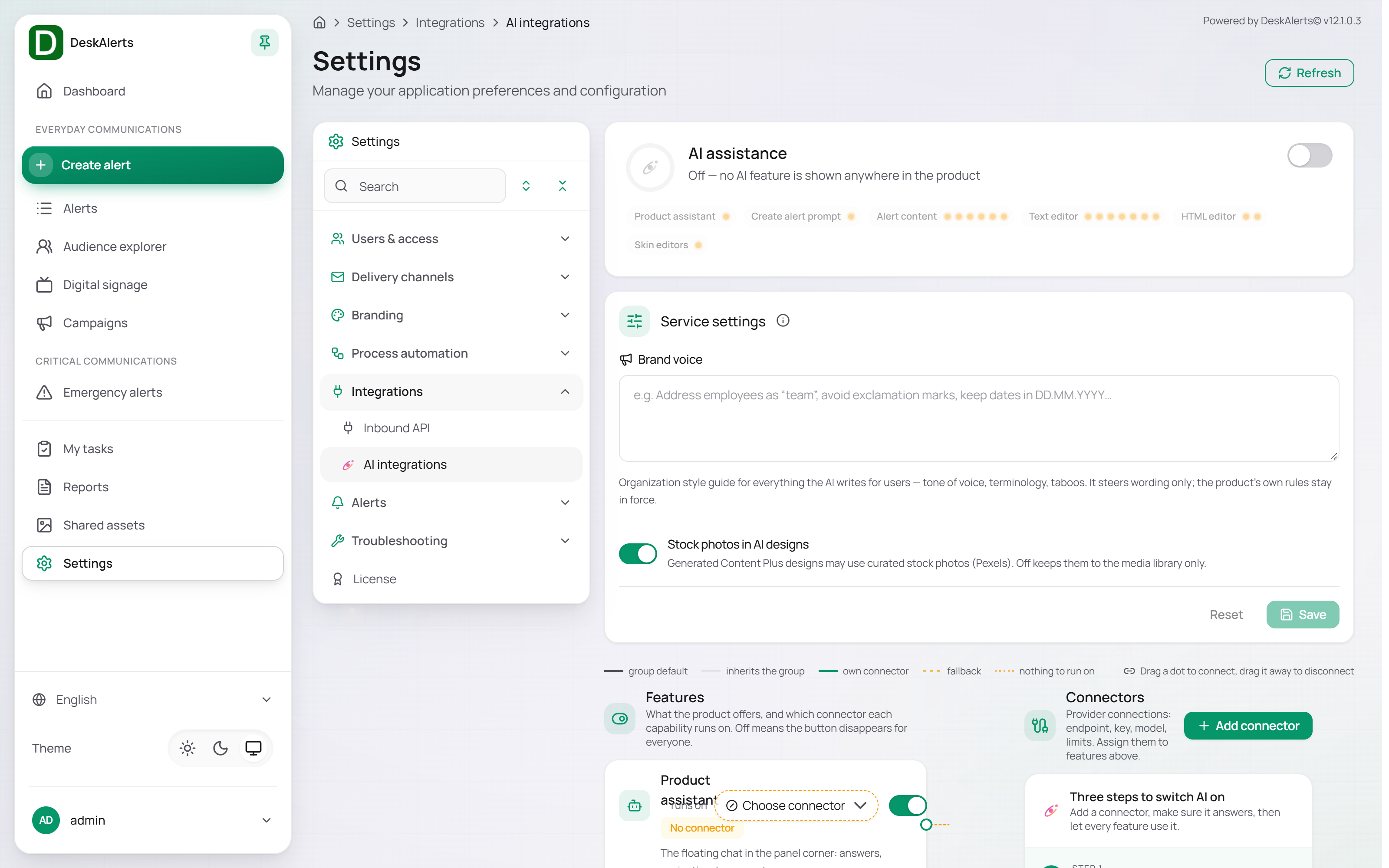 AI Integrations — the AI assistance header and Service settings
The page is organized top to bottom into the AI assistance header, Service settings, and the Features and Connectors panels. On a fresh installation the Connectors panel shows the three steps to switch AI on: add a connector, check that it answers, bind every feature group to it.
AI assistance
The header summarizes the state of the AI layer with a dot per feature and capability — Off — no AI feature is shown anywhere in the product until the master toggle on the right is on. The master toggle turns all AI features on or off at once; when it is off, the AI buttons disappear from the web portal for everyone.
Service settings
| Setting | Description |
|---|---|
| Brand voice | An organization style guide for everything the AI writes for users — tone of voice, terminology, taboos. It steers wording only; the product's own rules stay in force. For example: Address employees as "team", avoid exclamation marks, keep dates in DD.MM.YYYY |
| Stock photos in AI designs | When on, generated Content Plus designs may use curated stock photos; off keeps them to the media library only |
Click Save to apply, or Reset to discard the changes.
Features
The Features panel lists what the product offers and which connector each capability runs on. Turning a feature off removes its button from the web portal for everyone.
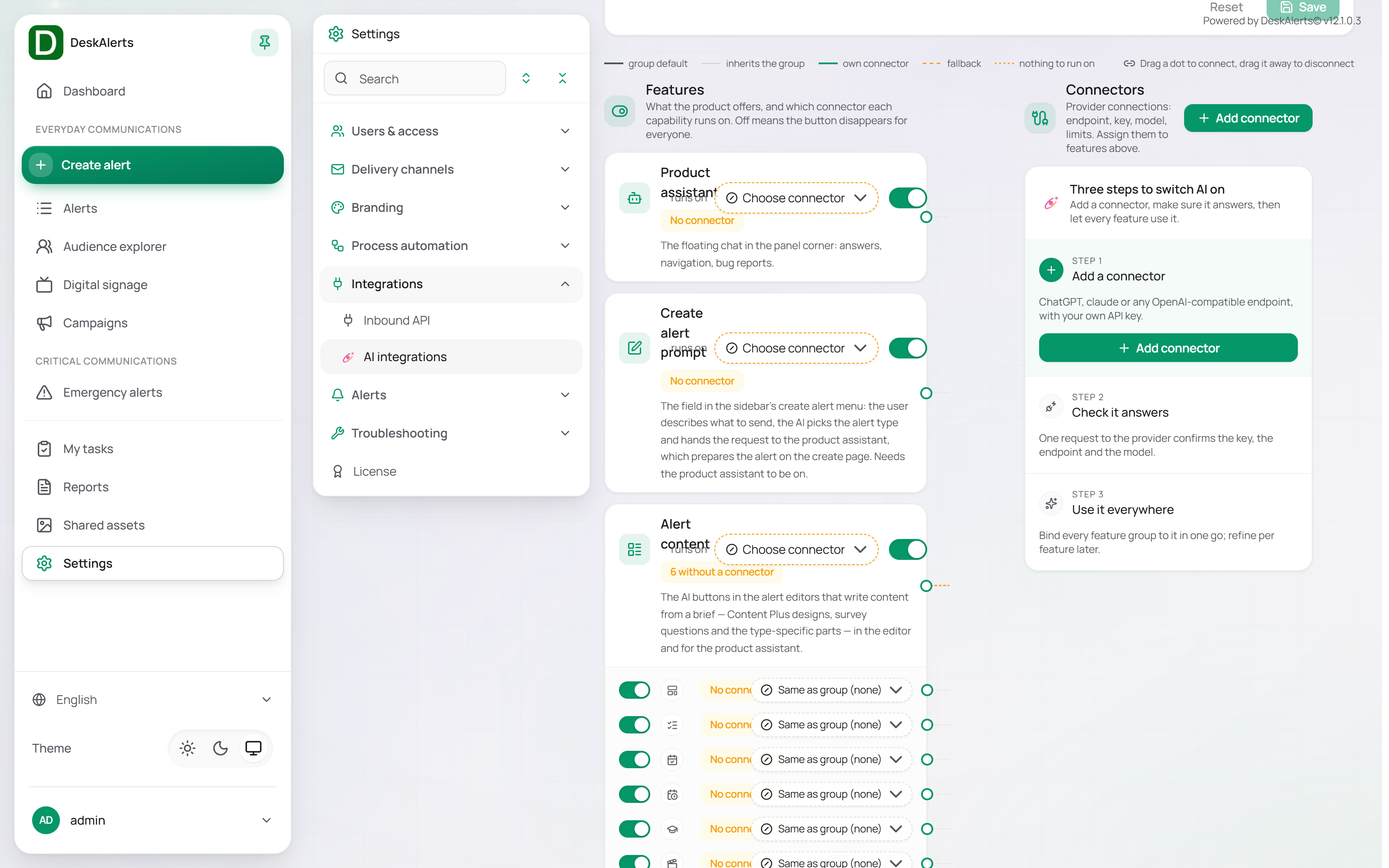 The Features panel on a fresh installation — no connector yet
| Feature | Where it is used | Capabilities |
|---|---|---|
| Product assistant | The floating chat in the panel corner: answers, navigation, bug reports | — |
| Create alert prompt | The field in the sidebar's create alert menu: the user describes what to send, the AI picks the alert type and hands the request to the product assistant, which prepares the alert on the create page. Needs the product assistant to be on | — |
| Alert content | The AI buttons in the alert editors that write content from a brief | Content Plus design, Survey, quiz and poll questions, RSVP question and answers, Meeting details from a description, Microtraining lesson and quiz, Video alert description |
| Text editor | The AI button in every rich-text editor: rewriting, grammar, generation | Tools: Generate text, Fix grammar. Tones: Formal tone, Friendly tone, Urgent tone, Concise tone, Custom instruction |
| HTML editor | The AI button in the HTML code editor (HTML assets, the Content Plus HTML block): a finished page from a brief, changes on instruction | Write page from a brief, Change page on instruction |
| Skin editors | Designing alert and ticker skins from a brief — in the skin editors and for the product assistant | — |
Each feature has a runs on selector that picks the connector for the whole feature group, and a toggle. Individual capabilities can be switched off separately and can use a connector of their own — the default is Same as group.
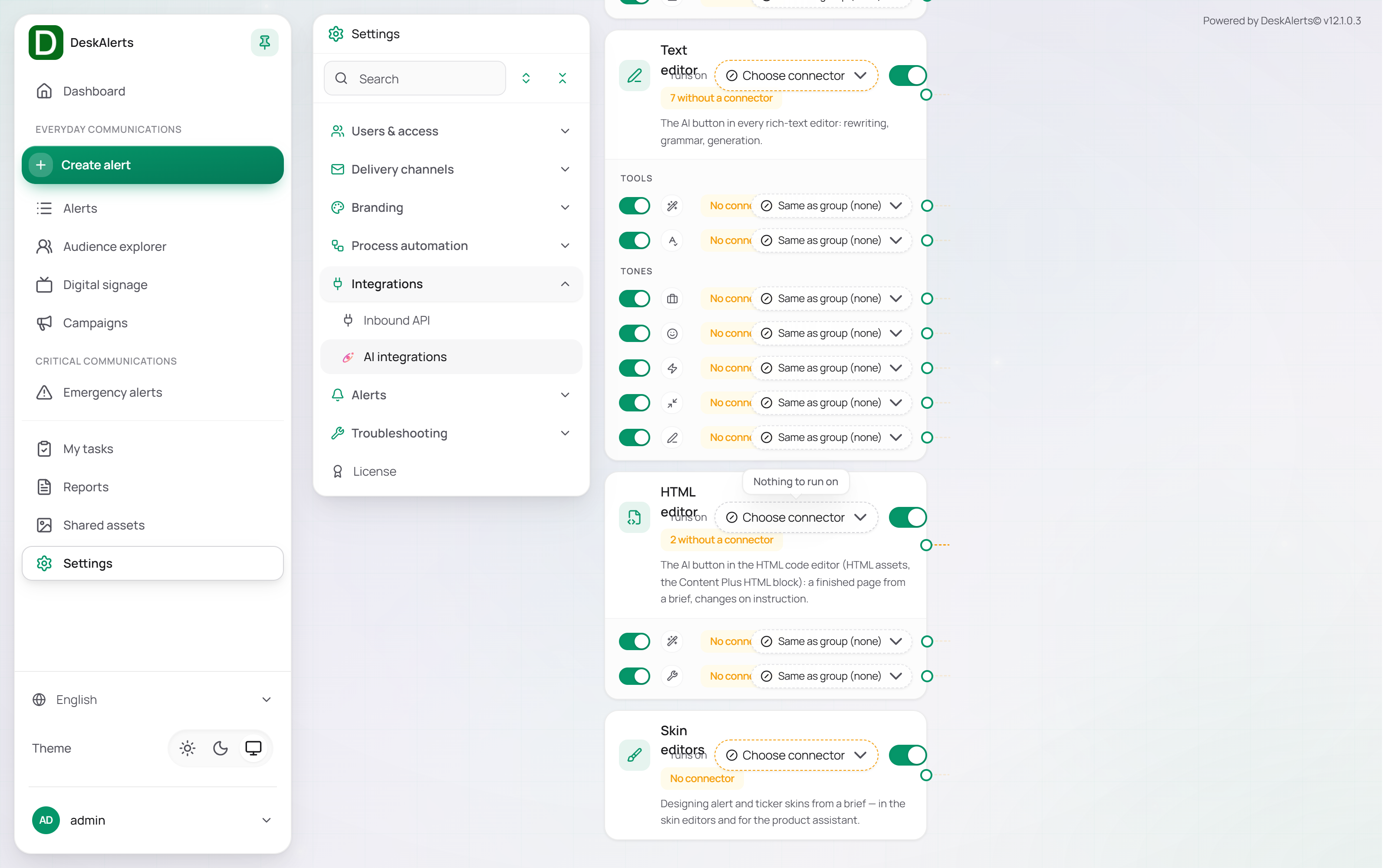 The capabilities of the Text editor and the HTML editor
The lines between the panels show how features are bound to connectors. The legend above the panels explains the line styles: group default, inherits the group, own connector, fallback, and nothing to run on. Drag a dot from a feature to a connector to connect them, or drag it away to disconnect.
Connectors
A connector is a provider connection: endpoint, API key, model, and limits. Click Add connector to create one.
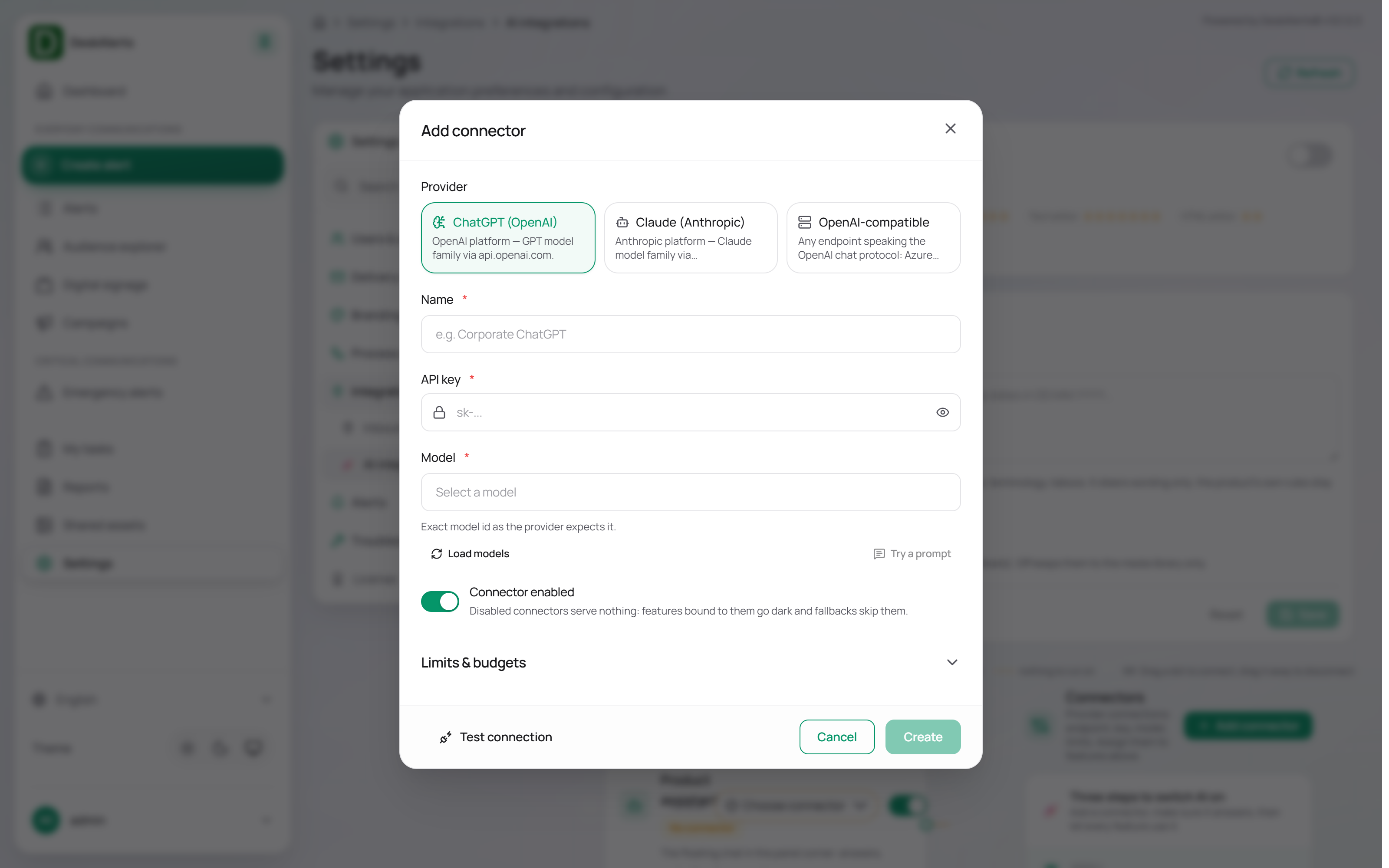 The Add connector dialog
| Field | Description |
|---|---|
| Provider | One of the hosted AI providers offered in the dialog, or OpenAI-compatible — any endpoint speaking the OpenAI chat protocol |
| Name (required) | A display name, for example Corporate ChatGPT |
| API key (required) | The provider API key. Click the eye icon to reveal the typed value |
| Model (required) | The exact model ID as the provider expects it. Load models fetches the list of models available to the key; Try a prompt sends a test prompt to the selected model |
| Connector enabled | Disabled connectors serve nothing: features bound to them go dark and fallbacks skip them |
| Limits & budgets | Expands the request and token limits of the connector |
Click Test connection to verify the endpoint, key, and model, then Create. Once a connector exists, its card shows the model, the features it serves, today's requests and tokens, and an on/off toggle, and the page gains the usage sections described below.
Monitoring
The Monitoring section shows the AI usage of the server for the selected period (Last 30 days by default). The token accounting is DeskAlerts' own, taken from the provider responses — the same numbers the budgets are enforced with.
| Element | Description |
|---|---|
| Requests today / Tokens today | Today's counters, with the totals for the period underneath |
| Served from cache | The share of prompt tokens served from the provider's prompt cache |
| Active users | Web-portal users who used AI in the period |
| Error rate | The share of failed requests |
| Token spend by day | Input plus output tokens per day, for all connectors or one connector, with the peak day |
| By feature | Successful requests and tokens per feature |
| Top users | The heaviest AI users |
Request log
The Request log keeps the metadata of every AI request — prompts and results are never stored. Filter it by user, connector, feature, status, and date range.
| Column | Description |
|---|---|
| Time | When the request was made |
| User | The web-portal user |
| Feature | The feature that made the request (for example, Chat) |
| Connector | The connector and model that served it |
| Status | Success or the error |
| Tokens | Tokens consumed |
| Cached | The share of the prompt served from the cache, or cold |
| Duration | Response time |
Related settings
- Settings → Process automation → Approval workflow settings — alerts triggered by external systems through the API are subject to the same approval rules as alerts created in the web portal
- Settings → Users & access → Web-portal users — integration settings are changed by accounts of the Administrator type