License
Overview
The License page displays the current state of your DeskAlerts license. Use it to check the plan, the limits and the support terms, to monitor how many web-portal users and recipients you consume over time, to see which features are included in the license, and to activate a new license when required.
The page is available under License at the bottom of the Settings menu.
Note: License management directly affects which features are available across the entire DeskAlerts environment. Changes to the active license — including uploading a new file — take effect immediately.
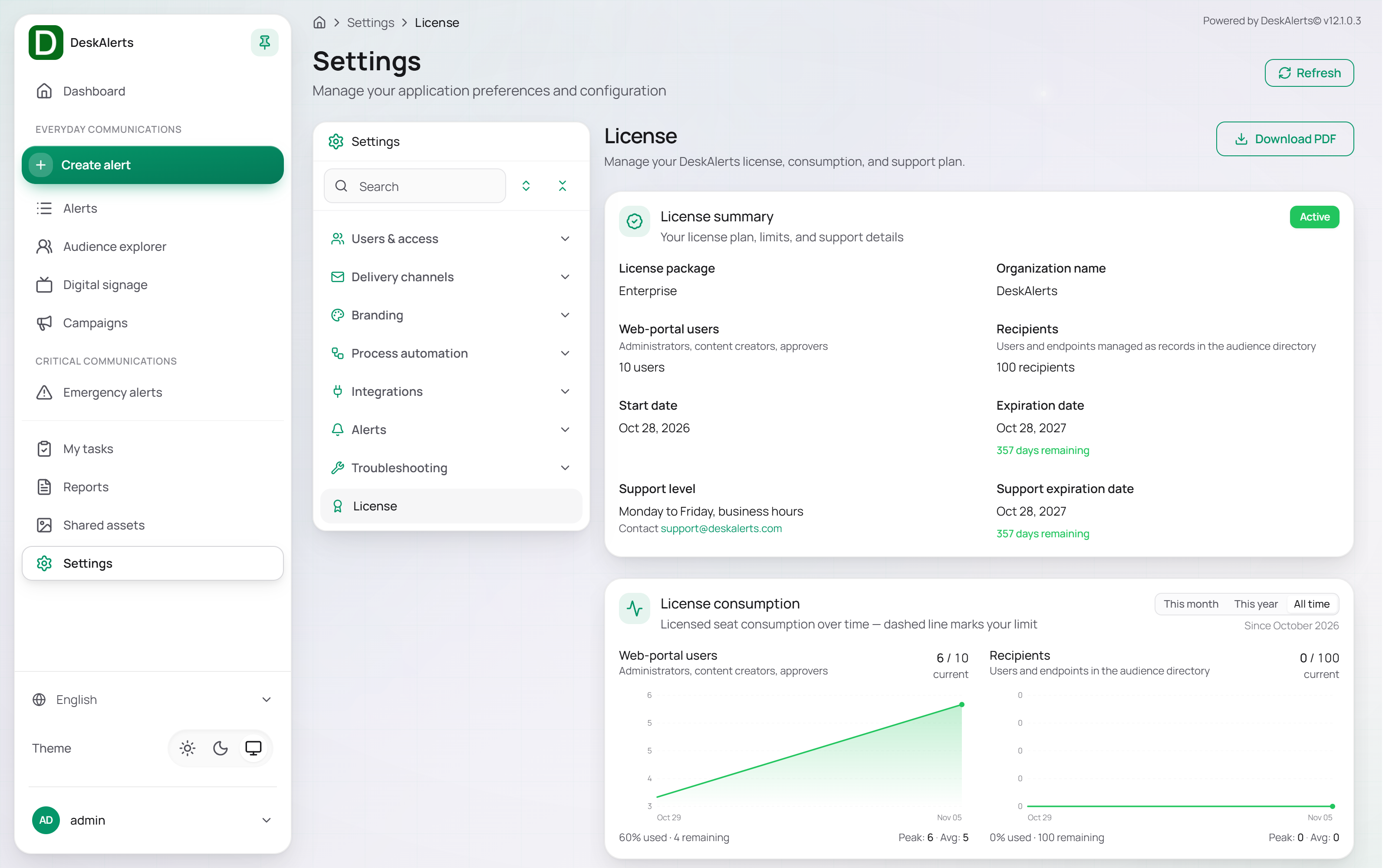 The License page — License Summary and License Consumption
Page Layout
| Area | Description |
|---|---|
| Page header | The page title and a Download PDF button that exports the license summary |
| License Summary | Plan, organization, limits, dates, and support details |
| License Consumption | Charts of licensed seat consumption over time |
| Licensed Features | Features included in the license and add-ons available for purchase |
| Activate new license | File upload area for applying a new license |
License Summary
The License Summary card shows the license plan, limits, and support details, with an Active badge while the license is valid.
| Field | Description |
|---|---|
| License Package | The license tier applied to this DeskAlerts installation (for example, Enterprise) |
| Organization Name | The organization the license is issued to |
| Web Portal Users | The number of licensed web-portal users — administrators, content creators, approvers |
| Recipients | The number of licensed recipients — users and endpoints managed as records in the Audience directory |
| Start Date | The date the license became valid |
| Expiration Date | The date on which the license expires, with the number of days remaining |
| Support Level | The support plan (for example, Monday to Friday, business hours) and the support contact |
| Support Expiration Date | The date through which support is covered, with the number of days remaining |
If the license has expired or is invalid, the status badge reflects the current state accordingly.
License Consumption
The License Consumption card charts licensed seat consumption over time; a dashed line marks your limit. Switch the period with This Month, This Year, or All Time.
| Chart | Description |
|---|---|
| Web-portal users | Web-portal accounts against the licensed number — for example, 6 / 10 current, 60% used · 4 remaining, with the peak and the average for the period |
| Recipients | Users and endpoints in the audience directory against the licensed number |
Note: If a chart approaches its limit, contact your DeskAlerts account representative in good time to expand the pool.
Licensed Features
The Licensed Features card lists the features included in your license and the available add-ons.
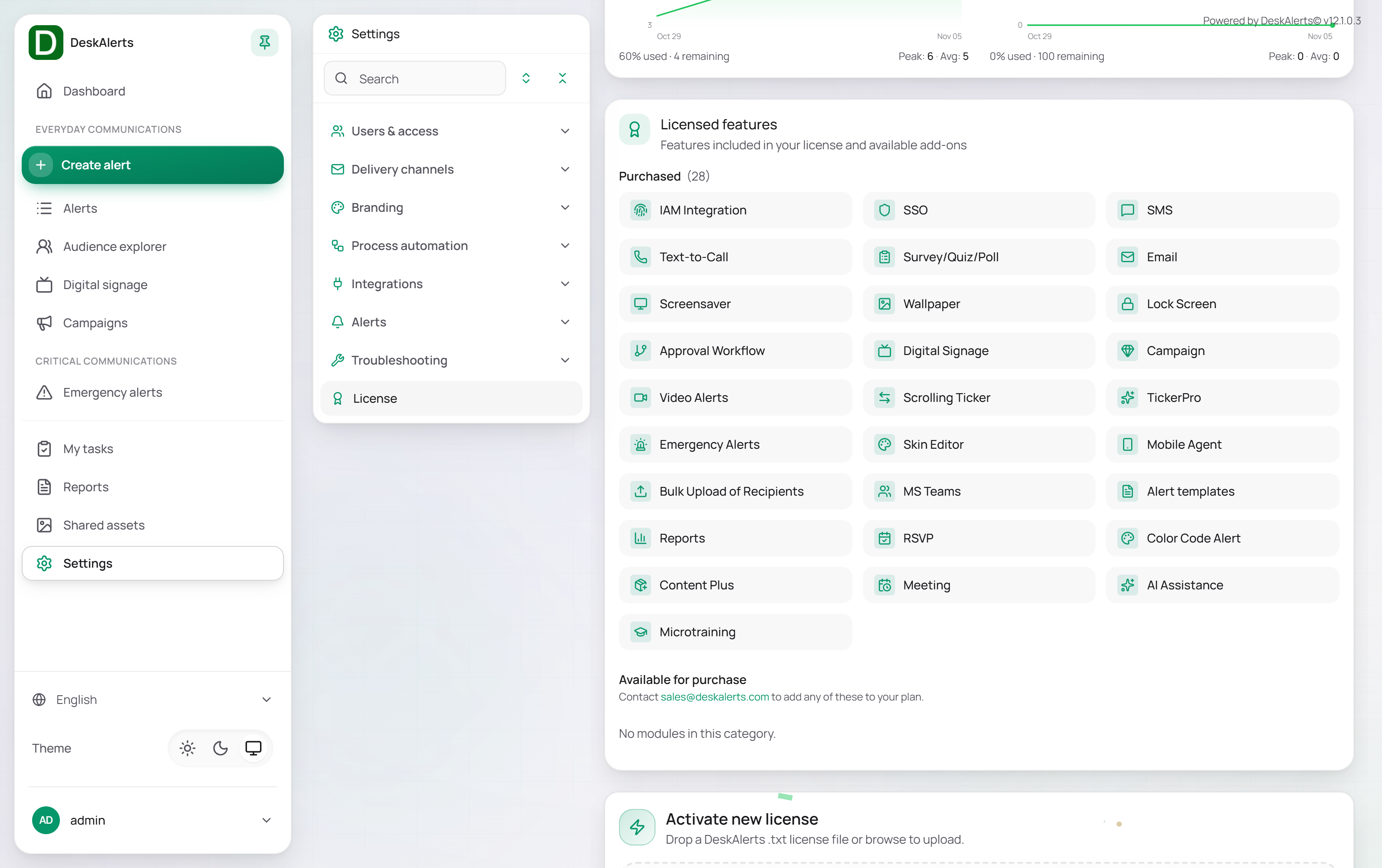 Licensed Features and Activate new license
| Tab | Description |
|---|---|
| Purchased | Features included in the active license, with a count (for example, Purchased (29)) |
| Available for Purchase | Features that can be added to the plan. Contact sales@deskalerts.com to add any of them |
Features that a license can include (the set and the count depend on the license purchased):
| Feature | Description |
|---|---|
| IAM Integration | Directory synchronization (Active Directory, Entra ID, Google Workspace) |
| SSO | Single Sign-On |
| SMS | SMS delivery channel |
| Text-to-Call | Text-to-Call voice delivery channel |
| Survey/Quiz/Poll | Survey, quiz, and poll alert types |
| Email delivery channel | |
| Screensaver | Screensaver alert type |
| Wallpaper | Wallpaper alert type |
| Lock Screen | Lock Screen alert type |
| Approval Workflow | Approval workflows and dispatch rules |
| Digital Signage | Digital Signage |
| Campaign | Campaigns |
| Video Alerts | Video alert type |
| Scrolling Ticker | Scrolling ticker alert type |
| TickerPro | Extended ticker capabilities |
| Emergency Alerts | Emergency alert templates and color codes |
| Skin Editor | Alert and ticker skin editors |
| Mobile Agent | Mobile agent delivery |
| Bulk Upload of Recipients | Bulk recipient import tools |
| Import Phones | Phone number import for SMS and voice delivery |
| MS Teams | Microsoft Teams delivery |
| Opt-in Lists | Opt-in recipient list management |
| Sending Templates | Alert templates |
| Reports | Reports |
| RSVP | RSVP alert type |
| Color Code Alert | Color-coded emergency alerts |
| Content Plus | Content Plus alerts |
| Meeting | Meeting alert type |
| AI Assistance | AI Integrations — the DeskAlerts Assistant and the AI actions of the editors |
Note: The features visible in the Purchased tab depend on the specific license purchased. Features not listed there are shown under Available for Purchase.
Activating a New License
When a license expires or a plan upgrade is required, a new license file must be uploaded to the DeskAlerts server.
Steps to Activate
- Obtain the new
.txtlicense file from your DeskAlerts account representative. - Scroll to the Activate new license section at the bottom of the License page.
- Drag the license file onto the upload area, or click Browse files to select it manually.
- The system validates and applies the new license automatically.
Upload Requirements
| Requirement | Detail |
|---|---|
| Accepted file format | .txt only |
| Transfer security | License contents are transmitted securely over HTTPS to the DeskAlerts server |
Important: Uploading a new license file replaces the existing license immediately. Verify the contents of the new license with your account representative before uploading in a production environment. After the upload, check that the License summary shows the new dates and limits and that the Purchased tab lists the expected features.
Recommended Practices
- Monitor the days remaining next to the Expiration Date and the Support Expiration Date. Begin the renewal process well in advance to avoid service interruption.
- Track the License consumption charts and arrange a plan expansion with your account representative before a limit is reached.
- Store the license
.txtfile in a secure, backed-up location. The file may be required again if the DeskAlerts server needs to be rebuilt or migrated. - After uploading a new license, verify that all expected features appear in the Purchased tab before communicating availability to users.