How-to: Sign In with Google Workspace
Goal: let administrators and publishers sign in to the web portal with their Google Workspace accounts, and let the web client (PWA) sign recipients in with Google. About 30 minutes, plus access to the Google Cloud Console.
Before you start: a Google Cloud project you can create OAuth credentials in; a Google Workspace synchronization already imports your users (recommended).
1. Create the OAuth client in Google Cloud
- In the Google Cloud Console, open APIs & Services → Credentials and click Create credentials → OAuth client ID.
- Choose the application type Web application and name it
DeskAlerts. - Under Authorized JavaScript origins, add the server URL (
https://alerts.acme.example) and, if the web client should offer Google sign-in as well, its URL with the trailing slash (https://alerts.acme.example/pwa/). - Under Authorized redirect URIs, add the Google sign-in callback of the DeskAlerts server — the server URL followed by the path DeskAlerts support gives you for your version.
- Click Create and copy the Client ID — it ends with
.apps.googleusercontent.com. - If the OAuth consent screen is not configured yet, configure it as Internal so that only accounts of your Workspace can sign in.
2. Enable Google SSO in DeskAlerts
- Open Settings → Users & access → SSO settings.
- Switch on Google SSO. Until the client ID is filled in, the page warns: Google SSO is enabled but client ID is missing. Users won't see the Google login button until you fill in the client ID.
- Paste the Google OAuth client ID and, to restrict sign-in to your Workspace domain, enter it in Hosted domain (
acme.example). Leave Hosted domain empty to bind to the domain configured in the Google Workspace synchronization. - Click Save.
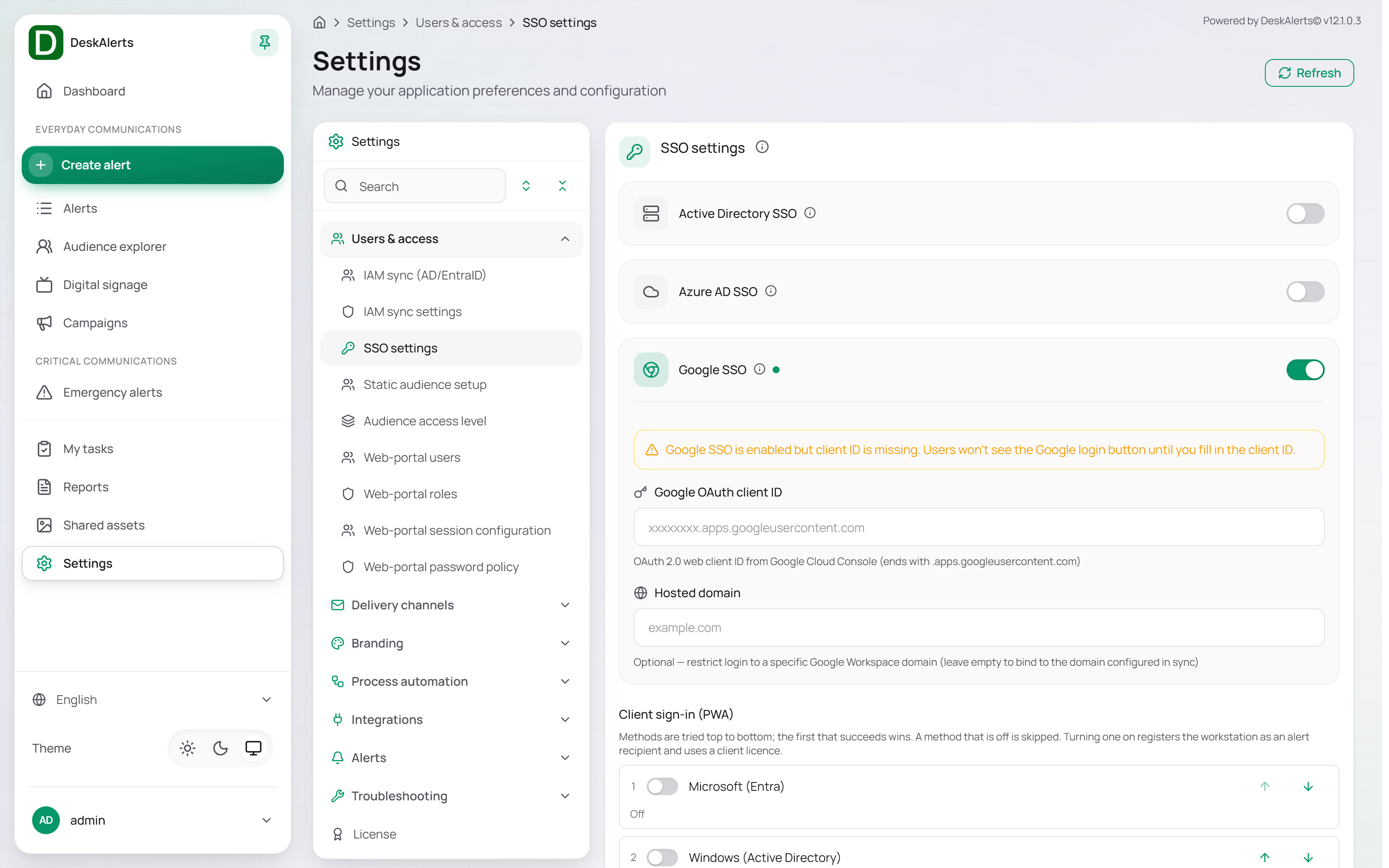 SSO settings with Google SSO switched on
The login page of the portal now shows the Google sign-in option.
3. Decide who may sign in
Google sign-in creates the web-portal account automatically on first sign-in with the roles mapped to the user's directory groups. Before announcing SSO:
- Open Settings → Users & access → Web-portal roles, open the role publishers should get, and under Directory group mapping map the Workspace group of the publishers.
- Users not in any mapped group get an account without a role and see nothing they can act on — decide whether that is acceptable, or map every relevant group.
4. Test as a publisher
- In a private browser window, open the portal and choose the Google sign-in.
- Sign in with a Workspace account that is in a mapped group.
- The Dashboard opens; Settings → Users & access → Web-portal users now lists the account with the mapped role.
5. Optional: Google sign-in for the web client
- On the same SSO settings page, under Client sign-in (PWA), switch Google Workspace on and move it to the position you want in the order of methods.
- Click Save.
- Open
https://<server>/pwa/and sign in with a Workspace account; the browser becomes a web endpoint of that user in Audience explorer.
Important: Every workstation that signs in through the web client is registered as a recipient.
Troubleshooting
| Symptom | Cause | Fix |
|---|---|---|
Google returns redirect_uri_mismatch | The redirect URI in the OAuth client does not match the server | Add the exact callback URI DeskAlerts support gave you, scheme and host included |
Access blocked from Google | The consent screen is not published, or the account is outside the allowed domain | Configure the consent screen; check Hosted Domain |
| Sign-in works but the user sees an empty portal | No role mapped to the user's groups | Map the group in Directory Group Mapping or assign a role manually |
| The user is not found | The user is not in the audience and self-provisioning is refused | Run the Google Workspace synchronization first |