Campaigns
Overview
Campaigns group related alerts into one communication effort — an onboarding series, a security-awareness program, a product launch — so that you can plan them together, send them to a shared audience, and track their delivery as a whole. A campaign has a name, a description, a cover image, a default audience that new alerts inherit, and a list of alerts. The campaign's progress is calculated from the status of its alerts.
The page is available under Everyday communications → Campaigns in the left navigation panel.
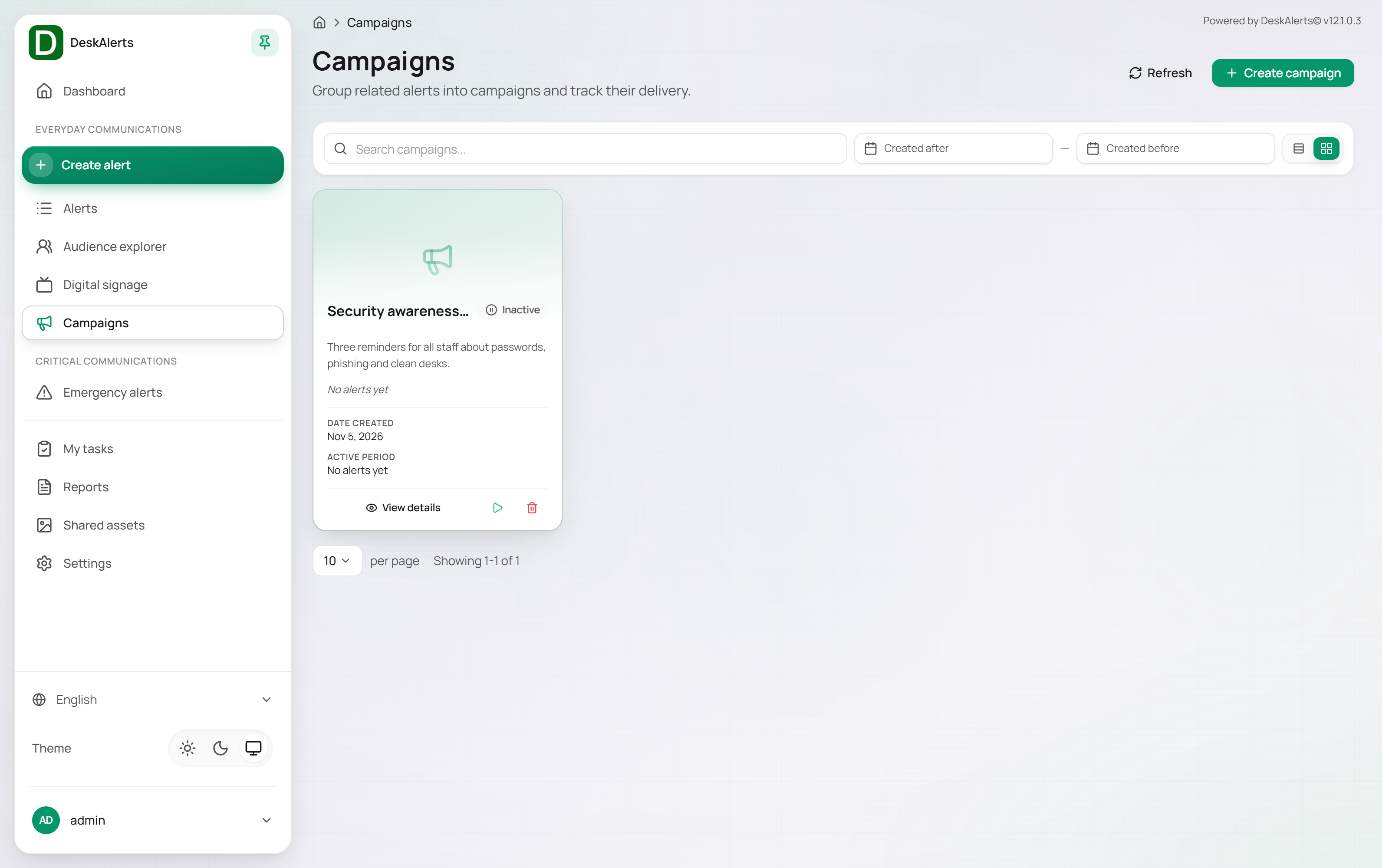 The Campaigns page with the demo campaign
Campaign list
Each campaign is shown as a card:
| Element | Description |
|---|---|
| Cover image | The image chosen for the campaign, or a placeholder |
| Name and status | Active while the campaign is running, Inactive when it is stopped or has not started |
| Description | The optional description |
| Progress | Counts and percentages for Complete (alerts that have been sent and expired), In progress (alerts being delivered), and To do (alerts scheduled but not yet sent), or No alerts yet |
| Date created / Active period | When the campaign was created and the span from the first to the last alert |
| View details | Opens the campaign details page |
Click Refresh in the page header to reload the list.
Creating a campaign
Click Create campaign in the page header. The Create campaign page has two sections:
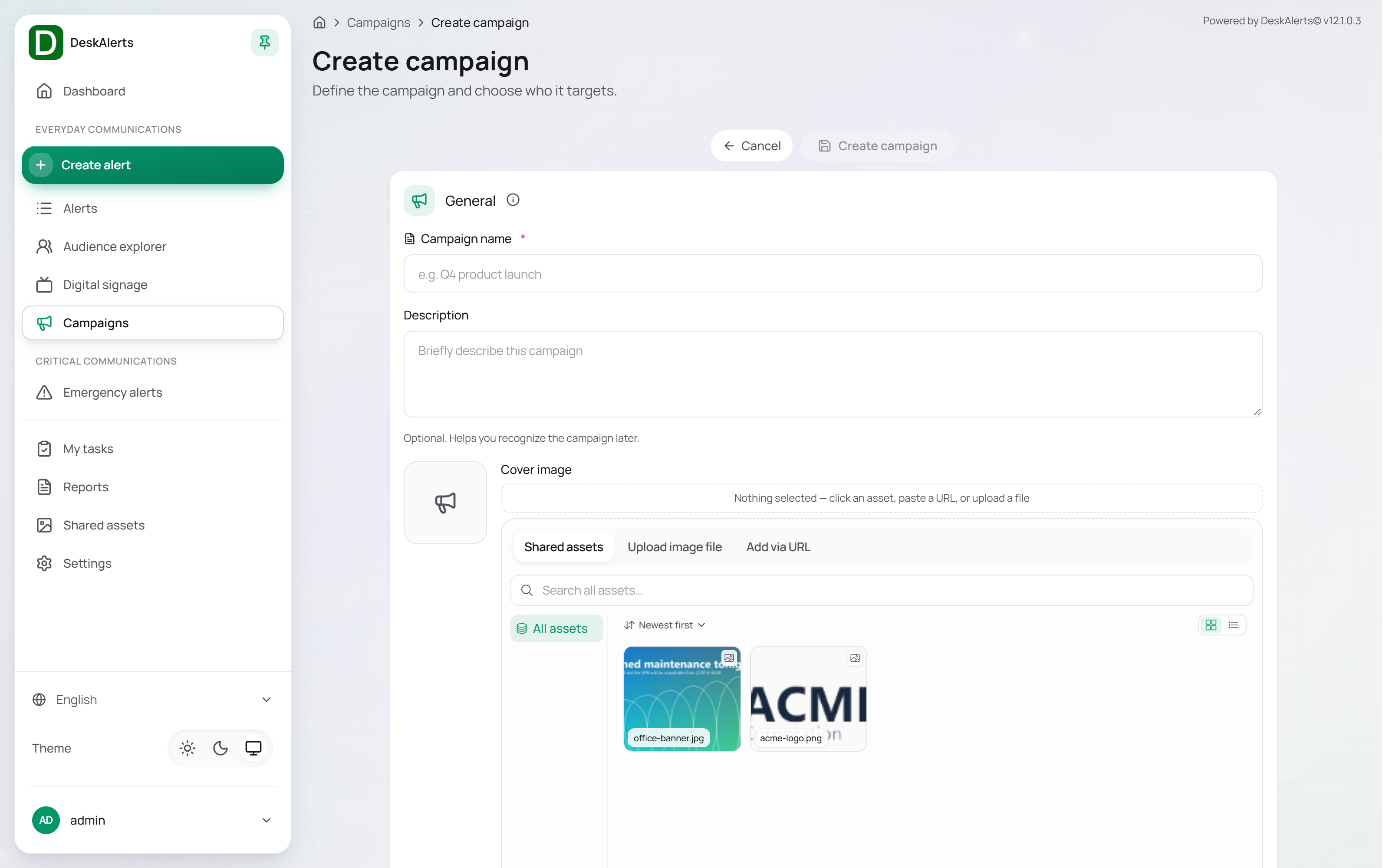 The Create campaign page
General
| Field | Description |
|---|---|
| Campaign name (required) | The campaign title, for example Security awareness week |
| Description | Optional text that helps you recognize the campaign later |
| Cover image | Optional image picked from Shared assets (the library with its folders and sort order) |
Default audience
The recipient picker with Quick search, Browse, and Broadcast, the same as in the alert composer. Recipients selected here become the default audience of the campaign — alerts created inside the campaign are pre-filled with them. The audience can be changed later on the details page.
Click Create campaign to save; the Campaign details page of the new campaign opens. Cancel returns to the list without creating anything.
Campaign details
Click View details on a card to open the Campaign details page (Campaign analytics and orchestration) — the place where the campaign is monitored and orchestrated.
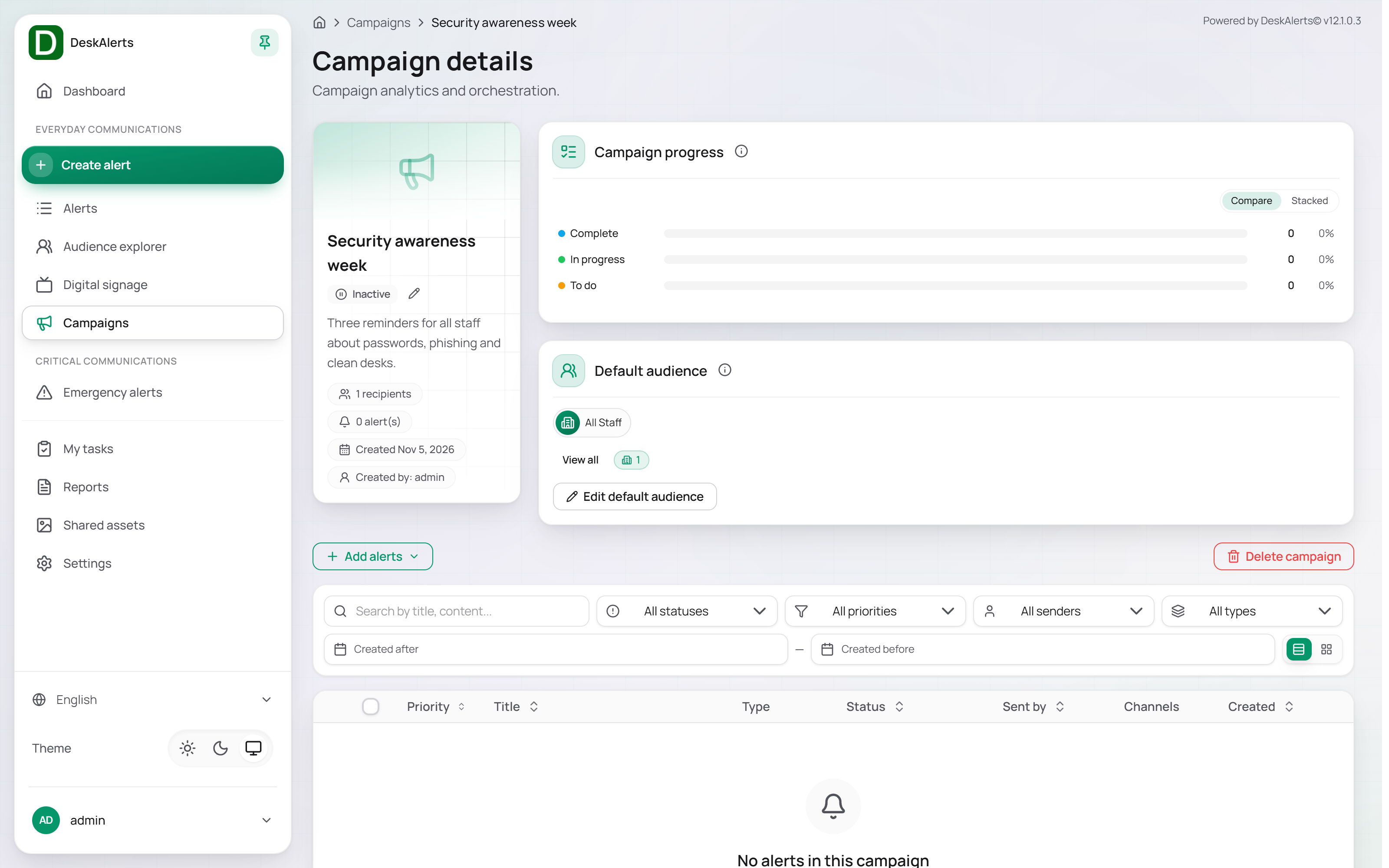 The Campaign details page of a campaign without alerts yet
Campaign card
The card on the left shows the cover image, the name and status, the description, the number of recipients in the default audience (for example, 1 recipients for the All Staff group), the number of alerts, the creation date, and the creator. Change cover image replaces the cover; Edit name & description edits the name and description inline.
Campaign progress
The Campaign progress panel shows the occurrence pipeline and a live delivery forecast: how many alerts are Complete, In progress, and To do.
| Control | Description |
|---|---|
| Compare | Shows the three categories side by side on one scale |
| Stacked | Shows a single time-ordered bar: Complete → now → upcoming |
| Timeline | Opens the Timeline dialog with the overall completion percentage and a time axis. Hover over the timeline to preview progress at any moment, switch between Day, Week, Month, and All, zoom in and out, or click Play forecast to animate the delivery forecast |
Default audience
The Default audience panel lists the recipients that new alerts of the campaign inherit (Everyone — All content is sent to every user for a broadcast campaign). Click Edit default audience to change it in the recipient picker.
Campaign actions
| Action | Description |
|---|---|
| Add alerts | Opens a menu with two options: Add existing alerts — pick alerts you already created and attach them to this campaign — and Create a new alert — compose a new alert of any type; it is added to the campaign automatically |
| Start/resume campaign | Starts or resumes every alert of the campaign. The action needs no confirmation; a toast reports the result (1 alert(s) started or resumed), the alerts return to Distributing, and the campaign becomes Active |
| Stop campaign | Stops every alert of the campaign — see Stopping a Campaign |
| Delete campaign | Deletes the campaign |
The Start/resume and Stop buttons appear once the campaign contains at least one alert. A campaign becomes Active as soon as an alert that is being delivered is added to it; the Campaign Progress panel then shows the next milestone (for example, Next: "Onboarding day 1" completes in 7 days).
Add existing alerts opens the Add alerts to campaign dialog: a searchable list of every alert on the server with its status and sender. Tick the alerts you want (the dialog shows the first 50 matches — use Search alerts by title… to narrow the list) and click Add N alert(s).
Stopping a campaign
Stop campaign opens the Stop campaign dialog. It warns that the action will stop every alert in the campaign and offers one option:
| Option | Description |
|---|---|
| Also stop running instances | Also terminates the alerts that are currently displayed on recipients' screens, not just their schedule. Leave it off to let recipients finish reading an alert that is already open |
Click Stop all alerts to confirm. Every alert of the campaign gets the status Stopped — delivery to recipients who have not received it yet ends — and the campaign becomes Inactive. The stopped alerts are counted as Complete in the campaign progress. Click Start/resume campaign to resume delivery: the alerts return to Distributing for the rest of their lifetime.
Campaign alerts
The table at the bottom lists the alerts that belong to the campaign with the Priority, Title, Type, Status, Sent by, Channels, and Created columns (No alerts in this campaign — Add existing alerts to start tracking this campaign until the first one is added). Filter the list with Search by title, content…, All statuses, All priorities, All senders, All types, and the Created after / Created before dates.
Click a row to reveal the alert actions:
| Action | Description |
|---|---|
| Preview | Shows the alert as recipients see it |
| Details | Opens the alert details dialog |
| View Schedule | Shows the start and end time of the alert |
| Analytics | Opens the quick delivery report |
| Full Report | Opens the alert's tracking report on the Reports page |
| Delete | Deletes the alert |
| Remove from campaign | Detaches the alert from the campaign without deleting it |
Apart from Remove from campaign, these actions work as on the Alerts page — see Alerts for details. Clone and Stop are not offered per alert here: copy an alert on the Alerts page, and stop delivery for the whole campaign with Stop campaign.