Shared assets
Overview
Shared assets is the media library of the DeskAlerts web portal — the central store of images, videos, HTML pages, and embedded web pages that can be reused in alerts, alert templates, alert skins, campaign covers, and Digital Signage zones. Upload a file once and every editor in the portal can pick it from the library; the library also tracks where each asset is used.
The page is available under Shared assets in the left navigation panel.
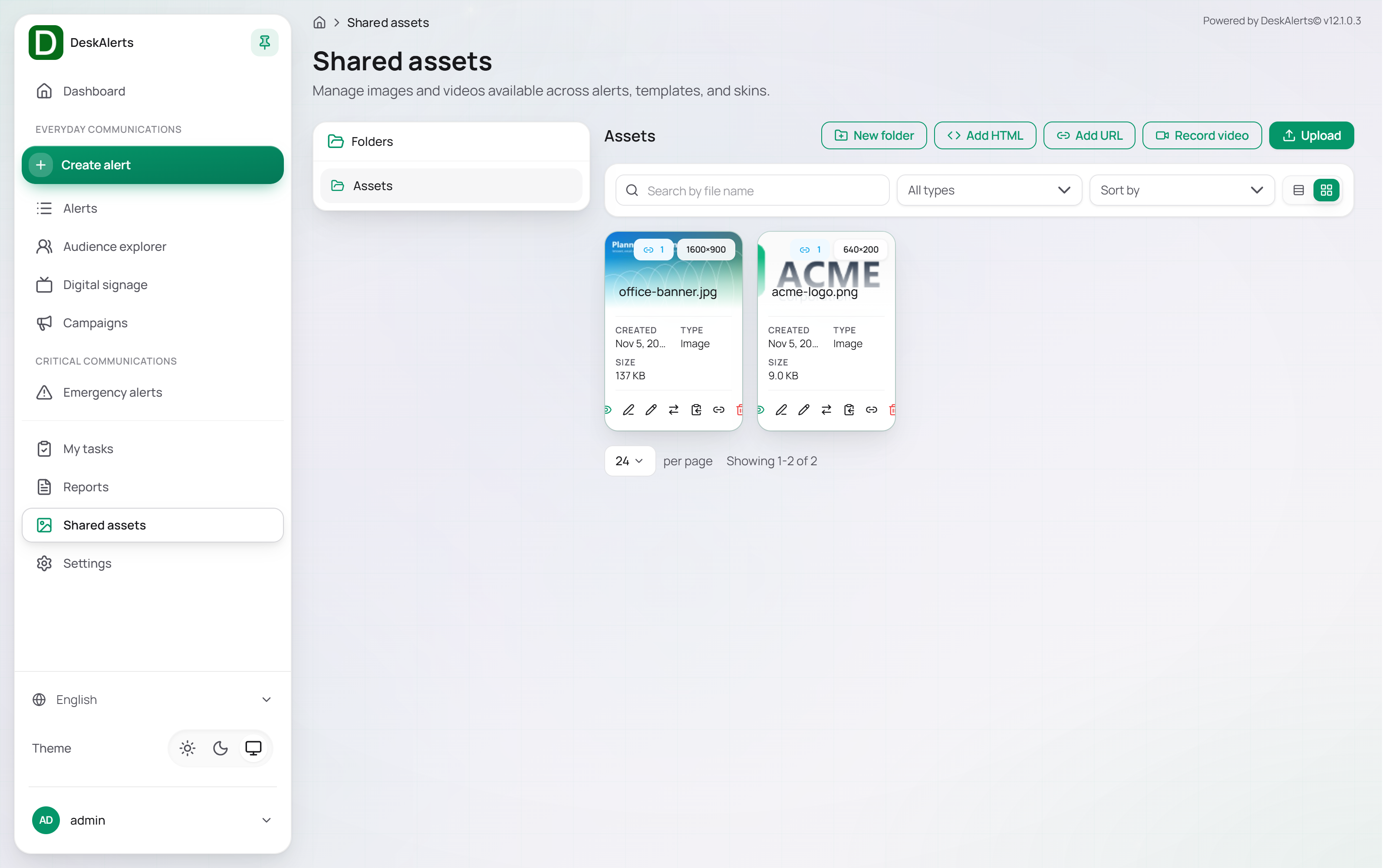 The Shared assets page
Page layout
| Area | Description |
|---|---|
| Folders panel | The folder tree on the left. Assets is the root; folders can be nested. Click a folder to show its contents |
| Toolbar | The name of the selected folder and the buttons for adding content: New folder, Add HTML, Add URL, Record video, Upload |
| Filter bar | The type filter (All types), and Sort by |
| Asset grid | The assets of the selected folder, paginated (Showing 1-2 of 2) |
Asset cards
Each card shows a thumbnail, the file name, the dimensions in pixels, and the Created date, Type (Image, Video, HTML, URL), and Size.
Click a card to open the asset preview; the actions of the card are Rename, Move to folder, Copy URL, and Delete:
| Action | Description |
|---|---|
| Preview (click the card) | Opens the asset preview with its properties, plus Download, Edit, and Delete buttons |
| Rename | Renames the asset |
| Move to folder | Moves the asset to another folder of the tree |
| Copy URL | Copies the direct link to the asset to the clipboard |
| Delete | Deletes the asset after a confirmation |
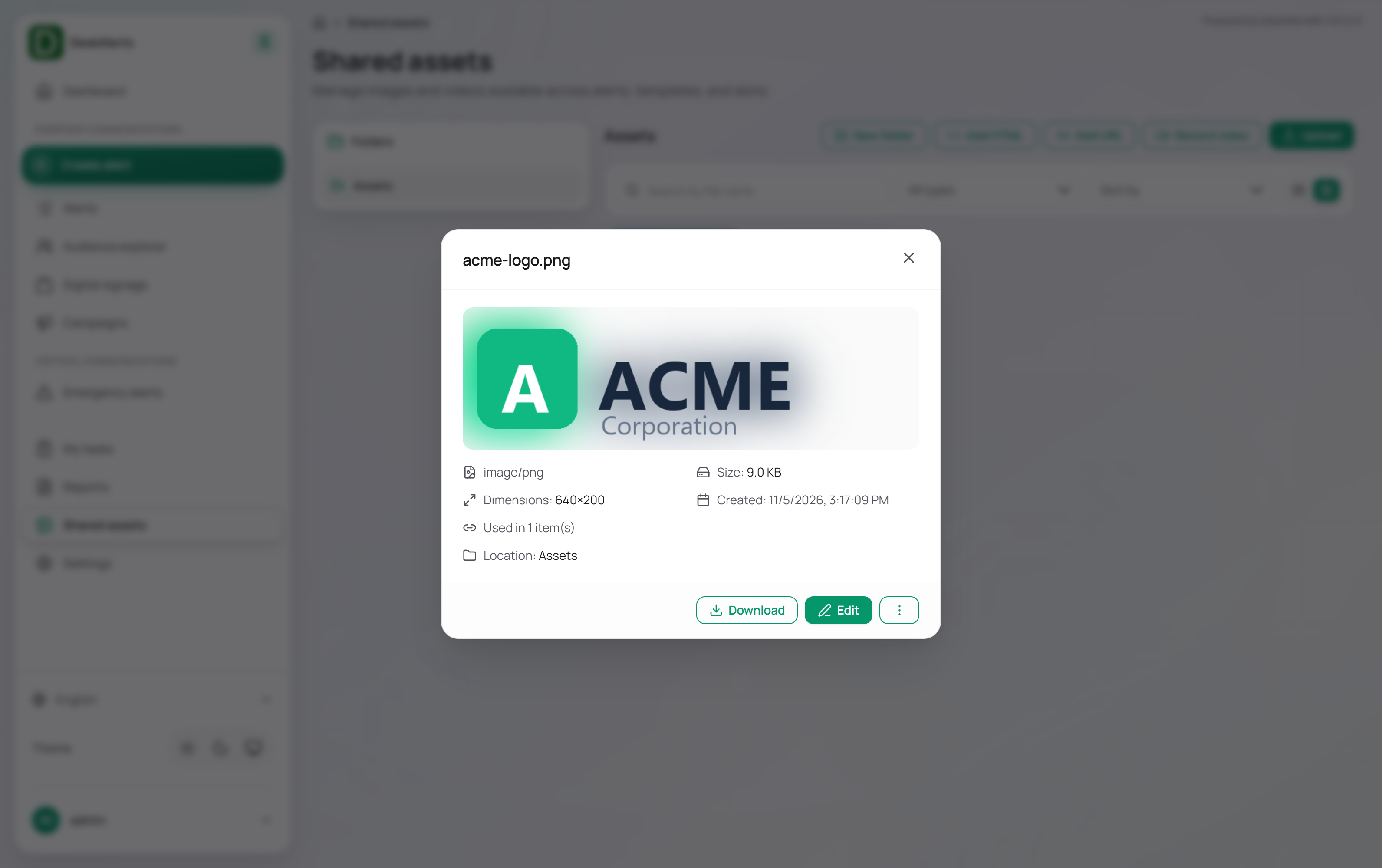 The asset preview
Note: An asset that is referenced by an alert, a template, a skin, or a Digital Signage screen disappears from those items when it is deleted.
Folders
Click New folder in the toolbar, enter the folder name, and confirm. The folder appears in the tree immediately.
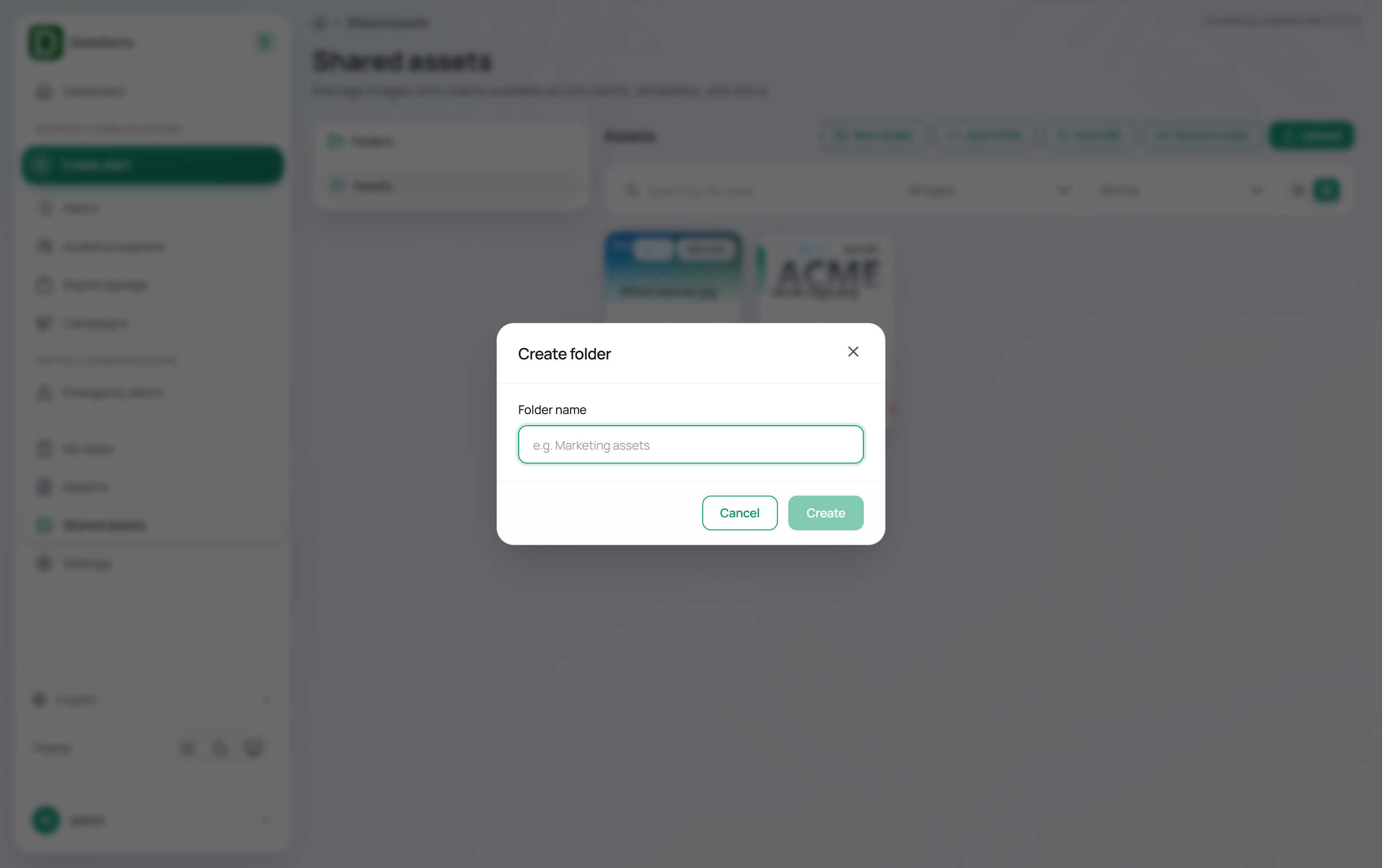
Select a folder in the tree to work inside it; the Add HTML, Add URL, Record video, and Upload buttons then add content to the selected folder.
Adding assets
Upload
Click Upload to open the upload dialog. Drop files onto the drop area (Drop files here to upload or click to browse files) or click Select files, then click Upload N files. The uploaded files appear in the grid at once (for example, acme-logo.png, 640×200, and office-banner.jpg, 1600×900, in the demo library).
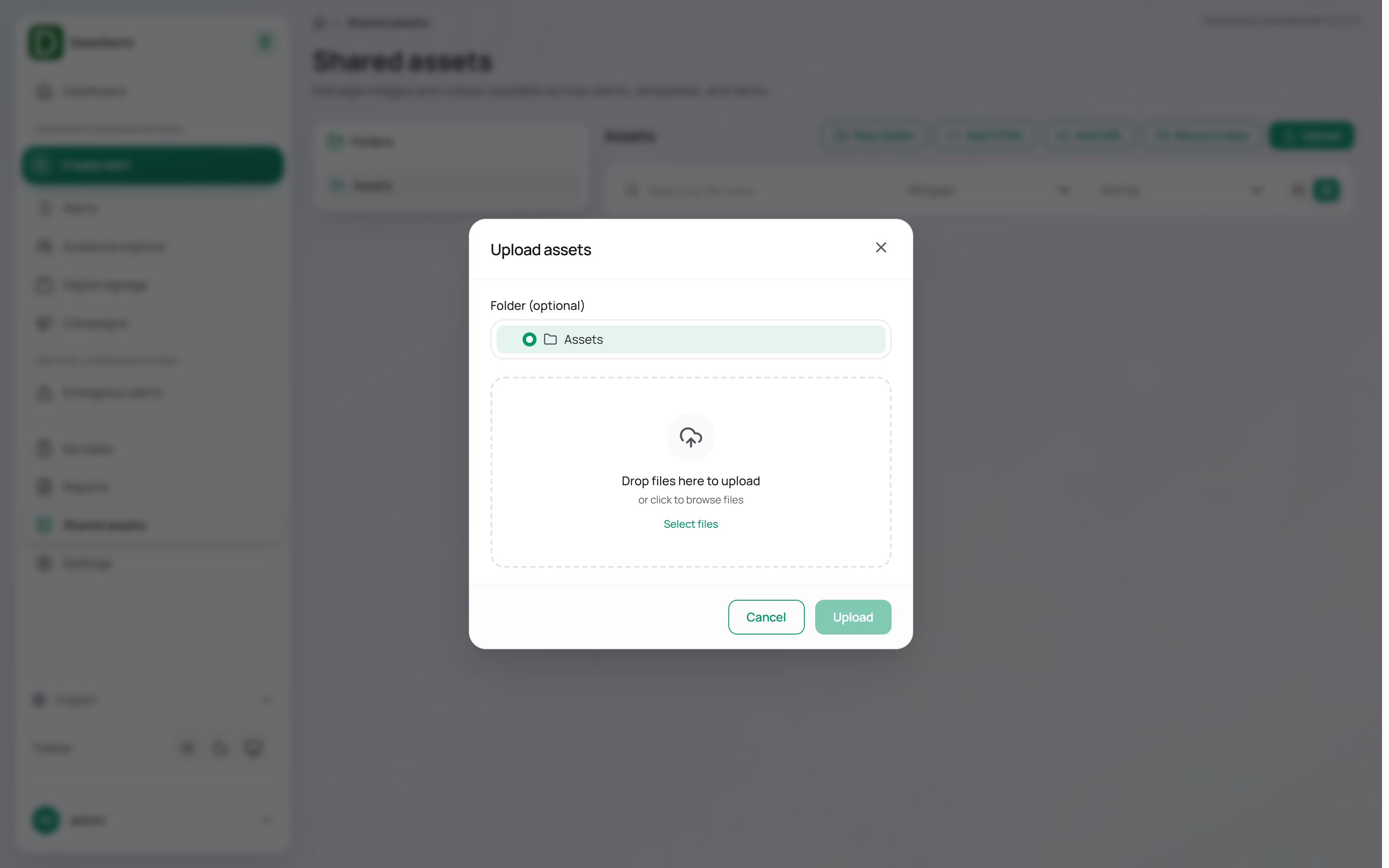
Add HTML
Click Add HTML to open the Create HTML Asset dialog and build an HTML page directly in the browser:
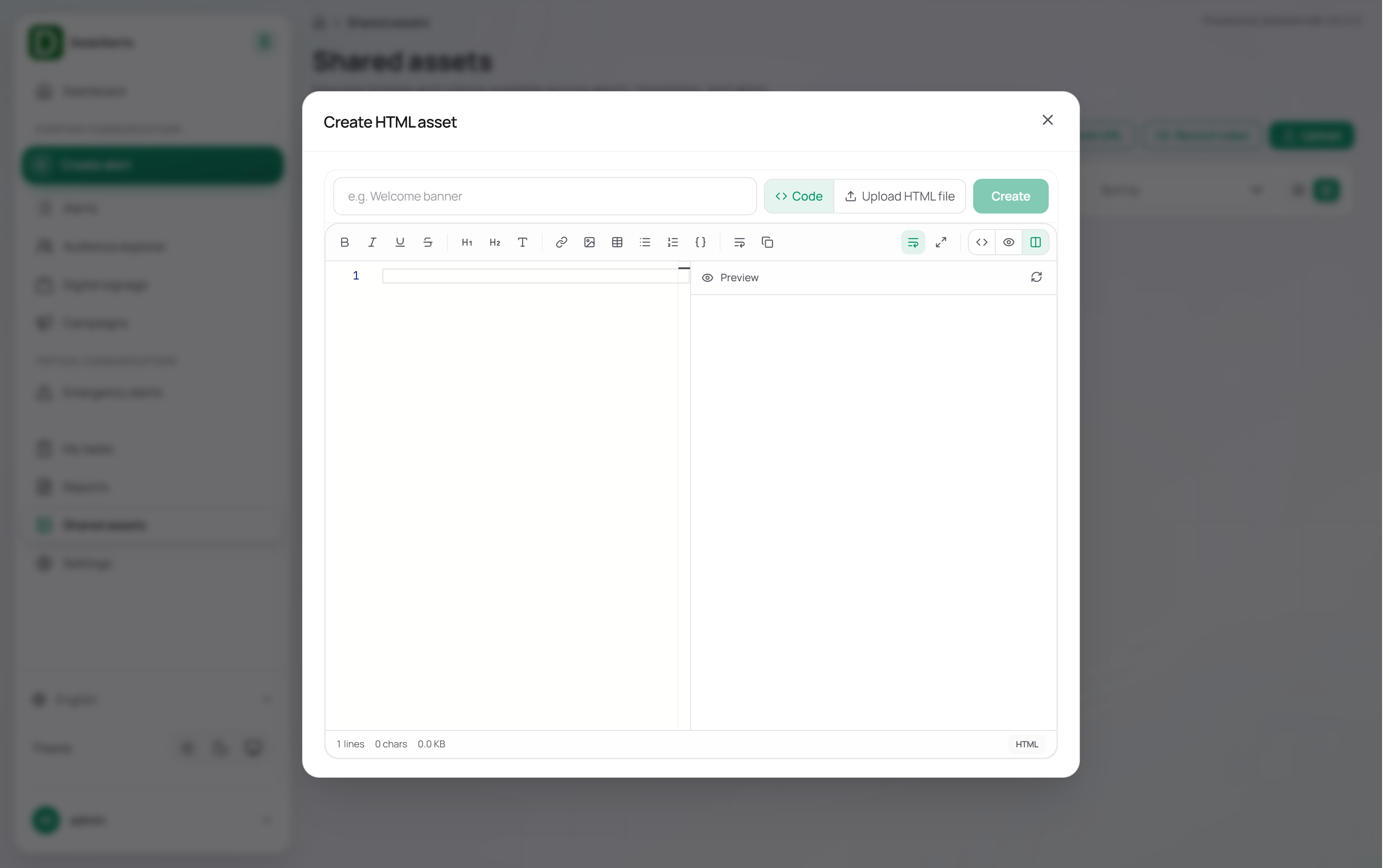
| Control | Description |
|---|---|
| Name | The asset name shown in the library (for example, Welcome Banner) |
| Folder | The destination folder (defaults to Assets) |
| Code / Upload HTML File | Write the markup in the editor or upload an existing .html file |
| Toolbar | Formatting shortcuts — bold, italic, underline, strikethrough, headings, links, images, tables, lists, code — and the code, preview, and split view modes |
| Status bar | Line count, character count, and size of the page |
Click Create to save the asset.
Add URL
Click Add URL to embed an external web page — a dashboard, a news site, a web application — as an asset that Digital Signage zones display in a frame.
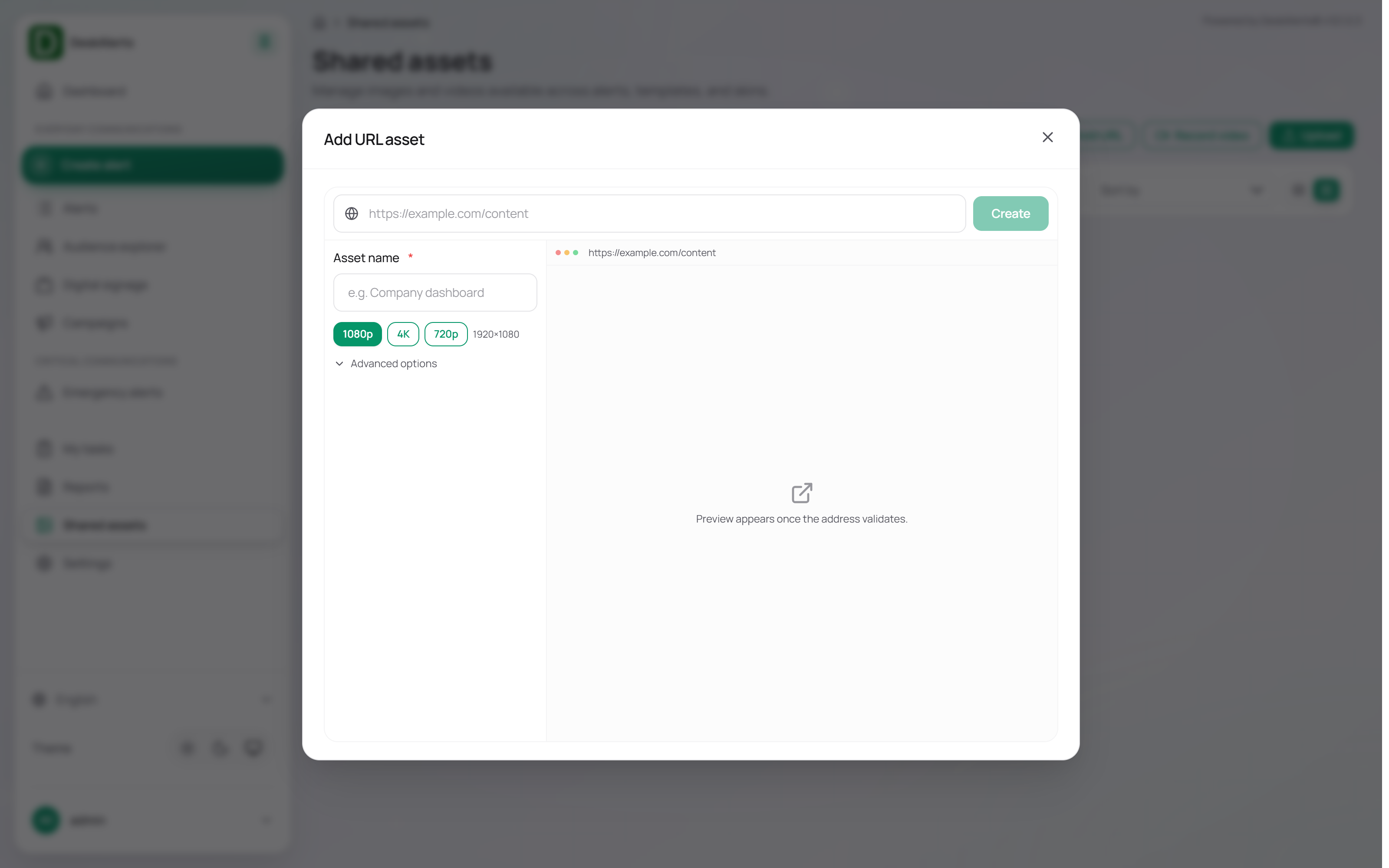
| Control | Description |
|---|---|
| URL | The address of the page (for example, https://example.com/content). A preview appears once the address validates |
| Asset Name (required) | The asset name shown in the library |
| Folder | The destination folder |
| 1080p / 4K / 720p | The resolution at which the page is rendered (1920×1080 by default) |
| Advanced Options | Custom frame dimensions and custom HTTP headers for pages that require authentication |
Click Create to save the asset.
Record video
Click Record video to record a clip with the computer's camera and microphone and save it to the library. The browser asks for permission to use the camera the first time.
Where shared assets are used
| Area | How the library is used |
|---|---|
| Alerts and templates | Insert images and videos from the library into the alert content; pick the video of a Video alert from the library |
| Alert skins | Use library images in custom skins (Settings → Alerts → Popup and ticker skins) |
| Campaigns | Pick the campaign cover image from the library |
| Digital signage | Assign images, videos, HTML pages, and URL assets to the zones of a screen. See Digital signage |