My tasks
Overview
My tasks is the personal approval inbox of a web-portal user. When an approval workflow assigns an alert to you as an approver, the alert appears here as a pending task; once you decide, the decision moves to the history. Approval workflows and the rules that route alerts to approvers are configured under Settings → Process automation — see Process automation.
The page is available under My tasks in the left navigation panel. The same pending tasks are shown in the Alert approvals in progress widget on the Dashboard.
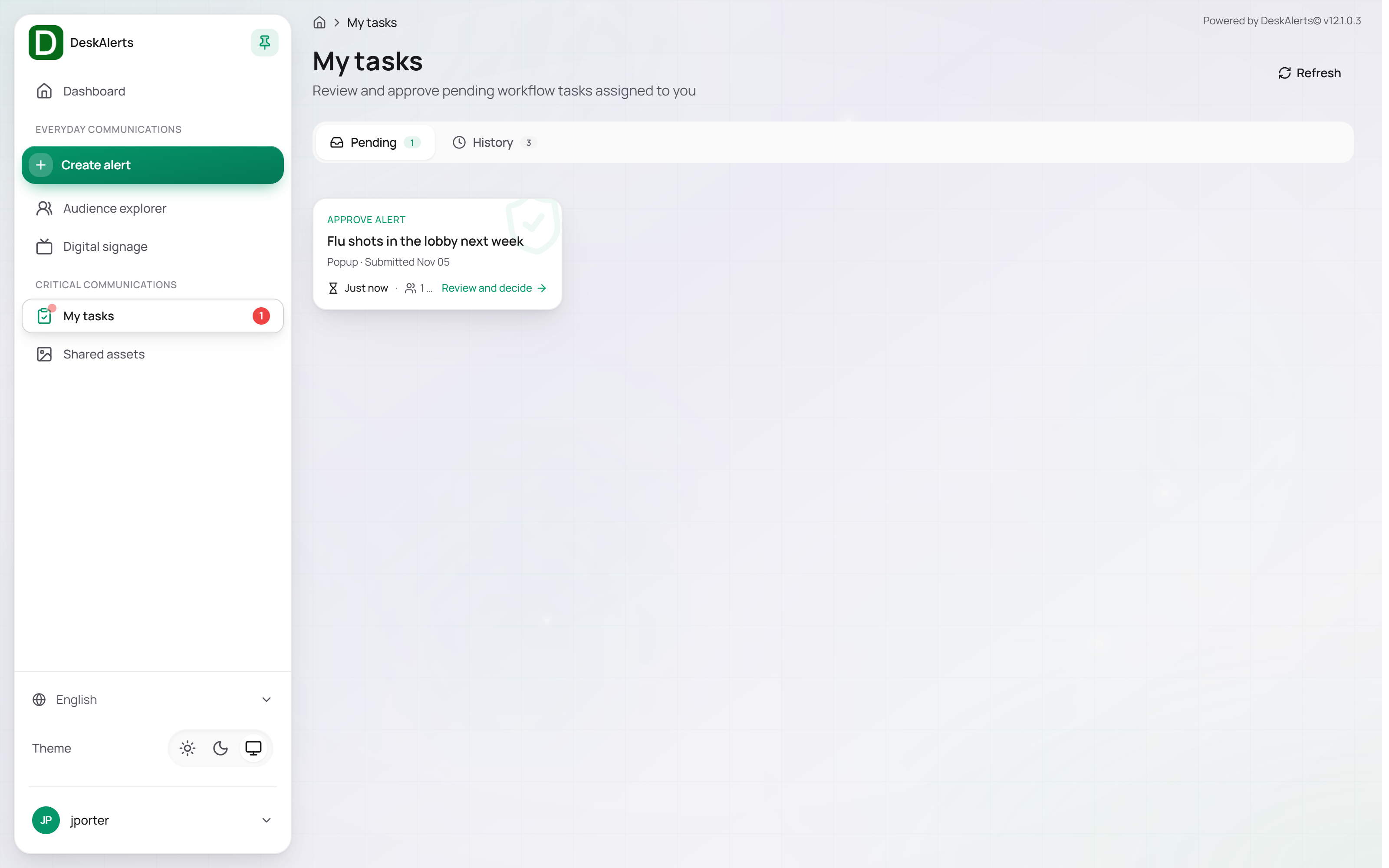 The My tasks page of the approver James Porter with one pending task
Page layout
The page has two tabs, each with a counter of its items, and a Refresh button in the page header that reloads the lists.
| Tab | Description |
|---|---|
| Pending | Alerts waiting for your decision |
| History | Decisions already taken on alerts you were involved with |
Pending
The Pending tab lists the alerts currently waiting for your approval. When nothing is waiting, the tab shows All caught up! — No pending approval tasks at this time.
Each task is a card (APPROVE ALERT) with the alert title, its type, the submission date, how long it has been waiting, and the number of recipients. Click Review and decide to open the review page.
Reviewing an alert
The review page shows the alert exactly as it will be delivered, so you can decide without opening the alert editor.
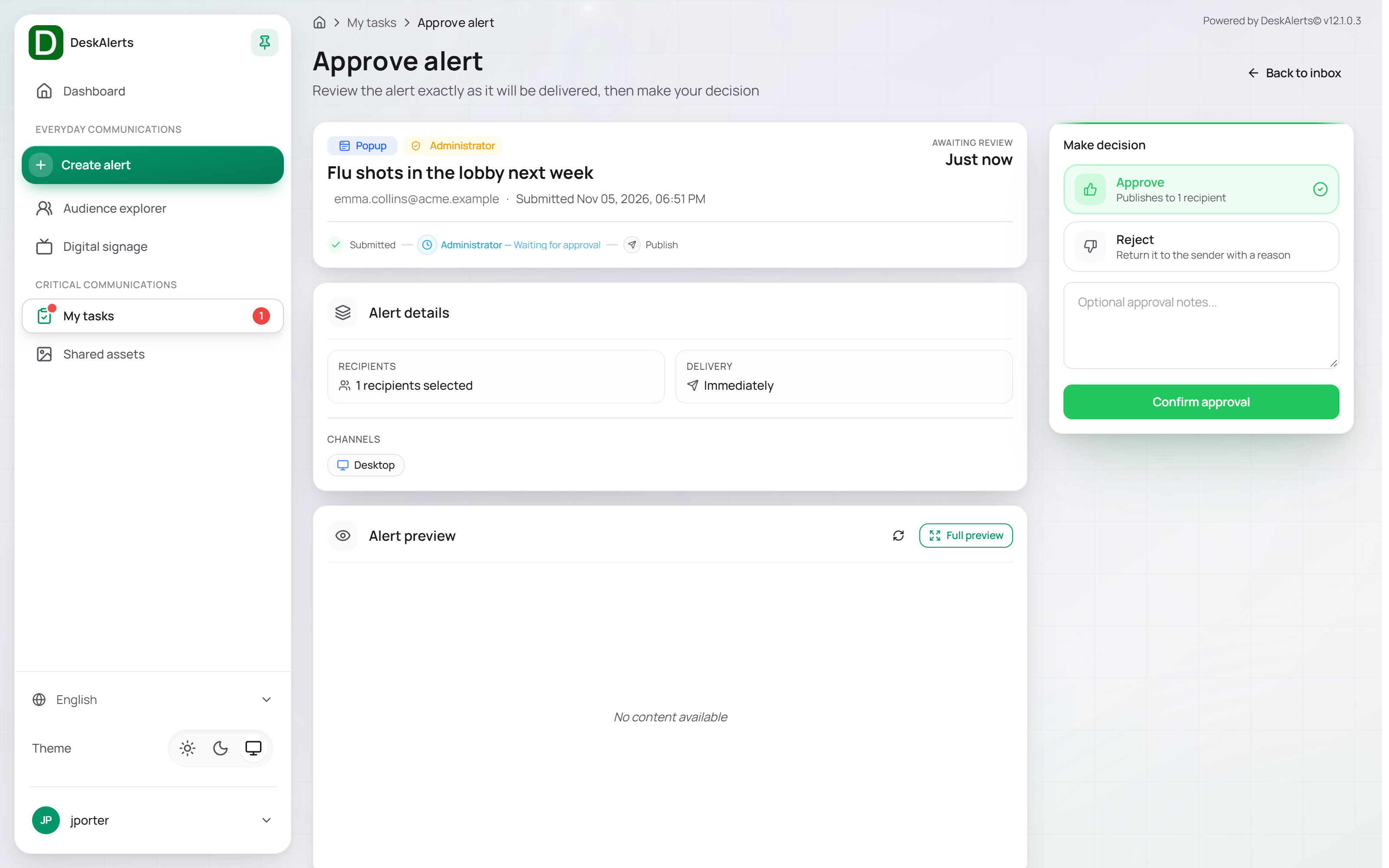 The review page — alert details, preview, target audience, approval history
| Area | Description |
|---|---|
| Header | The alert type and the approver role, the title, the sender's email and the submission time, the waiting time (AWAITING REVIEW 2m), and the workflow progress (Submitted → Administrator — Waiting for approval → Publish) |
| Alert details | Recipients, delivery (Immediately), channels |
| Alert preview | The alert as the recipient will see it, with Full preview |
| Target audience | The recipients |
| Approval history | The workflow steps with their status and expiry time (Submitted for approval. 1 step(s) required. — Waiting for approval — Expires Nov 06, 03:27 PM) |
| Make decision | Approve (Publishes to 1 recipient, or passes the alert to the next step of a multi-step workflow) or Reject (Return it to the sender with a reason), an optional note, and Confirm approval |
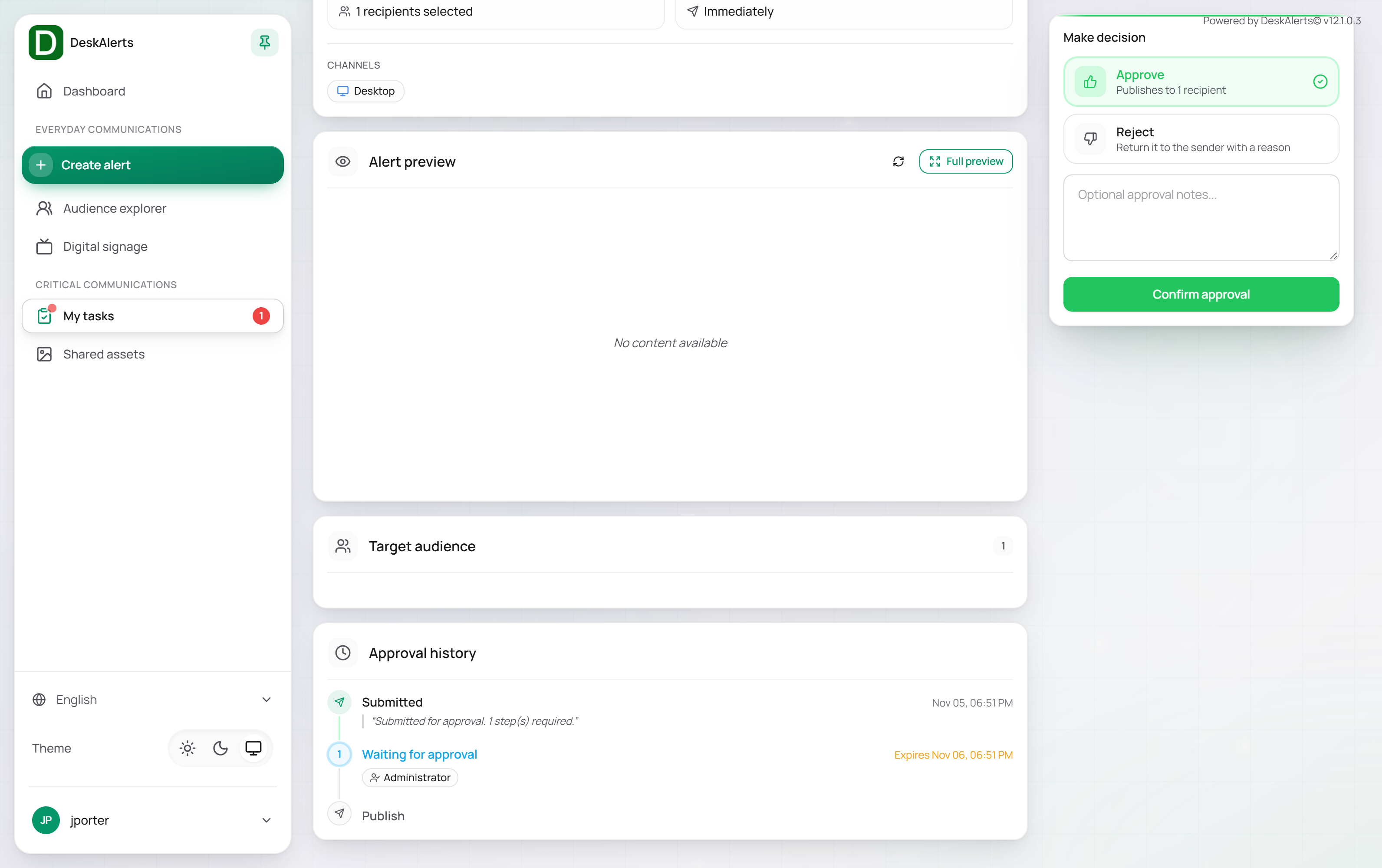 Make decision — Approve selected
After the decision you return to the inbox; the task moves to the History tab, the alert's status in the Alerts list changes to Distributing with an Approved badge (or to Rejected), and delivery starts — the recipients' agents show the alert within seconds.
Note: Tasks are assigned by role: you see a task when the approver role of the workflow step is one of your web-portal roles. A user without a role does not receive approval tasks even with full administrative rights.
History
The History tab is the log of approval decisions.
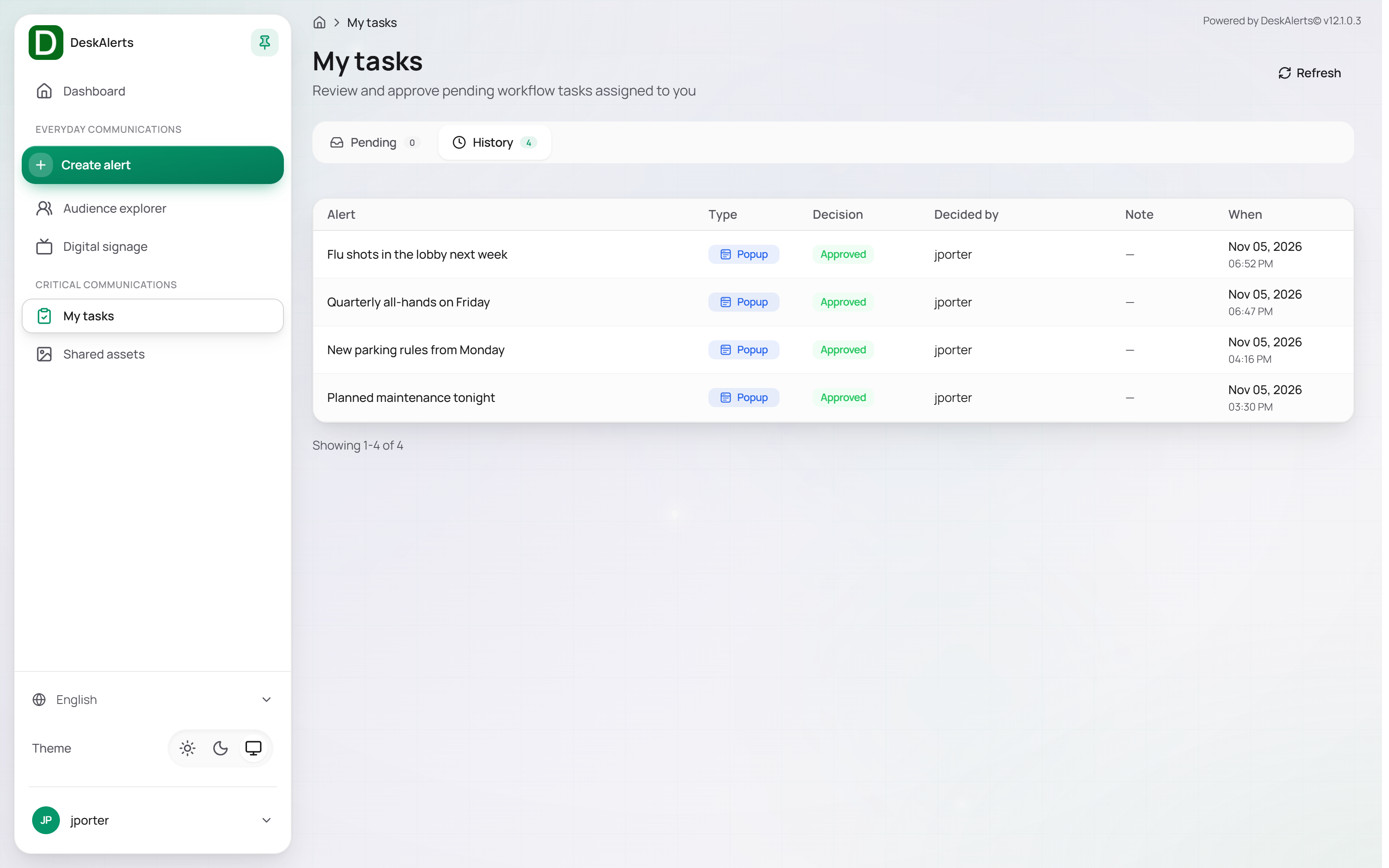 The History tab
| Column | Description |
|---|---|
| Alert | The alert title |
| Type | The alert type |
| Decision | The outcome of the step — Approved or Rejected, or the result of the workflow's timeout action |
| Decided by | The login of the user who made the decision (for example, jporter) |
| Note | The note entered with the decision |
| When | Date and time of the decision |
When no decisions have been recorded yet, the tab shows No approval history yet.